Unit 4 · 16 min read
Troubleshooting, Maintenance, Peripherals and Network Cabling
What the syllabus asks for 6
- The troubleshooting method
- Fault-finding table
- Preventive maintenance
- Printers, monitors and input devices
- Network cabling lab
- Eight preventive maintenance tasks
A technician is paid for fixing things methodically. This unit teaches the troubleshooting method, preventive maintenance, the common faults of each component, how printers and other peripherals work and fail, and how to make and test an Ethernet cable.
- The six-step troubleshooting method and a fault-finding table by symptom.
- Preventive maintenance schedule and testing tools.
- Printers (inkjet, laser), monitors and input devices.
- Ethernet cable standards, T568A/B colour code, crimping and testing; basic network checks.
4.1 The troubleshooting method
- Identify the problem: question the user ("What changed? When did it start? Any error message?"), reproduce it, back up data first.
- Establish a theory of the probable cause: start with the simplest and most likely (cable, power switch, setting).
- Test the theory: swap with a known-good part, change one thing at a time. If the theory fails, form another.
- Plan the fix and its side effects; get approval for significant changes.
- Implement and verify full functionality; apply preventive measures.
- Document the findings, the actions and the result.
Rules of thumb: check power and cables first; change one variable at a time; use known-good parts; read the error message exactly; search the exact text; never assume.
4.2 Fault-finding table
| Symptom | Possible causes | Checks and fixes |
|---|---|---|
| PC dead | mains, PSU switch, PSU fault, power button | different socket; PSU tester or multimeter; paper-clip test; reseat 24-pin |
| Random restarts, freezes | overheating, failing RAM, weak PSU, bad drivers | check temperatures; MemTest86; clean dust; reseat or replace RAM; update drivers |
| Very slow PC | full disk, malware, many start-up programs, failing HDD, low RAM | free space; scan malware; disable start-up apps; check SMART; add RAM or an SSD |
| Blue screen (BSOD) | driver, RAM or disk fault | note the stop code; boot in safe mode; roll back the driver; memory test |
| "No boot device" / OS missing | boot order, loose cable, corrupt boot sector, dead disk | BIOS detection; reseat cable; repair boot loader; replace disk |
| Clicking disk noise | failing HDD | back up now, replace; do not keep powering it |
| No display | cable, input source, GPU, RAM | check cable and monitor input; reseat GPU/RAM; try another monitor |
| No sound | muted, wrong output device, driver | speaker icon; output device; reinstall audio driver |
| USB not recognised | port, cable, driver, power | another port; another cable; Device Manager |
| No network | cable, adapter disabled, IP conflict, router | link light; ipconfig / ip a; ping 127.0.0.1, gateway, 8.8.8.8; restart router |
| Date and time reset at each start | dead CMOS battery | replace the CR2032 (a healthy cell reads about 3.0 V; replace below 2.5 V) |
| Overheating laptop | dust, blocked vents, dried paste | clean fans, replace paste, use a hard surface |
| Fan loud | dust, failing bearing | clean or replace the fan |
Diagnostic tools: BIOS hardware monitor; Windows Task Manager, Device Manager, Event Viewer, Reliability Monitor; CrystalDiskInfo or smartctl -a /dev/sda for the SMART health of a drive (reallocated sectors and pending sectors above 0 are bad signs); MemTest86 for RAM; HWMonitor for temperatures; Prime95/Cinebench for stress tests; a live Linux USB for testing without the installed OS.
Network test ladder: (1) ping 127.0.0.1 (the network stack works), (2) ping your own IP (adapter), (3) ping the default gateway (LAN), (4) ping 8.8.8.8 (Internet by IP), (5) ping google.com (DNS). The first failing step shows where the fault lies.
4.3 Preventive maintenance
| Frequency | Task |
|---|---|
| Daily | keep the area clean and ventilated; safely shut down; no drinks near the PC |
| Weekly | run malware scan; install updates; check backups |
| Monthly | disk clean-up; uninstall unused software; check SMART and free space |
| Every 3 to 6 months | open the case and remove dust (blow short bursts with the fans held still; do not vacuum the board, because static); check cable seating |
| Yearly | replace thermal paste on an old CPU; test the UPS battery; review the backup plan |
Environment: room temperature 18 to 27 °C, relative humidity 40 to 60 %; use a voltage stabiliser or UPS (Nepal's supply has surges and cuts); keep the PC off the floor; avoid direct sunlight.
Laptop care: do not block vents; keep the battery between 20 % and 80 % when possible; clean the keyboard with compressed air; use the original charger; shut down before travelling.
Cost of running a PC (illustrative). A 150 W PC used 8 hours a day for 30 days consumes 0.150 × 8 × 30 = 36 kWh; at Rs 10 per unit (illustrative figure; check the current tariff) that is about Rs 360 a month.
4.4 Printers, monitors and input devices
Inkjet printer. A print head fires microscopic droplets of liquid ink from nozzles (heated by thermal elements or pushed by piezoelectric crystals).
Cheap to buy, costly per page; heads clog if unused (run cleaning cycles and print weekly). Faults: streaks (clean heads), colours missing (empty cartridge), paper jam, smudging (wrong paper).
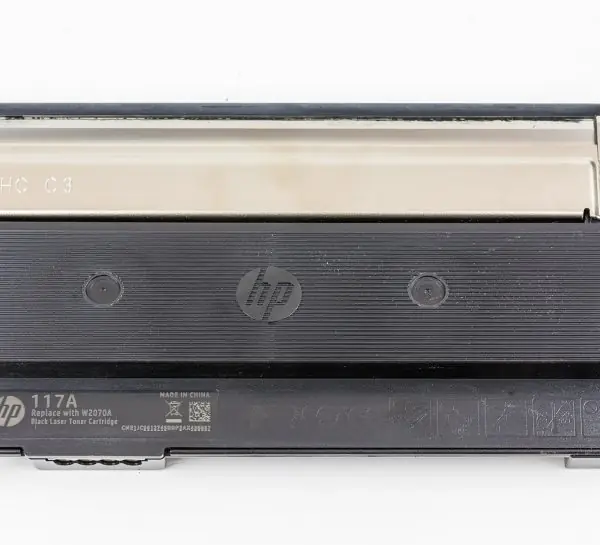
Laser printer. It forms the image with a laser on a charged drum, then toner and heat:
- Charging: a charge roller gives the drum a uniform negative charge.
- Exposing: the laser discharges the areas that will print.
- Developing: toner sticks to the discharged areas.
- Transferring: the paper pulls toner off the drum.
- Fusing: heated rollers melt the toner onto the paper (about 180 to 200 °C; do not touch after printing).
- Cleaning: the drum is wiped and discharged for the next page.
Faults: vertical streaks (dirty drum or low toner), ghosting (drum/fuser fault), toner smears (fuser), paper jam, wrinkled paper (fuser/humid paper).
Lasers are cheap per page and fast, good for text; dot-matrix impact printers print multi-part forms; thermal printers (receipts) use heat-sensitive paper; 3D printers build objects by extruding filament layer by layer.
Monitors. LCD types: TN (fast, weak colours), VA (contrast), IPS (colour, wide viewing angles). Specs: size, resolution (1920 × 1080 is Full HD; 3840 × 2160 is 4K), refresh rate (60, 144 Hz), response time, ports.
Pixels per inch = √(w² + h²) / diagonal. For 24″ Full HD: √(1920² + 1080²) = 2203 px; 2203 / 24 = 91.8 ppi. Dead pixels and flicker are display faults; try a different cable first.
Input devices: keyboards (membrane, mechanical), mice (optical, laser), touchpads, scanners (flatbed, with a CCD sensor), webcams, microphones. Clean the mouse sensor and keys; for a keyboard spill, unplug, turn it upside down and let it dry fully.
4.5 Network cabling lab
Ethernet cable categories (twisted pair)
| Category | Typical speed | Max distance |
|---|---|---|
| Cat5e | 1 Gb/s | 100 m |
| Cat6 | 1 Gb/s (10 Gb/s up to about 55 m) | 100 m |
| Cat6a | 10 Gb/s | 100 m |
All use an RJ-45 plug and a maximum channel of 100 m. UTP is unshielded; STP is shielded for noisy places. Keep power cables away; do not bend tighter than four times the diameter.
Colour codes (look from the clip side up, pin 1 on the left, with the cable pointing away)
| Pin | T568A | T568B (common in Nepal/most networks) |
|---|---|---|
| 1 | white/green | white/orange |
| 2 | green | orange |
| 3 | white/orange | white/green |
| 4 | blue | blue |
| 5 | white/blue | white/blue |
| 6 | orange | green |
| 7 | white/brown | white/brown |
| 8 | brown | brown |
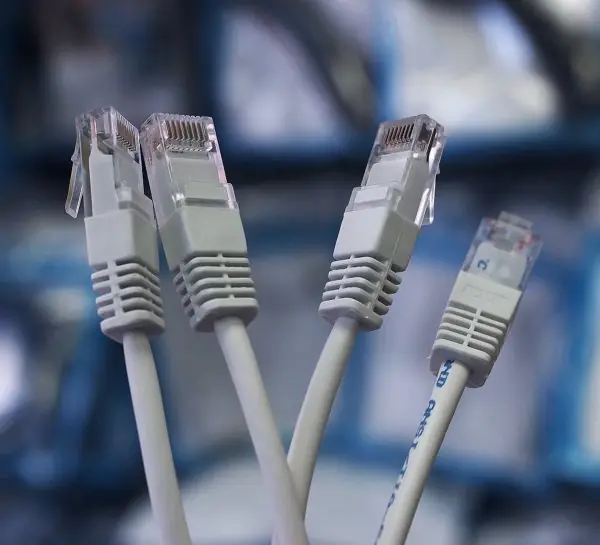
- Straight-through cable: same standard at both ends (PC to switch or router).
- Crossover cable: T568A at one end and T568B at the other (PC to PC, switch to switch on old hardware). Modern devices detect this automatically (Auto-MDI/MDIX), so straight-through works almost everywhere.
Crimping procedure
- Cut the cable end square. Strip about 2.5 cm of the outer jacket without nicking the wires.
- Untwist the pairs and straighten the wires; arrange the colours in the T568B order.
- Flatten and trim the wires to the same length (about 1.3 cm after the jacket).
- Hold the RJ-45 plug with the clip down and push the wires in until each touches the front of the plug; the jacket should enter the plug body so that the strain relief grips it.
- Insert in the crimper and squeeze firmly.
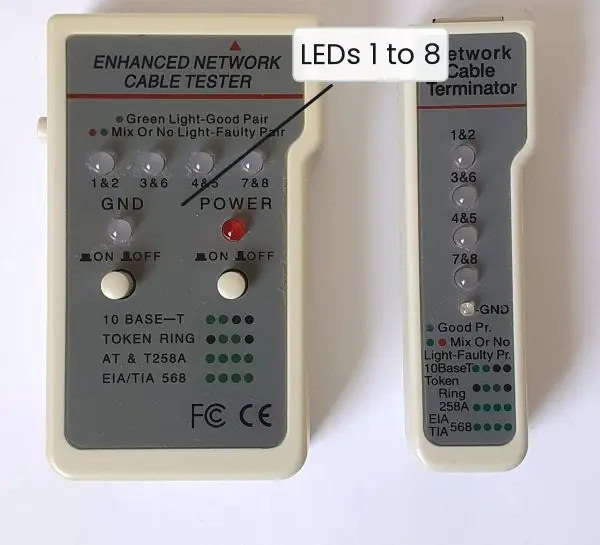
- Repeat on the other end with the same standard; test with a cable tester: the lights must run 1 to 8 in order on both units. A skipped or out-of-order light shows a bad crimp or a split pair.
Pinout check example. A tester shows lights 1, 2, 3, 6, 4, 5, 7, 8 on the far end: the cable is crossover (pairs 2 and 3 swapped); if you intended a straight cable, re-crimp one end.
Throughput check. On Gigabit Ethernet, the real data rate is about 940 Mb/s after Ethernet, IP and TCP overheads, that is, about 117 MB/s. A 4.7 GB file therefore takes about 4,700 / 117 ≈ 40 s.
Basic LAN set-up: connect PCs by straight cables to a switch; the switch connects to the router, which connects to the ISP.
Assign addresses automatically with DHCP, or manually: for example PC1 192.168.1.10, PC2 192.168.1.11, mask 255.255.255.0, gateway 192.168.1.1. Test with ping. Name the PCs, share a folder, and set permissions.
For Wi-Fi: secure with WPA2/WPA3, change the router's default password, and update its firmware.


4.6 Eight preventive maintenance tasks
- Dust cleaning. Blow dust from fans, heatsinks and filters every three to six months with a blower or soft brush (hold the fan still). Dust blocks airflow and raises the CPU temperature. Nepal's dry, dusty season makes this task more urgent.
- Thermal paste renewal. Replace the paste on the CPU every two to three years or when the temperature climbs. Clean the old paste with isopropyl alcohol and apply a fresh pea-sized drop. Dry paste conducts heat poorly.
- Software updates. Keep the OS, drivers and BIOS up to date, because many updates close security holes. Schedule them outside working hours. Test important updates on one machine first.
- Antivirus and safe habits. Use an updated antivirus and a firewall, and avoid pirated software and unknown USB drives. Teach users not to open suspicious links. Many Nepali offices are infected through pen drives.
- Backups. Follow the 3-2-1 rule: three copies, on two kinds of media, one stored elsewhere. Test a restore now and then. A backup that has never been restored is only a hope.
- Disk care. Check the disk health (SMART), free space and file-system errors, and defragment only HDDs. Keep at least 15 % of the disk free. A failing disk usually gives early warnings such as clicking sounds and slow response.
- Power protection. Use a surge protector or UPS because mains voltage in Nepal can spike and load-shedding can cut power abruptly. Shut down properly when the UPS warns. Sudden power loss damages file systems.
- Records and inspection. Keep a log of each machine's faults, repairs and parts, and label cables and ports. Check cables, connectors and fans for wear during every visit. A history shows which parts fail repeatedly.
Formula and fact sheet
- Troubleshooting: identify → theory → test → plan → verify → document.
- Network ladder: 127.0.0.1 → own IP → gateway → 8.8.8.8 → domain name.
- CMOS cell 3.0 V; replace below 2.5 V. Clean dust every 3 to 6 months.
- Laser steps: charge, expose, develop, transfer, fuse, clean.
- T568B: wo, o, wg, b, wb, g, wbr, br. Straight = same ends; crossover = A and B.
- Cable max 100 m. Gigabit real ≈ 117 MB/s.
- PPI = √(w² + h²)/diagonal. Energy (kWh) = kW × hours.
Chapter summary
- Methodical troubleshooting beats guessing: simplest cause first, one change at a time, known-good parts.
- Preventive maintenance (cleaning, updates, backups, UPS) avoids most failures.
- Printers, monitors and input devices have well-known faults with simple remedies.
- A good Ethernet cable follows one colour standard on both ends, and a tester proves it.
Practice
- Explain the six steps of the troubleshooting method with an example.
- A PC restarts randomly after 10 minutes of use. List five likely causes and the test for each.
- List the stages of laser printing and name a fault caused by the fuser.
- Write the T568B colour order and the procedure for crimping a straight cable.
- When is a crossover cable needed? How does the tester display it?
- The date resets every time the PC powers on. What is the cause and the fix?
- Compute the pixel density of a 15.6-inch 1920 × 1080 laptop screen.
- Explain the network test ladder and what each failing step means.
- Create a monthly maintenance checklist for a computer lab of 30 PCs.
- A 150 W lab PC runs 6 hours a day for 26 days; find monthly energy and cost at Rs 12 per unit.
Answers and worked solutions
1. Example: no display. Identify (fans spin, no picture); theory (loose cable); test (try another cable and port); plan (reseat RAM if needed); verify (picture and boot); document (record the cause).
2. Overheating (check temperatures, clean), faulty RAM (MemTest86), weak PSU (swap or test rails), bad driver (safe mode, update), failing disk (SMART).
3. Charge, expose, develop, transfer, fuse, clean. A fuser fault causes smeared toner or wrinkled paper.
4. wo, o, wg, b, wb, g, wbr, br; procedure in §4.5, ending with a tester check.
5. To connect two similar devices directly (PC to PC) on hardware without Auto-MDIX. The tester shows 1, 2, 3, 6, 4, 5, 7, 8 at the far end.
6. A dead CMOS battery (CR2032). Replace it and reset the clock in BIOS.
7. √(1920² + 1080²) = 2202.9 px; 2202.9 / 15.6 = 141 ppi.
8. 127.0.0.1 fails: network software fault. Own IP fails: adapter or driver. Gateway fails: LAN cable, switch or router link. 8.8.8.8 fails: ISP or router WAN. Domain fails while 8.8.8.8 works: DNS fault.
9. Monthly: update OS and antivirus, check disk space and SMART, test backups, clean keyboards and mice, check UPS status, inspect cables and fans, log faults and repairs; every 3 to 6 months remove dust from each case.
10. 0.15 × 6 × 26 = 23.4 kWh; × 12 = Rs 280.80.
Model answers: medium (5 marks) and long (10 marks) questions
Q (5 marks). Describe the procedure to make and test a straight-through Ethernet cable.
A straight-through cable has the same colour standard (T568B) at both ends and joins unlike devices such as a PC and a switch (Figure 4.1). Tools: Cat5e/Cat6 cable, RJ45 plugs, a stripper, a crimper and a cable tester (Plate 4.1).
- Cut the cable end square and strip about 2.5 cm of the outer jacket without nicking the wires.
- Untwist the four pairs and straighten them. Arrange them in the T568B order: white/orange, orange, white/green, blue, white/blue, green, white/brown, brown.
- Flatten the wires and trim them to the same length, about 1.3 cm out of the jacket.
- With the clip side down, push the wires into the plug until every wire touches the front and the jacket enters the plug.
- Place the plug in the crimper and squeeze firmly; repeat on the other end with the same order.
- Test: connect both ends to the tester. LEDs 1 to 8 must light in order on both units. A skipped light shows a broken contact; swapped numbers show a wiring error (a crossover cable shows 1-3, 2-6 swapped).
The maximum length is 100 m, and Gigabit Ethernet gives about 117 MB/s of real data after overhead.
Q (10 marks). Explain the systematic method of troubleshooting a computer. Give a fault-finding table for six common faults.
Introduction. Troubleshooting is the logical process of finding the cause of a fault and removing it. A fixed method saves time, prevents damage and avoids repeated visits (Figure 4.2).
The six steps.
- Identify the problem. Ask what happened, when it began and what changed (new software, power cut, moved the PC). Reproduce the symptom.
- Protect the data. Back up before any risky repair, and note the current state with a photo.
- Form a theory. Start with the simplest and most likely causes, such as cables, power and settings, before suspecting the board.
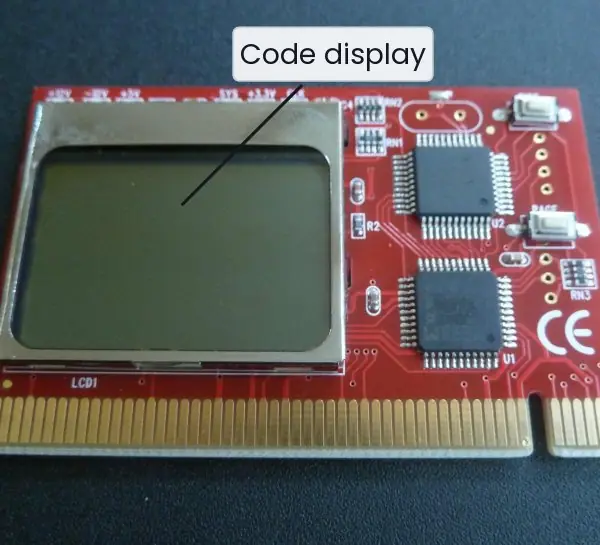
- Test the theory. Swap with a known good part, run diagnostics or use the POST card (Plate 4.1a); if the theory fails, form a new one or escalate.
- Fix and verify. Apply the repair, then test the whole system and ask the user to confirm that the problem is gone.
- Document. Record the symptom, cause, action and parts used; advise the user how to prevent a repeat.
Fault-finding table.
| Symptom | Likely cause | Test | Fix |
|---|---|---|---|
| No power, no fans | mains, PSU, PWR pins | try another cable and socket; PSU paper-clip test | replace cable or PSU |
| Fans spin, no display | RAM, GPU, monitor cable | reseat RAM; try the onboard port | reseat or replace |
| Restarts or shuts down | overheating, weak PSU | check temperatures and fan | clean dust, new paste |
| "Operating system not found" | boot order, disk fault | check BIOS boot list and SMART | set order, repair boot loader |
| Slow, clicking disk | failing HDD | SMART status | back up, replace with SSD |
| No network | cable, adapter, IP | test cable; ipconfig |
re-crimp, enable adapter |
Conclusion. The method works from the cheapest and most likely cause to the most expensive one. Testing one change at a time and keeping a record is what separates a technician from a guesser.