Unit 1 · 16 teaching hours · 46 min read
Introduction to Computer System
What the syllabus asks for 12
- Introduction to computer
- Generations of computers
- Characteristics of a computer
- Applications of computers
- Classification of computers
- Mobile computing
- Anatomy of a digital computer
- Computer architecture
- Memory and its classification
- Input devices
- Output devices
- Interfaces
Every other subject in the BCA stands on this unit.
Before you can write a program, design a database or secure a network you must know what a computer is made of, how it executes an instruction, where it keeps data and how it talks to the world.
This unit covers all eleven topics of the Tribhuvan University syllabus for the first theory unit, in syllabus order.
- What a computer is, its characteristics, and where it is used.
- The three classifications (size, purpose, data handled) and the five generations.
- The anatomy of a digital computer: CPU, memory, I/O, buses, and the stored-program idea.
- The memory hierarchy with real capacities and speeds, and how to compute with memory sizes.
- Input devices, output devices and the interfaces that connect them.
1.1 Introduction to computer
A computer is an electronic device that accepts data, stores it, processes it according to a stored list of instructions (a program), and produces information. The cycle is input → process → output, with storage serving all three.
- Data are raw facts (
75,Sita,2082-05-14). Information is data processed into a meaningful form ("Sita scored 75, the class average is 62"). - Hardware is the physical machine; software is the programs that run on it; people-ware (users, programmers, administrators) completes the system.
The development of computer hardware is described in five generations (see §1.2 and Figure 1.1).
1.2 Generations of computers
A generation of computers is a stage of development marked by a major change in the hardware technology used to build the machine. Each change made computers smaller, faster, cheaper, cooler, more reliable and easier to program.
The dates are approximate and overlap, because one generation did not stop on the day the next began.
The TU question "Explain the generations of computers" is a ten-mark question, so learn the technology, years, examples, features, advantages and limitations of each generation.
The timeline in Figure 1.1 shows the whole story on one page.

1.2.1 First generation (1940–1956): vacuum tubes
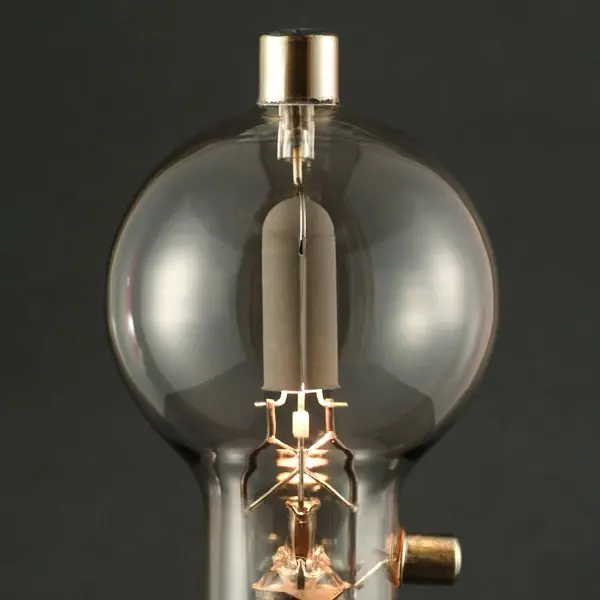
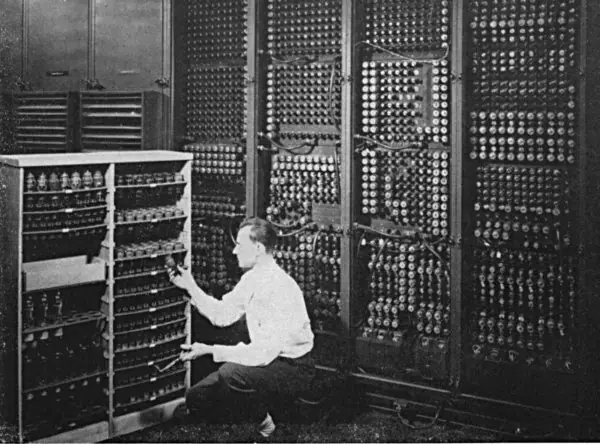
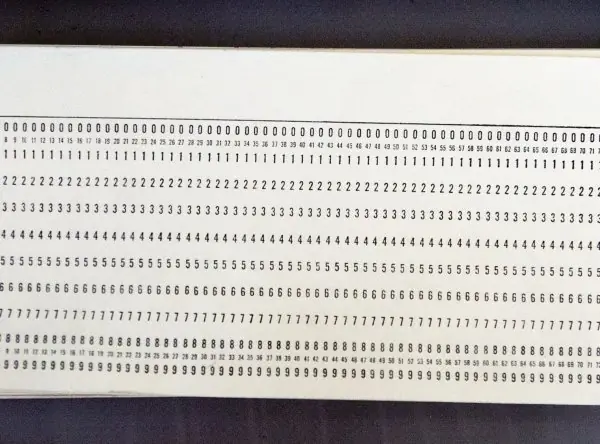
- Technology: the vacuum tube, a glass bulb that works as an electronic switch or amplifier. Data were stored on magnetic drums and punched cards, and programs were written in machine language (pure 0s and 1s).
- Examples: ENIAC (1945; about 18,000 tubes, 30 tonnes, filled a large hall, about 5,000 additions per second), EDVAC, Harvard Mark I and UNIVAC I (1951), the first computer sold commercially.
- Features: very large, very slow by today's standard, very expensive and used for one fixed job. A single tube failure could stop the whole machine.
- Advantages: it proved that electronic calculation was possible and was thousands of times faster than a human with a mechanical calculator, so it was ideal for artillery tables and census work.
- Limitations: huge heat and power use, the air conditioning bill was enormous, tubes burned out often, programming in binary was slow and error-prone, and only a few experts could operate it.
1.2.2 Second generation (1956–1963): transistors
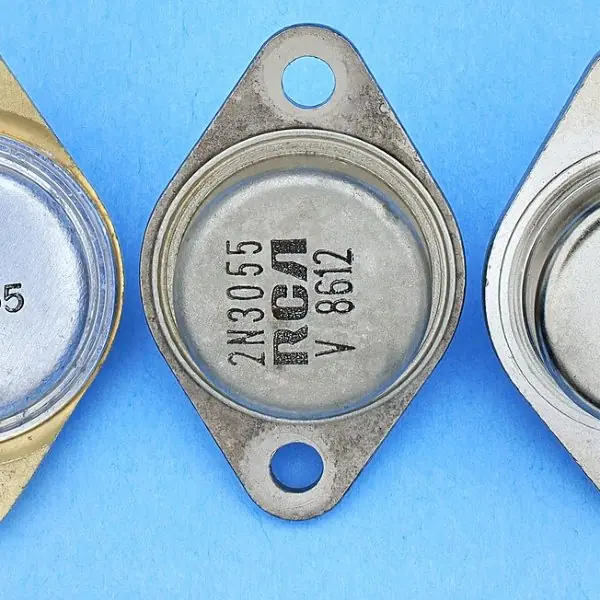
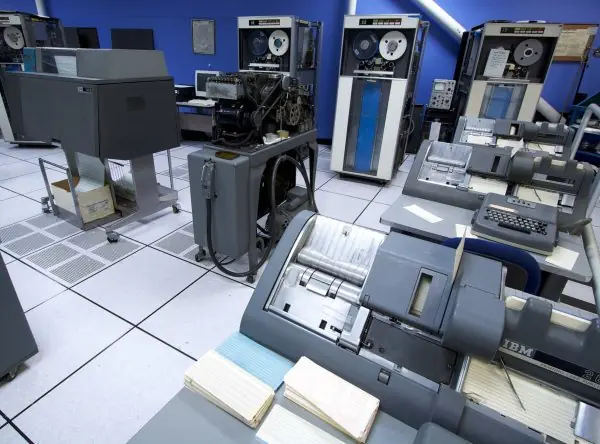
- Technology: the transistor (invented at Bell Labs in 1947) replaced the tube. It is a small solid-state switch that uses little power, gives little heat and rarely fails. Magnetic core memory was used as main memory and magnetic tape and disk for storage.
- Languages: assembly language and the first high-level languages, FORTRAN (1957) for science and COBOL (1959) for business.
- Examples: IBM 1401, IBM 7090, CDC 1604 and UNIVAC II.
- Nepal link: the IBM 1401 is reported as the first computer brought to Nepal, for processing the 2028 BS (1971 AD) population census. Nepal's first computer therefore arrived while the world was already moving to the third generation.
- Advantages: much smaller than the tube machines, faster, more reliable, cheaper to run, and easier to program because of assembly language and compilers.
- Limitations: still expensive and room-sized, batch processing only (jobs were run one after another with no real-time interaction), and each transistor had to be wired by hand, which kept costs high.
1.2.3 Third generation (1964–1971): integrated circuits
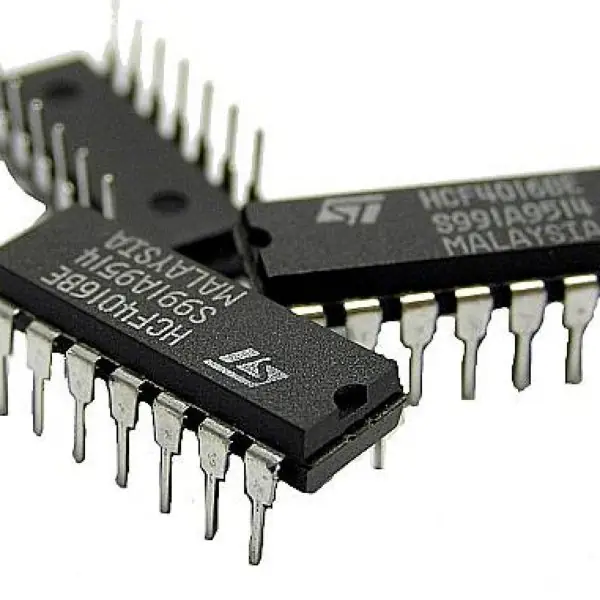
- Technology: the integrated circuit (IC), invented by Jack Kilby (1958) and Robert Noyce (1959), puts many transistors, resistors and wires on one small silicon chip. SSI chips held fewer than 100 components and MSI chips held hundreds. Semiconductor memory began to replace core memory.
- Software: real operating systems, multiprogramming and time-sharing, with high-level languages such as BASIC, Pascal and early C. Users now worked through keyboards and monitors instead of punched cards.
- Examples: IBM System/360 (1964), IBM 370, DEC PDP-8 and the ICL 2950/10, which was used in Nepal from 2038 BS (1981 AD) at the National Computer Centre.
- Advantages: smaller and cheaper than the transistor machines, much faster, more reliable, lower power use, and many users could share one machine at the same time.
- Limitations: still too costly for individuals, needed air conditioning, chips were hard to repair, and the machines were mostly owned by governments, universities and large companies.
1.2.4 Fourth generation (1971–present): microprocessors, LSI and VLSI
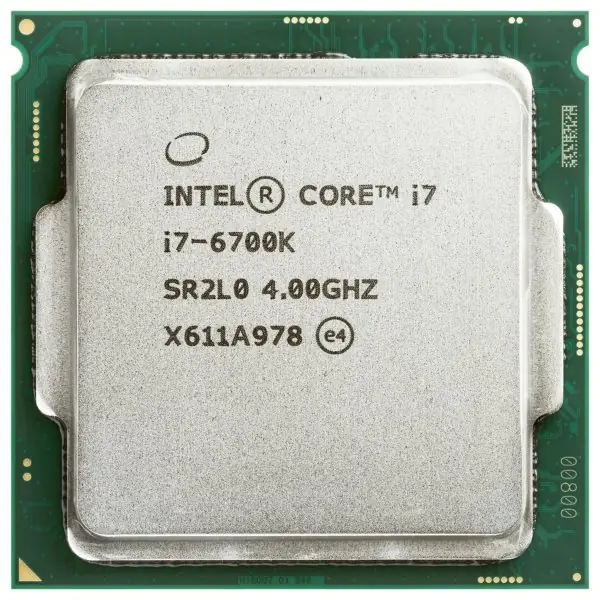
- Technology: thousands, then millions and now billions of transistors on one chip (LSI, VLSI). The whole CPU fits on one microprocessor. The first was the Intel 4004 (1971): 4-bit, 2,300 transistors, about 740 kHz.
- Milestones: Intel 8086 (1978), IBM PC (1981), Apple Macintosh with its GUI (1984), laptops, smartphones, LANs, the Internet and the World Wide Web. Semiconductor RAM, hard disks, SSDs and optical discs became the storage of choice.
- Examples: Intel Core and AMD Ryzen (x86) processors, ARM chips in phones, and Apple's M-series chips.
- Advantages: personal, cheap, fast and portable computers for everyone, networking, graphics and multimedia, very high reliability and low power use per operation.
- Limitations: rapid obsolescence and e-waste, viruses and cyber-crime, privacy risks, and a digital divide between people who can and cannot afford connected devices.
1.2.5 Fifth generation (present and beyond): AI, parallel processing and quantum computing
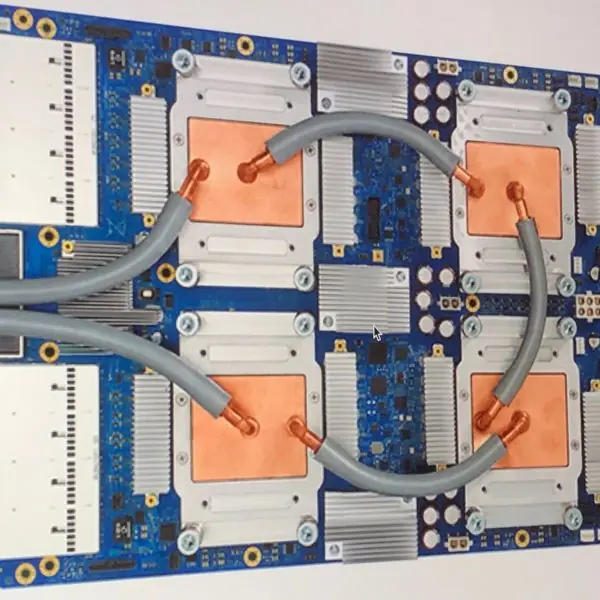
- Technology: ULSI chips with billions of transistors, multi-core and parallel processing, GPUs and TPUs for AI, and experimental quantum computers that use qubits. Japan's Fifth Generation Computer Systems project (1982–1992) first used the name.
- Aim: machines that learn, reason, understand speech and language, recognise images and take decisions with little human help.
- Examples: IBM Watson, voice assistants, self-driving research cars, machine translation, generative-AI chatbots, and IBM and Google quantum processors.
- Advantages: natural interaction by voice or text, intelligent automation, faster scientific discovery and medical diagnosis support.
- Limitations: very high energy and data needs, bias and wrong answers from AI models, job displacement, ethical and legal questions, and quantum hardware that is still small, noisy and expensive.
1.2.6 Comparison of the five generations
| Basis | 1st | 2nd | 3rd | 4th | 5th |
|---|---|---|---|---|---|
| Period | 1940–1956 | 1956–1963 | 1964–1971 | 1971–present | present and beyond |
| Main component | vacuum tube | transistor | IC (SSI/MSI) | microprocessor (LSI/VLSI) | ULSI, AI chips, qubits |
| Main memory | magnetic drum | magnetic core | semiconductor | RAM chips | large RAM, SSD |
| Language | machine | assembly, FORTRAN, COBOL | BASIC, Pascal, C | C++, Java, Python | AI tools, natural language |
| Software | none or hand-set | batch monitor | OS, time-sharing | GUI OS, networks | AI, cloud |
| Speed | milliseconds | microseconds | nanoseconds | nanoseconds, multi-GHz | parallel, many-core |
| Size | room | large cabinet | cabinet or desk | desktop to pocket | chip, cloud |
| Heat and power | very high | high | medium | low | optimised |
| Cost | extremely high | very high | high | low | falling |
| Examples | ENIAC, UNIVAC I | IBM 1401, IBM 7090 | IBM 360, ICL 2950 | IBM PC, Mac, phones | Watson, GPU/TPU, quantum |
Use the chain tube → transistor → IC → microprocessor → AI. For Nepal, remember IBM 1401 (2028 BS census) and ICL 2950/10 (2038 BS). Write at least two examples and one advantage and one limitation for each generation to score full ten marks.
1.3 Characteristics of a computer
A computer is useful because of the eight characteristics below. Learn the bold heading and one sentence of explanation for each; in a 5-mark answer, give five or more with a short example.
- Speed. A computer works through millions or billions of simple operations every second. A modern CPU runs at 3 to 5 GHz, which means 3 to 5 billion clock cycles per second. A payroll that takes a clerk a week is finished in seconds.
- Accuracy. The computer does not make arithmetic mistakes. Errors come from wrong data or a wrong program, which is why we say "garbage in, garbage out" (GIGO). Accuracy is why banks trust computers with millions of rupees.
- Diligence. A computer never gets tired, bored or careless. The millionth calculation is done with the same care as the first. This makes it perfect for repeated work like printing thousands of bills.
- Versatility. The same hardware can type a letter, play music, draw a house plan or run a bank, depending on the program loaded. Only the software changes. This is why one smartphone replaces a camera, a calculator and a radio.
- Storage capacity. A computer keeps huge amounts of data in a very small space and finds any item within a fraction of a second. A 1 TB disk can hold millions of documents. The data can be copied, backed up and carried easily.
- Automation. Once a program is started, the computer carries out all its steps by itself without a person guiding each step. A person only writes the program and gives the input. Automatic ATMs and traffic signals work this way.
- Connectivity. Computers can be joined into networks and the Internet to share data, files, printers and programs. People in Nepal can talk to relatives in Qatar or Japan by video at any time. A network also lets many users work on the same data together.
- No intelligence (no IQ). A computer does exactly what it is told and nothing else. It cannot think, feel or decide for itself unless a person has programmed that behaviour. Even modern AI only follows patterns learned from data.
Computers depend on electricity and correct programs, can be attacked by viruses, cannot judge right from wrong, and need trained people. Mentioning two limitations makes a "characteristics" answer more complete.
1.4 Applications of computers
Computers are used almost everywhere because they are fast, accurate and never tired. The eight main areas below are the ones the TU paper asks about. For each one, learn the idea, one Nepali example and one benefit.
1.4.1 Education and e-learning
Schools and colleges use computers to prepare notes, show slides, run online classes and keep student records. Students learn from videos, simulations and digital libraries, and results are published online within days.
During the COVID-19 lockdown, Zoom, Google Meet and Google Classroom kept thousands of Nepali classes running. Apps and websites also let students in remote districts study from the same material as students in Kathmandu.
1.4.2 Banking and digital finance
Banks keep every account in a computer system called Core Banking System (CBS), so you can deposit in one branch and withdraw in another.
ATMs give cash at any hour, and mobile banking, Fonepay QR payment, eSewa, Khalti and ConnectIPS move money in seconds. Computers also check each transaction for fraud and print statements automatically.
This saves time, reduces queues and keeps accurate records.
1.4.3 Healthcare and hospitals
Hospitals use computers to store patient records (EMR), book appointments and prepare bills. Machines such as CT scan, MRI and ultrasound use computers to turn signals into clear pictures of the inside of the body.
Telemedicine lets a doctor in a city advise a health post in a mountain village over a video call. Pharmacies and laboratories also use software to track medicines and test results.
1.4.4 Governance and public services
Government offices use computers for citizenship, land and tax records.
The Nagarik App, National ID card, e-Passport and the online Inland Revenue Department system let citizens apply, pay and check status without long trips to the office.
Online results, vehicle registration and bill payment are also digital. This makes services faster, more open and less open to corruption.
1.4.5 Science, engineering and weather forecasting
Scientists use computers for calculations that would take a human lifetime, such as designing a bridge, simulating an earthquake or reading satellite data. Engineers draw buildings and machines with CAD software.
Nepal's Department of Hydrology and Meteorology (DHM) uses computer models, radar and satellite data to forecast rain, floods and temperature. These forecasts help farmers, pilots and disaster-management teams to prepare.
1.4.6 Business, retail and inventory
Shops and companies use computers for billing, stock control, payroll and accounting. A POS (point of sale) machine scans a barcode, prints the bill and reduces the stock in one step.
Managers use spreadsheets and reports to see which goods sell best. Online shops such as Daraz also use computers to take orders, track deliveries and handle payments.
1.4.7 Communication and media
Email, chat, video calls and social media let people talk instantly across the world, which is especially important for Nepali families whose members work abroad.
Newspapers, FM radio and television prepare news with computers, and editors use software to cut video, mix sound and design pages. Streaming sites deliver songs and films to phones.
Communication has become cheaper, faster and richer than letters or telegrams ever were.
1.4.8 Agriculture, tourism and transportation
Farmers receive weather, price and crop-advice messages on their phones, and some use drone images and sensors to check crops and water.
Hotels, travel agencies and airlines in Nepal use computers for room and ticket booking, and trekking permits and visas can be handled online.
Bus, flight and train tickets are booked by computer, and traffic lights, GPS maps and ride-sharing apps keep vehicles moving. These uses save time and money for both the service and the customer.
| Area | Typical computer use | Nepali example |
|---|---|---|
| Education | online classes, e-library, results | Google Classroom, TU result portal |
| Banking | CBS, ATM, QR and mobile payment | Fonepay, ConnectIPS |
| Health | EMR, CT/MRI, telemedicine | hospital information systems |
| Governance | digital ID and services | Nagarik App, e-Passport |
| Science | simulation, forecasting | DHM weather forecast |
| Business | POS, stock, accounting | retail billing software |
| Communication | email, video call, media | Messenger, FM and TV studios |
| Agriculture, tourism, transport | advice, booking, tickets | hotel and flight booking |
1.5 Classification of computers
By size and power
| Type | Description | Example use |
|---|---|---|
| Supercomputer | thousands of processors, quadrillions of operations per second | weather and climate models, nuclear and genome simulation |
| Mainframe | very reliable, serves thousands of users and transactions | bank and airline transaction systems |
| Minicomputer (mid-range server) | between mainframe and PC; multiuser | departmental servers, manufacturing control |
| Microcomputer | single-chip CPU; desktop, laptop, tablet, smartphone | personal and office use |
| Embedded computer | a computer inside another device | washing machine, car engine control, router |
By purpose: general-purpose (can run any program: a PC) and special-purpose (built for one task: an ATM controller).
By data handled
| Type | Works on | Example |
|---|---|---|
| Analog | continuous physical quantities | speedometer, old thermometer |
| Digital | discrete values (binary 0 and 1) | PC, phone |
| Hybrid | both: analog input converted to digital for processing | ICU patient monitor, petrol pump |
1.6 Mobile computing
Mobile computing means using computing and communication while moving, through portable devices, wireless networks and software that works anywhere.
Its three parts: mobile hardware (smartphone, tablet, laptop, wearable), mobile communication (Wi-Fi, 4G/5G, Bluetooth, GPS) and mobile software (apps and mobile operating systems such as Android and iOS).
Advantages: access anywhere (mobile banking, wallets such as eSewa and Khalti, maps), productivity and instant communication.
Limitations: small screen and keyboard, limited battery life, variable signal quality, security risks (lost device, public Wi-Fi) and limited processing power compared with desktops.
1.7 Anatomy of a digital computer
A computer has five functional units.
- Input unit: brings data in (keyboard, mouse, scanner).
- Central Processing Unit (CPU): the processor. - ALU (Arithmetic Logic Unit) does arithmetic (+, −, ×, ÷) and logical comparisons (AND, OR, NOT, <, =, >). - CU (Control Unit) fetches and decodes instructions and sends control signals; it does no calculation. - Registers are tiny, very fast storage inside the CPU: PC (program counter, address of the next instruction), IR (instruction register), MAR (memory address register), MDR (memory data register), accumulator and general-purpose registers.
- Memory unit: holds programs and data (main memory, then secondary storage).
- Output unit: presents results (monitor, printer, speaker).
- Buses: the wires joining the units: the address bus (one-way, CPU → memory, carries the location), the data bus (two-way, carries the value) and the control bus (read/write, clock and interrupt signals).
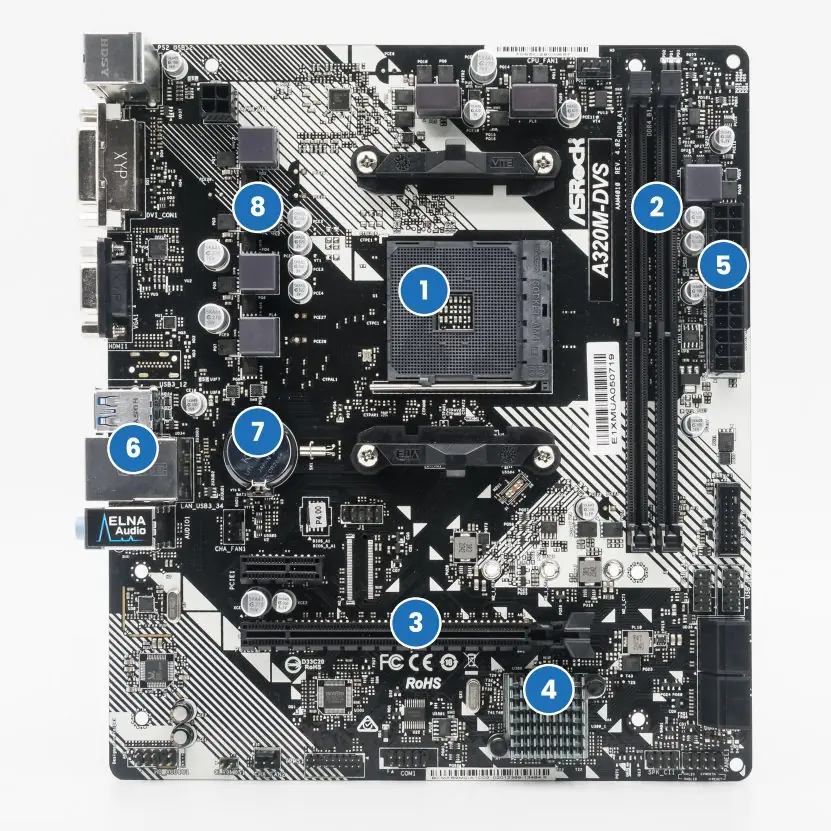
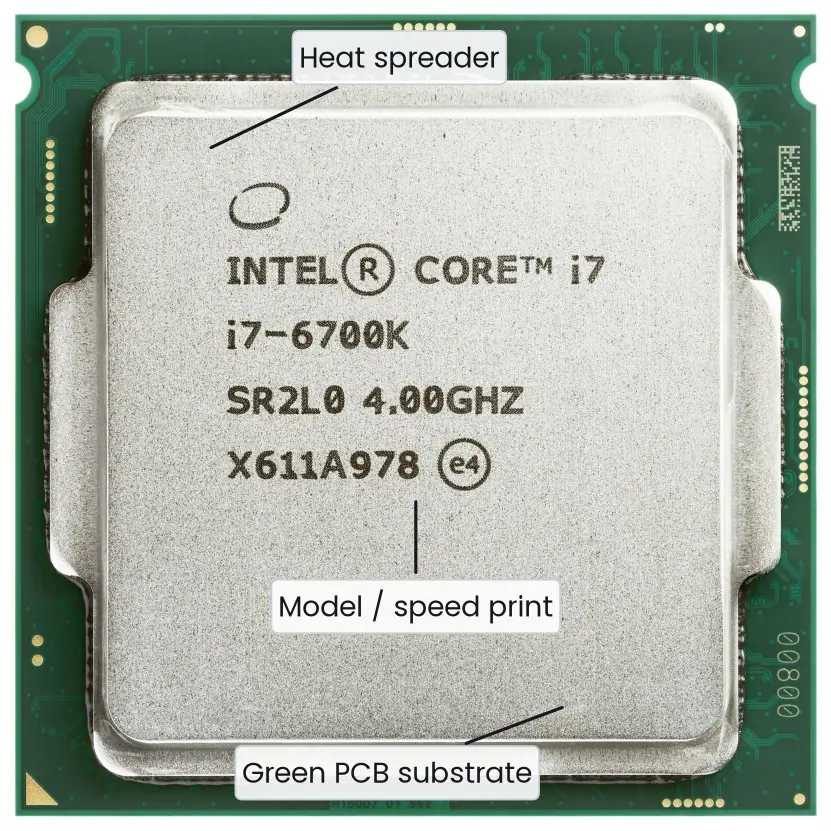

The main circuit board that carries the CPU socket, memory slots, chipset, expansion slots and ports, and the buses that connect them.
1.8 Computer architecture
The stored-program (von Neumann) concept (John von Neumann, 1945): instructions and data are held in the same memory as binary numbers.
The CPU fetches instructions from memory one after another, so changing the program means changing memory, not rewiring the machine.
Harvard architecture uses separate memories (and buses) for instructions and data; it is common in microcontrollers and inside the L1 cache of modern CPUs.

The instruction cycle repeats forever:
- Fetch: the address in the PC goes to MAR; memory returns the instruction into MDR (also called MBR), then IR; the PC is incremented.
- Decode: the control unit works out the operation and the operands.
- Execute: the ALU or another unit performs it (a memory access or an I/O may be needed).
- Store the result, then go back to step 1. An interrupt (a key press, a timer) can pause this cycle so the CPU can run a handler first.

Performance depends on clock speed, instructions per cycle, number of cores and the memory system.
- Clock cycle time = 1 / frequency.
- CPU time = (instruction count × cycles per instruction) / clock frequency.
A program executes 2 × 10⁹ instructions at an average of 1.5 cycles per instruction on a 3 GHz CPU. Find the CPU time and the cycle time.
Solution. Cycle time = 1 / (3 × 10⁹ Hz) = 0.333 ns. CPU time = \dfrac{2 \times 10⁹ \times 1.5}{3 \times 10⁹} = 1 second.
Word size and addressing. An address bus of n lines can select 2ⁿ locations. 16 lines → 65,536 locations (64 KiB with one byte per location); 32 lines → 4,294,967,296 locations (4 GiB), which is why 32-bit systems cannot use more than 4 GiB of RAM directly.
RISC and CISC. CISC (e.g. x86) has many complex, variable-length instructions; RISC (e.g. ARM, which powers most phones) has few simple, fixed-length instructions that are easy to pipeline.
1.9 Memory and its classification
Units. A bit is 0 or 1; 1 byte = 8 bits. In the binary convention, 1 KiB = 1024 B, 1 MiB = 1024 KiB, 1 GiB = 1024 MiB, 1 TiB = 1024 GiB.
Disk makers use decimal (1 GB = 10⁹ B), so a "500 GB" drive shows about 465 GiB in the operating system. Most textbooks and examiners write KB/MB/GB for the 1024-based units; this book does the same unless it says otherwise.
Memory hierarchy (faster ↑ costlier ↑ smaller ↑ at the top):
| Level | Typical size | Typical access time | Volatile? |
|---|---|---|---|
| CPU registers | a few hundred bytes | under 1 ns | yes |
| Cache L1 / L2 / L3 (SRAM) | 32–64 KB per core / 256 KB–2 MB / 8–64 MB shared | about 1 / 4 / 15 ns | yes |
| Main memory (DRAM) | 4–64 GB | 50–100 ns | yes |
| SSD (flash) | 128 GB–4 TB | 0.05–0.1 ms | no |
| Hard disk (magnetic) | 500 GB–20 TB | 5–10 ms | no |
| Optical, tape (archive) | 25 GB–tens of TB | slow | no |

The hierarchy works because of locality of reference: a program tends to reuse recently used data (temporal) and nearby data (spatial), so a small fast cache serves most accesses.
Primary memory
- RAM (random access memory) is read–write and volatile. SRAM uses flip-flops (about six transistors per bit): fast, expensive, no refresh; used for cache. DRAM stores each bit as charge in a capacitor and must be refreshed thousands of times a second: slower, cheap, dense; used as main memory (DDR4, DDR5 are synchronous DRAM).
- ROM (read-only memory) is non-volatile and holds firmware (the BIOS/UEFI that starts the machine). Types: MROM (programmed at the factory), PROM (programmed once by the user), EPROM (erased by ultraviolet light), EEPROM (erased electrically, byte by byte), and flash (erased in blocks; the memory in USB sticks, SSDs and phones).
| RAM | ROM | |
|---|---|---|
| Volatility | volatile | non-volatile |
| Use | working memory | start-up firmware |
| Access | read and write | mostly read |
Secondary memory keeps data permanently. A hard disk stores bits on magnetised platters in tracks and sectors, read by a moving head; capacity is platters × surfaces × tracks × sectors × bytes per sector.
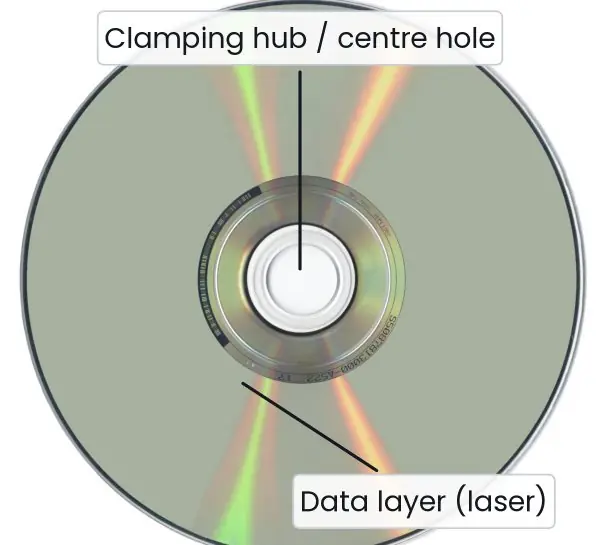
An SSD has no moving parts (NAND flash), so it is faster, silent and shock-resistant. Optical discs (CD about 700 MB, DVD 4.7 GB, Blu-ray 25 GB per layer) are read by laser.
Magnetic tape is sequential and used for cheap, long-term backup.
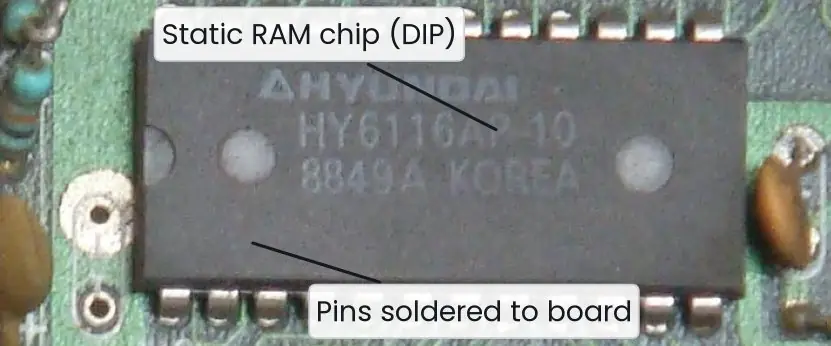
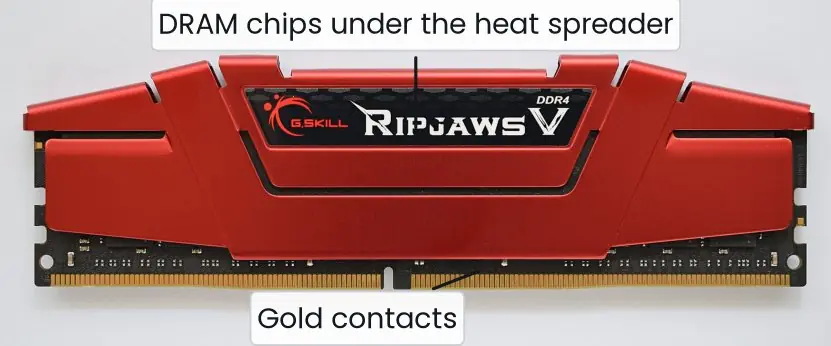
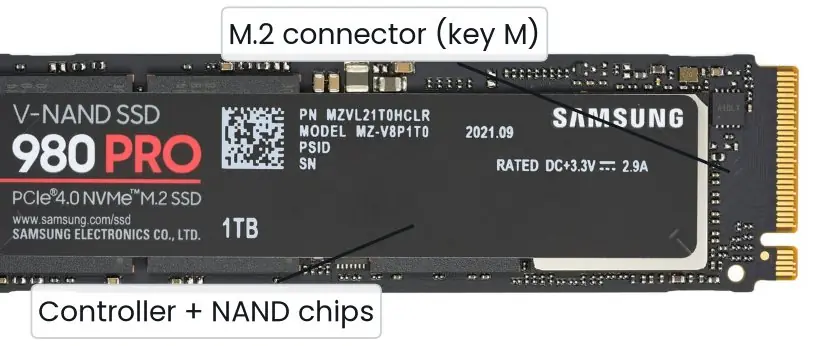
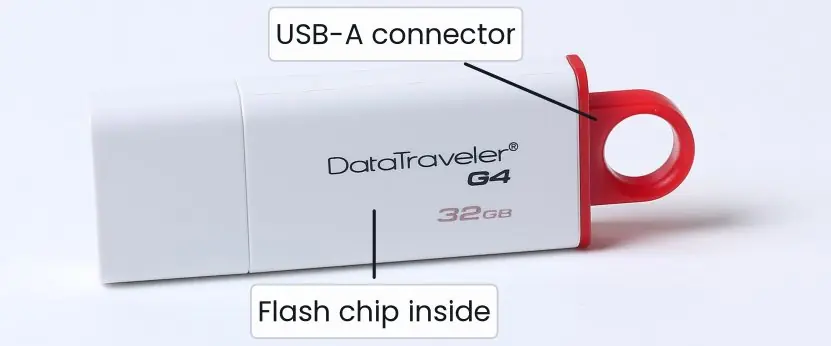
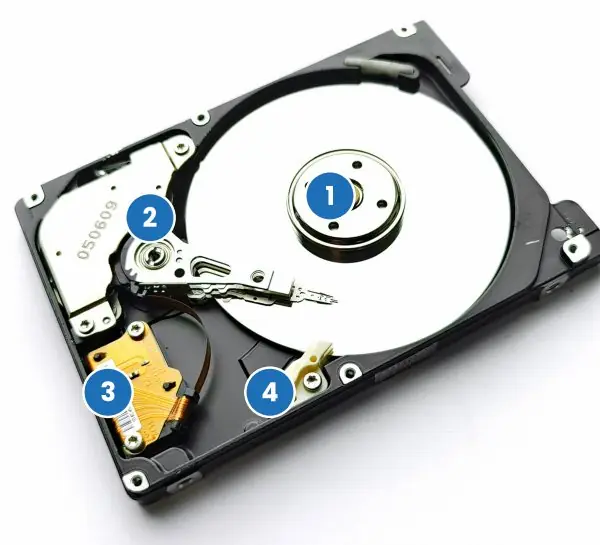
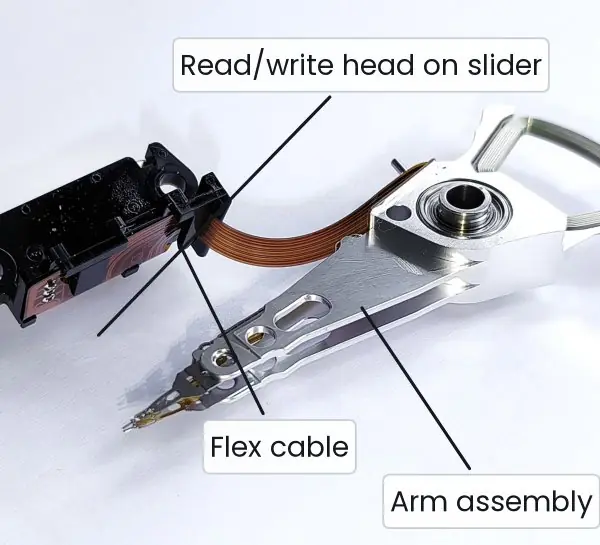

(a) How many 4 MB photographs fit on a 64 GB memory card?(b) A 1920 × 1080 screen uses 24 bits per pixel. How much memory holds one frame?
Solution.(a) 64 GB = 64 × 1024 MB = 65,536 MB; 65,536 / 4 = 16,384 photographs.(b) Pixels = 1920 × 1080 = 2,073,600; bytes per pixel = 24/8 = 3; frame = 6,220,800 bytes ≈ 5.93 MB (6,220,800 / 1,048,576).
Virtual memory extends RAM using disk space; ECC RAM detects and corrects single-bit errors (servers); buffering and caching hide the speed gap between devices.
1.10 Input devices
An input device converts human or physical data into signals the computer understands.
| Group | Devices |
|---|---|
| Keyboard and pointing | keyboard, mouse, trackball, touchpad, touch screen, light pen, joystick, stylus and graphics tablet |
| Scanning and recognition | flatbed scanner, barcode reader, QR/2-D code reader, OCR (optical character recognition: printed text), OMR (optical mark recognition: exam answer sheets), MICR (magnetic ink characters on bank cheques), fingerprint, iris and face scanners |
| Audio and video | microphone, webcam, digital camera |
| Sensors | temperature, motion, GPS and accelerometer in phones |
OCR reads characters, OMR reads marks in positions (filled bubbles) and MICR reads magnetic-ink characters (cheque numbers). Examiners ask the difference.
1.11 Output devices
| Type | Devices |
|---|---|
| Soft copy (screen) | CRT, LCD, LED, OLED monitors; projectors. Quality is set by resolution (pixels, e.g. 1920 × 1080), refresh rate (Hz) and dot pitch |
| Hard copy (paper) | Impact printers strike the paper (dot-matrix, line printer; can make carbon copies; noisy). Non-impact printers: inkjet sprays ink drops, laser uses a toner-and-drum electrostatic process, thermal heats special paper (receipts). Plotters draw large vector drawings; 3-D printers build objects |
| Audio | speakers, headphones |
Printer speed is quoted in ppm (pages per minute) or cps (characters per second); resolution in dpi (dots per inch).
1.12 Interfaces
An interface is the connection, electrical and logical, between two parts of a system. A port is the socket; the protocol is the agreed signalling.
| Interface | Type | Notes |
|---|---|---|
| USB (A, B, C) | serial | USB 2.0 up to 480 Mbit/s; USB 3.0 5 Gbit/s; USB 3.2 up to 20 Gbit/s; USB4 up to 40 Gbit/s; carries power; hot-pluggable; Type-C is the reversible connector |
| HDMI / DisplayPort | digital video and audio | monitors, TVs, projectors |
| SATA | serial | internal hard disks and SSDs (SATA III: 6 Gbit/s) |
| PCI Express and M.2 NVMe | serial lanes | graphics cards, fast SSDs |
| Ethernet (RJ-45) | network | wired LAN |
| Wi-Fi, Bluetooth, NFC | wireless | LAN, short-range devices, tap-to-pay |
| Audio jack, VGA (legacy), PS/2, parallel (legacy) | older peripherals |
Serial vs parallel transmission. Parallel sends several bits at once on several wires (fast over short distances, but suffers skew and crosstalk); serial sends bits one after another on one wire pair and, at high clock rates, is now faster and cheaper (USB, SATA, PCIe).
Plug and Play lets the OS detect and configure a new device automatically; hot swapping lets you connect it while the system is running. Device drivers are the software that lets the OS control a specific device.
Formula and fact sheet
- 1 byte = 8 bits; 1 KiB = 1024 B; 1 MiB = 1024 KiB; 1 GiB = 1024 MiB; 1 TiB = 1024 GiB.
- Cycle time = 1 / f; CPU time = (instructions × CPI) / f.
- n address lines → 2ⁿ locations; frame size = width × height × bits per pixel / 8.
- Generations: vacuum tube → transistor → IC → microprocessor → ULSI/AI.
- Memory speed order: registers > cache > RAM > SSD > HDD > optical/tape.
- ALU computes, CU controls, registers hold, buses carry.
- SRAM (cache, flip-flop, fast) vs DRAM (main memory, capacitor, refresh).
- OCR = characters, OMR = marks, MICR = cheque ink, barcode = bars.
- Impact: dot-matrix; non-impact: inkjet, laser, thermal.
Chapter summary
- A computer takes input, processes it under a stored program, stores data and produces output.
- Computers are classified by size, purpose and the kind of data they handle; five generations are marked by tube, transistor, IC, microprocessor and ULSI/AI.
- The CPU contains the ALU, control unit and registers; buses join CPU, memory and I/O.
- Instructions and data share one memory in the von Neumann design; the CPU repeats fetch–decode–execute–store.
- Memory is a hierarchy: speed and cost fall and capacity rises from registers to cache to RAM to disks and tape.
- RAM is volatile and read–write; ROM is non-volatile and holds start-up firmware; flash is erasable ROM.
- Input devices, output devices and interfaces (USB, HDMI, SATA, PCIe, wireless) connect the machine to the user.
Practice
A. Short questions
- Differentiate between data and information with an example.
- List five characteristics of a computer.
- Distinguish analog, digital and hybrid computers with one example of each.
- State the functions of the ALU and the control unit.
- What are registers? Name four.
- Explain the fetch–decode–execute cycle.
- Why is cache memory used?
- Differentiate SRAM and DRAM.
- Differentiate impact and non-impact printers with examples.
- Differentiate OCR, OMR and MICR.
B. Numerical problems
- A CPU at 2.5 GHz runs a program of 5 × 10⁹ instructions at 2 cycles per instruction. Find the execution time.
- How many memory locations can a 20-bit address bus select? Express in KiB or MiB if each location holds one byte.
- How many 700 MB files fit on a 1 TB disk (use 1 TB = 1024 × 1024 MB)?
- An image is 800 × 600 pixels at 16 bits per pixel. Find its size in KB.
C. Long questions
- Describe the anatomy of a digital computer with a block diagram description of its five units and three buses.
- Explain the memory hierarchy and why it works.
- Describe the classification of computers by size with examples.
- Explain the generations of computers with their technology, examples, advantages and limitations. (10 marks)
- Describe eight areas where computers are applied, with one Nepali example for each. (10 marks)
- Explain the von Neumann architecture and the instruction cycle with a labelled diagram. (10 marks)
D. Medium questions (5 marks)
- What are the characteristics of a computer? Explain any five.
- Distinguish between RAM and ROM, and between SRAM and DRAM.
- Describe the functions of the control unit, the ALU and the registers.
- Explain the three system buses with a neat diagram.
- Describe the geometry of a hard disk and calculate the capacity of a disk with 4 heads, 1,000 cylinders, 63 sectors per track and 512 bytes per sector.
Answers and worked solutions
1. Data are raw facts such as 75; information is processed data such as "average mark of the class is 62".
2. Speed, accuracy, diligence, versatility, storage (also automation).
3. Analog: speedometer; digital: laptop; hybrid: ICU monitor (analog body signals converted to digital processing).
4. ALU does arithmetic and logical operations; CU fetches, decodes and directs execution but computes nothing.
5. Very fast storage cells inside the CPU: PC, IR, MAR, MDR, accumulator.
6. See §1.8: fetch the instruction at the PC address, decode it, execute it, store the result, repeat.
7. Cache holds recently used data in fast SRAM close to the CPU, so most accesses avoid slow DRAM (locality of reference).
8. SRAM: flip-flops, fast, costly, no refresh, cache. DRAM: capacitors, slower, cheap, needs refresh, main memory.
9. Impact printers strike the paper (dot-matrix; can print carbon copies, noisy); non-impact use ink, toner or heat (inkjet, laser, thermal; quiet, better quality).
10. OCR reads printed characters, OMR reads filled marks (answer sheets), MICR reads magnetic-ink cheque characters.
11. Time = \dfrac{5 \times 10⁹ \times 2}{2.5 \times 10⁹} = 4 s.
12. 2²⁰ = 1,048,576 locations = 1 MiB.
13. 1 TB = 1,048,576 MB; 1,048,576 / 700 = 1497.97, so 1497 files (700 × 1498 = 1,048,600 would overflow the disk).
14. 800 × 600 = 480,000 pixels × 2 bytes = 960,000 bytes = 960,000 / 1024 = 937.5 KB. 15–25. Full-length model answers (5-mark and 10-mark) are given in the section Model answers that follows, in the style of a TU answer sheet.
Model answers: medium (5 marks) and long (10 marks) questions
Medium questions (5 marks)
Q21. What are the characteristics of a computer? Explain any five.
A computer is an electronic machine that accepts data, processes it by a stored program and gives information. Its main characteristics are:
- Speed: it performs billions of operations per second; a 3 GHz CPU makes three billion clock cycles each second, so a result that takes a person hours appears in seconds.
- Accuracy: the hardware does not make calculation errors; wrong output comes only from wrong input or a wrong program (GIGO).
- Diligence: it never tires, so the last of a million bills is as correct as the first.
- Versatility: by changing the program, the same machine does accounting, drawing, communication or games.
- Storage: a disk stores millions of pages in a small space and retrieves any of them in a fraction of a second.
Other points are automation, connectivity and the lack of intelligence (a computer cannot decide by itself).
Example: A bank's CBS processes thousands of transactions per minute without tiring or error, which no clerk could do.
Limitation it still needs electricity and correct instructions.
Q22. Distinguish between RAM and ROM, and between SRAM and DRAM.
RAM (random access memory) is the working memory of the computer; ROM (read-only memory) keeps permanent start-up instructions. SRAM and DRAM are the two technologies used to build RAM.
| Basis | RAM | ROM |
|---|---|---|
| Volatility | volatile: contents lost without power | non-volatile: contents kept |
| Operation | read and write | mostly read only |
| Use | running programs and data | BIOS/UEFI firmware that starts the PC |
| Types | SRAM, DRAM | MROM, PROM, EPROM, EEPROM, flash |
| Basis | SRAM | DRAM |
|---|---|---|
| Cell | flip-flop of about 6 transistors | one transistor and one capacitor |
| Refresh | not needed | needed thousands of times per second |
| Speed | faster (about 1–15 ns) | slower (about 50–100 ns) |
| Cost and density | costly, low density | cheap, high density |
| Used for | CPU cache | main memory (DDR4, DDR5) |
Example: when you switch on a laptop, the ROM firmware starts first and loads the operating system into RAM; the cache inside the CPU (SRAM) then speeds up access to that RAM (DRAM).
Q23. Describe the functions of the control unit, the ALU and the registers.
These three parts make up the CPU, the processor of the computer (see Figure 1.3).
- Control Unit (CU): it is the manager of the computer. It fetches each instruction from memory, decodes it, and sends timed control signals to the ALU, memory and I/O devices so that the instruction is carried out in the right order. It does no calculation.
- Arithmetic Logic Unit (ALU): it is the calculator. It performs arithmetic (addition, subtraction, multiplication, division) and logical operations (AND, OR, NOT and comparisons such as <, = and >). Its result goes to the accumulator or memory.
- Registers: they are very small, very fast storage cells inside the CPU. The PC holds the address of the next instruction, the MAR holds the address being accessed, the MBR/MDR holds the data moving to or from memory, the IR holds the instruction being decoded and the accumulator holds intermediate results.
Example: for A = B + C, the CU fetches the ADD instruction, the registers hold B and C, the ALU adds them and the result is stored back in memory. Together, the three parts execute the fetch–decode–execute cycle billions of times per second.
Q24. Explain the three system buses with a neat diagram.
A bus is a set of parallel wires that carries signals between the CPU, memory and I/O devices. Figure 1.2 shows how the CPU, main memory and I/O devices share three buses.
| Bus | Direction | Carries | Width example |
|---|---|---|---|
| Address bus | one-way: CPU to memory or I/O | location (address) of the data | 32 lines select 2³² = 4 GiB |
| Data bus | two-way | the actual data or instruction | 8, 16, 32 or 64 lines |
| Control bus | two-way | read, write, clock, interrupt, reset signals | a few to a dozen lines |
- Address bus: the CPU places the address of the wanted memory location here. It is one-way because memory never chooses the address. Its width fixes the maximum memory (2ⁿ locations for n lines).
- Data bus: the value is carried in both directions: from memory to CPU in a read, from CPU to memory in a write. Its width decides how many bits move at once.
- Control bus: it tells everyone what to do and when: memory read, memory write, I/O read, clock and interrupt request.
Example: to read location 1000, the CPU puts 1000 on the address bus, sends "memory read" on the control bus, and the value comes back on the data bus.
Q25. Describe the geometry of a hard disk and calculate the capacity of a disk with 4 heads, 1,000 cylinders, 63 sectors per track and 512 bytes per sector.
A hard disk stores data magnetically on spinning platters (Figure 1.6).
- A track is a circular ring on one surface; a sector is the smallest block of a track (512 B or 4 KB).
- A head reads or writes one surface; the heads move together on the actuator arm.
- A cylinder is the set of tracks with the same number on all surfaces, so the heads can read it without moving.
Formula: capacity = cylinders × heads × sectors per track × bytes per sector.
Solution. Capacity = 1,000 × 4 × 63 × 512 = 129,024,000 bytes. In binary units this is 129,024,000 / 1,048,576 ≈ 123.05 MiB; in decimal units it is about 129 MB.
Remark: the maker's "decimal MB" is therefore larger than the operating system's "binary MiB", which is why a new disk seems to have less space than advertised.
Long questions (10 marks)
Q18. Explain the generations of computers with their technology, examples, advantages and limitations.
Introduction. A generation of computers is a stage in computer development defined by the main hardware technology. Computers are grouped into five generations, and each one is smaller, faster, cheaper and more reliable than the one before (Figure 1.1).
Generation-wise explanation
- First generation (1940–1956), vacuum tubes. Programs were in machine language and data on punched cards and magnetic drums. Examples: ENIAC (about 18,000 tubes, 30 tonnes) and UNIVAC I. Advantage: the first electronic, programmable speed. Limitation: huge, hot, unreliable and costly.
- Second generation (1956–1963), transistors. Magnetic core memory, assembly language, FORTRAN and COBOL. Examples: IBM 1401, IBM 7090. The IBM 1401 was brought to Nepal for the 2028 BS (1971) census. Advantage: smaller, cooler and more reliable. Limitation: batch processing only.
- Third generation (1964–1971), integrated circuits (SSI and MSI). Operating systems, time-sharing and keyboards with monitors. Examples: IBM System/360, PDP-8; the ICL 2950/10 served Nepal from 2038 BS. Advantage: cheaper and faster, shared by many users. Limitation: still too costly for individuals.
- Fourth generation (1971–present), microprocessors (LSI and VLSI). The Intel 4004 (1971) placed a CPU on one chip, followed by the IBM PC (1981), GUI, laptops, smartphones and the Internet. Advantage: personal, portable and networked. Limitation: viruses, e-waste and privacy risks.
- Fifth generation (present and beyond), ULSI, AI and parallel processing. Examples: IBM Watson, AI assistants, GPUs and early quantum computers. Advantage: learning, speech and vision abilities. Limitation: high energy and data needs, and ethical issues.
Comparison table
| Generation | Technology | Memory | Language | Example |
|---|---|---|---|---|
| First | vacuum tube | magnetic drum | machine | ENIAC |
| Second | transistor | magnetic core | assembly, FORTRAN | IBM 1401 |
| Third | IC (SSI/MSI) | semiconductor | BASIC, Pascal | IBM 360 |
| Fourth | microprocessor (VLSI) | RAM chips | C, Java, Python | IBM PC |
| Fifth | ULSI, AI, qubits | large RAM, SSD | AI tools | Watson |
Conclusion. Every generation reduced size and cost and increased speed and reliability. The shift from tubes to transistors, ICs and microprocessors made the computer a tool for ordinary people, and AI is now making it a tool that can learn.
Q15. Describe the anatomy of a digital computer with a block diagram of its five units and three buses.
Introduction. The anatomy of a computer is its physical structure: the parts that make it work and the way they are joined.
A digital computer has five functional units (input, CPU, memory, output and buses) that are mounted on or plugged into the motherboard (Figure 1.2).
Parts and their functions
- Input unit: brings data and instructions into the computer and converts them to binary. Examples are the keyboard, mouse and scanner.
- Control unit (CU): fetches, decodes and directs the execution of every instruction by sending control signals.
- Arithmetic logic unit (ALU): performs arithmetic and logical operations.
- Registers: tiny, fast stores in the CPU (PC, IR, MAR, MDR, accumulator) that hold addresses, instructions and results.
- Memory unit: main memory (RAM and ROM) holds the running program and data; secondary storage (HDD, SSD) keeps them permanently.
- Output unit: presents the result in readable form on a monitor, printer or speaker.
- Buses: the address bus (one-way) carries the location, the data bus (two-way) carries the value, and the control bus carries read, write, clock and interrupt signals.
- Motherboard components: the CPU socket, RAM slots, the chipset (Northbridge and Southbridge or PCH), PCIe slots, the BIOS/CMOS chip and the I/O ports.
Working in one line. Input → memory → CPU (fetch, decode, execute) → memory → output, with the CU controlling every step.
| Unit | Main function | Example |
|---|---|---|
| Input | enters data | keyboard |
| CPU | processes and controls | Intel Core i5 |
| Memory | stores programs and data | 8 GB DDR4 |
| Output | shows results | monitor |
| Buses | connect all units | PCIe, DMI |
Nepali context. A typical office desktop in Kathmandu has an Intel Core or AMD Ryzen CPU, 8 GB of DDR4 RAM, an SSD, a monitor and a keyboard, all plugged into one motherboard.
A bank's ATM follows the same five-unit anatomy, with the card reader and keypad as input units, a screen and cash dispenser as output units and a small embedded CPU inside.
Conclusion. The anatomy follows the stored-program idea: the same memory holds both data and instructions, and the CPU runs them in sequence through the buses. Knowing each unit makes it easy to understand how a program actually executes.
Q19. Describe eight areas where computers are applied, with one Nepali example for each.
Introduction. A computer is a general-purpose machine, so it is used in almost every field of life. It is fast, accurate, never tired and can store and share large amounts of data. The main areas of application (§1.4) are as follows.
- Education. Computers prepare and deliver lessons, run online classes and publish results. Example: Google Classroom and Zoom classes during the lockdown, and online result portals. They make learning possible from remote places.
- Banking and finance. The Core Banking System (CBS) links all branches, ATMs give cash at any time and QR or mobile payment moves money in seconds. Example: Fonepay and ConnectIPS.
- Healthcare. Hospitals keep electronic medical records, and CT and MRI machines use computers to form images. Telemedicine lets a city doctor advise a village health post. Example: hospital information systems and video consultation.
- Governance. Citizens use online services for ID, passports, tax and bills. Example: Nagarik App, National ID, e-Passport and the Inland Revenue Department portal. Services become faster and more open.
- Science, engineering and weather. Computers simulate, calculate and design (CAD). Example: the Department of Hydrology and Meteorology (DHM) forecasts rain and floods using computer models and satellite data.
- Business and retail. Billing (POS), stock control, payroll and accounting are automatic. Example: supermarket barcode billing and online shopping with Daraz.
- Communication and media. Email, chat, video calls and social media connect people; TV and FM stations edit programmes digitally. Example: Nepali families abroad contact home by video call.
- Agriculture, tourism and transport. Farmers get weather and price messages, hotels and airlines take bookings online, and GPS and ticketing apps run transport. Example: online trekking and flight booking.
| Area | Benefit | Nepali example |
|---|---|---|
| Education | wide access | Google Classroom |
| Banking | speed, 24-hour service | Fonepay, ATM |
| Health | better diagnosis | CT/MRI, telemedicine |
| Governance | transparency | Nagarik App |
| Science | accurate forecasting | DHM |
Conclusion. Computers save time, reduce errors and bring services close to people. As Nepal moves towards digital government, banking and education, computer knowledge is useful for every student and professional.
Q20. Explain the von Neumann architecture and the instruction cycle with a labelled diagram.
Introduction. The von Neumann architecture (John von Neumann, 1945) is the stored-program concept: a single memory holds both the program instructions and the data in binary form, and the CPU fetches the instructions one after another.
Figure 1.3 shows its functional blocks.
Components (Figure 1.3)
- Input unit: supplies data and programs.
- Output unit: delivers results.
- Control unit: fetches and decodes instructions and sends control signals (dashed lines).
- ALU: performs arithmetic and logical operations.
- Registers: PC, MAR, MBR, IR and ACC hold addresses, instructions and results.
- Primary memory: RAM (programs and data) and ROM (start-up code).
- Secondary storage: permanent storage of programs and data.
- Buses: carry the data (solid lines) and control signals.
Instruction cycle (Figure 1.4)
- Fetch: the PC value goes to MAR, memory sends the instruction to MBR and then IR, and the PC is incremented.
- Decode: the CU interprets the opcode and finds the operands.
- Execute: the ALU or an I/O unit does the operation.
- Store: the result is written to a register or memory, and the cycle repeats. An interrupt can pause this cycle for a handler.
| Basis | Von Neumann | Harvard |
|---|---|---|
| Memory | one for data and instructions | separate for each |
| Buses | single set | separate sets |
| Speed | the shared bus is a bottleneck | parallel access, faster |
| Use | PCs and servers | microcontrollers, DSP |
Advantages and limitations. The design is simple, flexible and cheap, because one memory and one set of buses serve everything, and programs can be loaded, changed or even created by other programs.
Its limitation is the von Neumann bottleneck: the CPU can be much faster than the shared bus to memory, so it sometimes waits. Modern computers reduce the wait with cache memory, pipelining and several cores.
Conclusion. Because instructions are stored in memory, changing a program needs no rewiring, which makes the computer general-purpose. The single shared bus, the von Neumann bottleneck, is reduced in modern CPUs by cache memory.
Q16. Explain the memory hierarchy and why it works.
Introduction. The memory hierarchy arranges the different kinds of memory in levels, from the small, very fast and costly memory next to the CPU to the large, slow and cheap memory far from it (Figure 1.5).
No single technology is fast, big and cheap at the same time, so a computer combines several.
Levels of the hierarchy
- Registers: inside the CPU, under 1 KB, under 1 ns; hold the data being processed now.
- Cache (L1, L2, L3): SRAM on or near the CPU, 32 KB to 64 MB, about 1 to 15 ns; holds recently used data and instructions.
- Main memory (RAM): DRAM, 4 to 64 GB, about 50 to 100 ns; holds the running programs. It is volatile.
- SSD (flash): 256 GB to several TB, about 0.1 ms; permanent storage, no moving parts.
- Hard disk: up to 20 TB, 5 to 10 ms; cheap permanent storage on magnetic platters.
- Optical, tape and cloud: TB to PB, seconds; for backup and archives.
Why it works. The principle is locality of reference.
- Temporal locality: data used now will probably be used again soon (a loop variable).
- Spatial locality: data near the one just used will probably be needed next (array elements).
The CPU therefore finds most of what it needs in the small fast levels (a high hit ratio). If the cache hit ratio is 95%, the average access time is close to the cache speed, although most of the data live in slow memory.
| Moving down the pyramid | Speed | Cost per byte | Capacity | Volatile? |
|---|---|---|---|---|
| Registers to cache | very high | very high | tiny | yes |
| RAM | high | high | medium | yes |
| SSD/HDD | low | low | large | no |
| Tape/cloud | very low | very low | huge | no |
Conclusion. The hierarchy gives the speed of the top levels and the capacity and price of the bottom levels. Because of locality, the computer behaves almost as if all its memory were as fast as the cache.
Q17. Describe the classification of computers by size with examples.
Introduction. Computers differ greatly in power, size and price, so they are classified by size and capability into five groups: supercomputers, mainframes, minicomputers, microcomputers and embedded computers.
Other bases of classification are purpose and the type of data handled.
Classification by size
- Supercomputer: the fastest and costliest, with thousands of processors and speeds of petaflops. Used for weather and climate forecasting, genome and nuclear simulation. Example: Fugaku, Frontier.
- Mainframe: very reliable and serves thousands of users and transactions at once. Used by banks, airlines and governments. Example: IBM Z.
- Minicomputer (mid-range server): between a mainframe and a PC; used by a department or a factory for control and multi-user work. Example: DEC PDP-11, today's rack servers.
- Microcomputer: a single-chip CPU computer for one person: desktop, laptop, tablet and smartphone. It is the most widely used type.
- Embedded computer: a tiny computer built into a device for one job, such as a washing machine, a car engine controller or a Wi-Fi router.
| Type | Users | Speed | Cost | Example |
|---|---|---|---|---|
| Supercomputer | few research teams | highest | very high | Fugaku |
| Mainframe | thousands | very high | high | IBM Z |
| Minicomputer | tens to hundreds | high | medium | rack server |
| Microcomputer | one | moderate | low | laptop |
| Embedded | none (inside a device) | low | very low | ATM controller |
Choosing the right type. A bank uses a mainframe for its core system, a university uses servers (minicomputers) for its portal, staff use microcomputers on their desks, and the ATM uses an embedded computer.
In Nepal, the weather department's models run on high-performance servers, because a true supercomputer is far too costly for most institutions.
By purpose: general-purpose (PC) and special-purpose (ATM controller). By data: analog (speedometer), digital (PC) and hybrid (ICU monitor, petrol pump).
Conclusion. The classification helps us choose the right machine for a task. Today the line is blurring, because a smartphone is more powerful than the old mainframes, but the five groups remain the standard exam answer.