Unit 3 · 12 teaching hours · 45 min read
Computer Software and Operating System
What the syllabus asks for 10
- Definition of software; categories: System, Utility, Application, Web Based, Mobile Apps
- Introduction, role and functions of Operating System
- OS terminology: multiprogramming, multitasking, multiprocessing, distributed
- Windows OS: GUI based OS and its features
- Working in Desktop Application and Window Environment
- Manage Files and Folders with File Explorer
- Customize the start screen and desktop; installing and removing devices
- Manage passwords and privacy levels; control panel, system tools and accessories
- Concept of Open Source OS; Introduction to Linux and UNIX; Linux Distributions
- Concept of Mobile OS and types of Mobile OS
Hardware is the part of a computer you can hit with a hammer; software is the part you can only swear at.
Strip the software out of a laptop and you are left with an expensive brick — silicon that can switch voltages but has no idea what to switch them to.
This unit looks at the instructions that bring the machine to life: how software is classified, what an operating system does, how to work confidently inside Windows, and why Linux and Android now run most of the world's computers.
This is a description unit, so marks come from complete, well-organised lists.
Know the five software categories with two examples each, the six or seven functions of an operating system, and the precise difference between multiprogramming, multitasking, multiprocessing and distributed processing.
The Windows sections are examined as practical steps — "write the steps to…" — so learn them as numbered procedures.
3.1 Definition of software and its categories
Software is a set of programs, procedures and associated documentation that tells a computer's hardware what to do and how to do it. A program is a finite sequence of instructions written to solve a particular problem.
Software is intangible: it has no weight and no moving parts, it does not wear out, and it is copied for almost nothing. It does, however, "rot" in the sense that it must be updated as hardware, standards and security threats change.
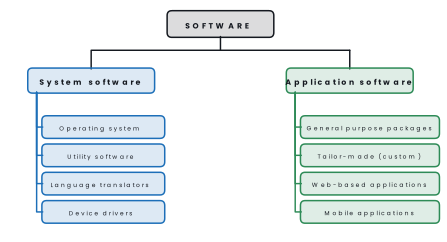
1. System software controls and coordinates the hardware and provides a platform on which application software runs.
It includes the operating system, language translators (compiler, interpreter, assembler), device drivers and system utilities. It is normally supplied by the hardware or OS vendor.
2. Utility software (service programs) performs housekeeping tasks that keep the system healthy: antivirus, disk defragmenter, disk cleanup, backup and restore, file compression (WinRAR, 7-Zip), and disk partitioning tools.
Utility software is strictly a sub-class of system software, but the NEB syllabus lists it separately because it is what a user actually notices.
3. Application software is written to solve a user's problem rather than to run the machine. It splits into:
- General purpose (packaged) software — sold ready-made to everybody: MS Word, MS Excel, Photoshop, VLC, Chrome.
- Tailor-made (custom or bespoke) software — written for one organisation: the billing system of Nepal Electricity Authority, a school's own result processing program.
4. Web-based software runs on a remote server and is used through a browser, so nothing is installed on your machine.
Examples: Gmail, Google Docs, Google Sheets, Facebook, Canva, GitHub, and government portals such as the online passport and PAN registration systems. This model is also called SaaS (Software as a Service).
5. Mobile applications (apps) are written for smartphones and tablets, are touch-first and battery-aware, and are distributed through stores such as Google Play and the Apple App Store.
Examples used daily in Nepal include eSewa, Khalti, Nagarik App, Pathao, Hamro Patro and IMEPay.
| Category | Purpose | Installed where | Examples |
|---|---|---|---|
| System software | run and manage the hardware | on the machine | Windows 11, Linux, device drivers, compilers |
| Utility software | maintain and protect the system | on the machine | antivirus, disk cleanup, WinRAR, backup |
| Application software | do the user's work | on the machine | MS Word, Excel, Photoshop, VLC |
| Web-based software | do the user's work online | on a remote server | Gmail, Google Docs, Canva, Facebook |
| Mobile apps | do the user's work on a handset | on the phone | eSewa, Khalti, WhatsApp, Nagarik App |
Problem. Classify each of the following and give one reason:(a) a printer driver,(b) 7-Zip,(c) the result-processing program written for your school,(d) Google Docs,(e) Khalti.
Solution.(a) System software (device driver) — it translates the OS's generic print commands into the signals that one particular printer model understands.(b) Utility software — it does housekeeping (compressing and archiving files), not the user's primary work.(c) Application software, tailor-made — written to the requirements of a single organisation and not sold to others.(d) Web-based software — it runs on Google's servers and is reached through a browser with nothing installed locally.(e) Mobile application — distributed through an app store and designed for a touch screen handset.
Freeware (Adobe Reader, Skype) costs nothing but its source code is closed. Open-source software (Linux, LibreOffice, Firefox) publishes its source code under a licence that lets you read, modify and redistribute it.
Proprietary software (Windows, MS Office) is both paid and closed.
3.2 Introduction, role and functions of an operating system
An operating system (OS) is the system software that acts as an interface between the user and the hardware.
It manages all the resources of the computer system — processor, memory, files and devices — and provides an environment in which application programs can run conveniently and efficiently.
Without an OS, every program would have to contain its own code for reading a keyboard, drawing on a screen and writing to a disk. The OS provides these services once, for everybody.
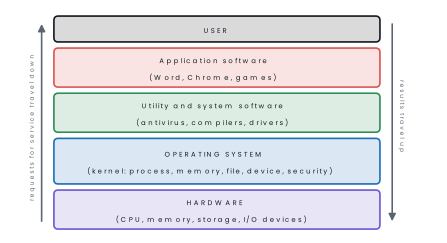
Role of the operating system
- As a resource manager it decides which program gets the CPU, how much memory each one receives, and in what order printing jobs are served.
- As an extended (virtual) machine it hides the ugly detail of the hardware behind simple commands such as "open this file".
- As an interface it gives the user a command line or a graphical desktop through which to give instructions.
Functions of the operating system
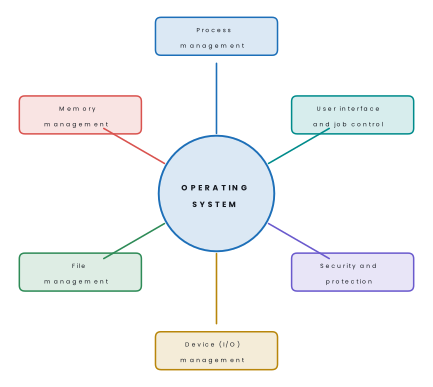
Each function is explained below in the form of a ten-mark answer.
1. Process management. A running program is called a process, and the OS decides which process gets the CPU and for how long. It creates, schedules, suspends and ends processes and lets them share data safely.
When you listen to music while typing a document, the OS switches the CPU between the two so quickly that both seem to run at once. The Windows Task Manager shows these processes.
2. Memory management. The OS keeps a record of which parts of RAM are free and which are in use, and gives each program the memory it needs.
It protects one program from damaging another, and it uses virtual memory (a part of the disk acting as RAM) so that programs larger than RAM can still run.
When RAM is full, the computer becomes slow because the OS moves data to and from the disk.
3. File management. The OS creates, opens, reads, writes, renames, copies and deletes files, and arranges them in folders. It records the free space on the disk and controls who can read or change each file.
File Explorer is the Windows tool for this work, and a student's project folder on drive D is a daily example.
4. Device (I/O) management. Every keyboard, printer and disk is controlled through a small program called a device driver.
The OS keeps queues and buffers for the devices and uses spooling, which stores print jobs on the disk so that the CPU is not kept waiting for a slow printer.
If the correct driver is missing, the device does not work, which is why Device Manager is checked when a new printer fails.
5. Security and protection. The OS allows only authorised users to enter, using accounts, passwords and permissions. It keeps the data of one user away from another and works with a firewall and antivirus to block attacks.
A school computer with separate student and teacher accounts is a simple example.
6. User interface and job control. The OS gives people a way to talk to the computer, either a command line (CLI) or a graphical interface (GUI) with windows, icons and menus. It also lets the user start, stop and watch jobs.
The easy GUI of Windows and Android is a main reason why ordinary people can use computers.
7. Error detection and performance monitoring. The OS notices hardware and software faults, such as a disk that cannot be read, and shows a message or takes action.
It also keeps statistics on CPU, memory and disk use, which a technician reads in Task Manager to find what is slowing the computer.
8. Resource allocation and coordination. Many programs and users want the same CPU, memory, printer and disk at the same time.
The OS works as a resource manager: it shares them fairly and efficiently and prevents conflicts and deadlock. This is the most basic duty of the OS, from which the other seven follow.
Remember P-M-F-D-S-U: Process, Memory, File, Device, Security, User interface. Every OS question about "functions" can be answered from these six.
| OS type | Response required | Typical use | Example |
|---|---|---|---|
| Batch | none (jobs grouped, run later) | payroll, billing runs | early IBM mainframe OS |
| Single-user, single-task | immediate | very old desktops | MS-DOS |
| Multi-user, time-sharing | fast, fair | servers, university systems | UNIX, Linux |
| Real-time | guaranteed deadline | ATMs, robots, medical devices | RTOS, VxWorks |
| Distributed | fast, over a network | cloud, clusters | Linux clusters |
| Embedded / mobile | immediate, low power | phones, TVs, routers | Android, iOS |
3.3 OS terminology: multiprogramming, multitasking, multiprocessing and distributed processing
These four words are constantly confused. The distinguishing questions are: how many jobs are in memory?, how many CPUs are there?, and how many computers are involved?
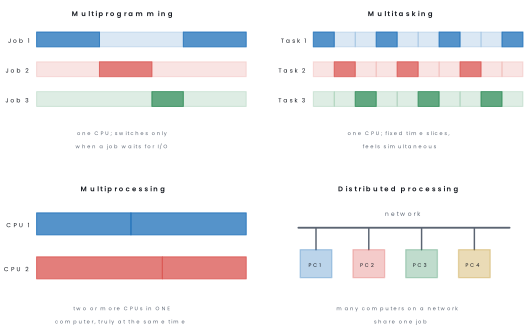
Multiprogramming. Several programs are loaded in main memory at once, but there is only one CPU. Whenever the running program stops to wait for a slow input or output operation, the OS gives the CPU to another program.
The aim is to keep the CPU busy and maximise throughput. A program keeps the CPU until it blocks; it is not forcibly interrupted.
Multitasking (time sharing). A refinement of multiprogramming in which the OS also forcibly takes the CPU away after a fixed time slice (a few milliseconds) and gives it to the next task in turn.
Because the switching is so fast, the user believes that Word, Chrome and VLC are all running at once. The aim is fast response time.
Multitasking may be co-operative (the program yields voluntarily, as in old Windows 3.x) or pre-emptive (the OS decides, as in every modern system).
Multiprocessing. A single computer contains two or more processors (or cores) that execute instructions genuinely simultaneously.
Work really is done in parallel, so speed and reliability both improve — if one processor fails the others carry on. Every modern phone and laptop is a multiprocessing system.
Distributed processing. Several independent computers, each with its own CPU and memory, are connected by a network and co-operate on one problem under the control of a distributed operating system. The user sees a single system.
Examples: cloud data centres, computing clusters, and the servers behind eSewa or a bank's core banking system.
| Number of CPUs | Number of computers | Switching trigger | Main aim | |
|---|---|---|---|---|
| Multiprogramming | one | one | job waits for I/O | CPU utilisation |
| Multitasking | one | one | time slice expires | response time |
| Multiprocessing | two or more | one | no switching — true parallelism | speed, reliability |
| Distributed | many | many | job split over the network | scale, resource sharing |
In multitasking one CPU appears to do many things because it switches quickly; in multiprocessing several CPUs actually do many things at the same instant.
Also note multi-threading, which is a single program split into several threads that can be scheduled independently — a property of the program, not of the machine.

3.4 Windows OS: a GUI based OS and its features
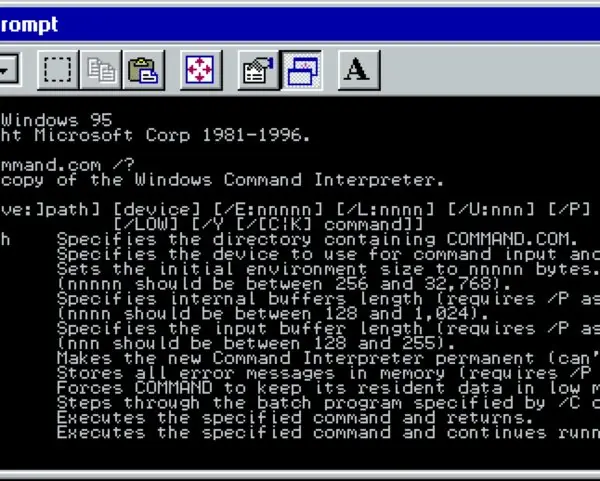
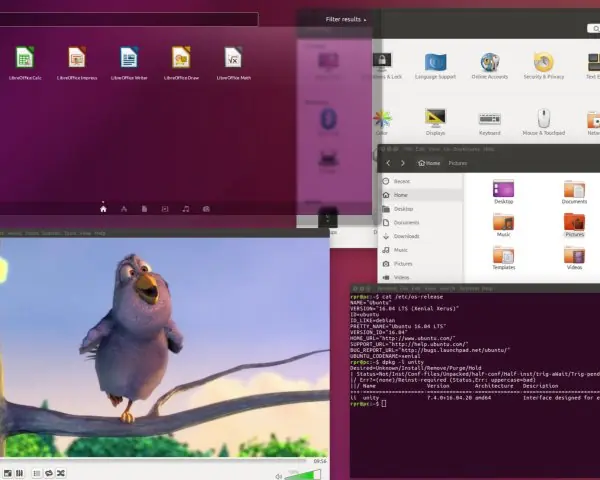
A GUI (Graphical User Interface) lets the user work with pictures — windows, icons, menus and a pointer — instead of typed commands. The four elements are often abbreviated WIMP.
Microsoft Windows, first released in 1985 and now at Windows 11 (mainstream support for Windows 10 ended in October 2025), is the most widely used desktop GUI operating system in the world; as of 2025 it holds roughly 70 % of the desktop market, with macOS and Linux (including ChromeOS) sharing most of the rest.
| CLI (command line) | GUI (graphical) |
|---|---|
| Commands are typed exactly | Objects are clicked or tapped |
| Must memorise the command set | Options are visible on screen |
| Very little memory and CPU needed | Needs much more memory, CPU and a graphics adapter |
| Very fast for an expert; scriptable | Slower for bulk work, but easy for a beginner |
| Examples: MS-DOS, Linux bash, PowerShell | Examples: Windows 11, macOS, GNOME, Android |
Features of Windows
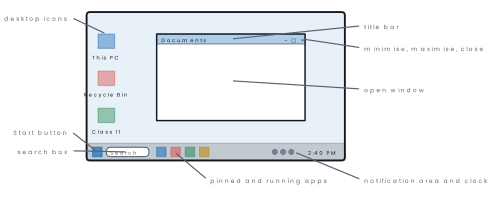
- Desktop metaphor with icons, wallpaper, taskbar and Recycle Bin.
- Multitasking and multi-user support with separate accounts and profiles.
- Plug and Play — a newly connected device is detected and its driver installed automatically.
- File Explorer for a hierarchical view of drives, folders and files.
- Snap layouts, virtual desktops and Task View for arranging many windows (Windows 10 and 11).
- Built-in security: Windows Hello sign-in, Microsoft Defender antivirus, Windows Firewall, BitLocker drive encryption and User Account Control.
- Accessibility: Narrator, Magnifier, high-contrast themes, speech recognition.
- OneDrive cloud integration, Microsoft Store, and Windows Update.
- Support for a huge range of hardware and legacy software — the main reason Windows still dominates offices in Nepal.
3.5 Working in a desktop application and the window environment
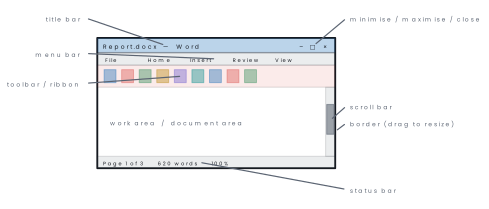
A window is a rectangular area of the screen in which one application runs. Every Windows application window has the same furniture, so once you can drive one you can drive them all.
| Part of the window | What it does |
|---|---|
| Title bar | shows the document and program name; drag it to move the window |
| Control buttons | minimise (to taskbar), maximise / restore, close |
| Menu bar / ribbon | groups every command of the program into tabs |
| Toolbar / quick access | one-click buttons for common commands (save, undo) |
| Work area | where the document, image or web page is displayed |
| Scroll bars | move the view vertically or horizontally |
| Status bar | shows page number, word count, zoom level, mode |
| Border and corners | drag to resize the window |
Working with windows. Move a window by dragging its title bar; resize by
dragging a border; maximise by double-clicking the title bar or pressing
Windows + Up; snap two windows side by side by dragging one to the left or
right edge (or Windows + Left / Windows + Right); switch between windows
with Alt + Tab; see all open windows and virtual desktops with Windows + Tab;
minimise everything with Windows + D.
Problem. Write the steps to open MS Word, type and save a document named
Essay.docx inside a folder Class11 on drive D, and then close the program.
Solution.
- Click Start → type
Wordin the search box → press Enter (or click the Word tile). - Choose Blank document.
- Type the text in the work area.
- Click File → Save As → Browse; in the dialog navigate to
D:\Class11. - Type
Essayin the File name box, leave Save as type as Word Document, and click Save. (The shortcutCtrl + Sdoes the same job.) - Click the × button on the title bar, or press
Alt + F4, to close Word.
A dialog box asks you for information (Save As, Print, Font). It usually cannot be resized and is modal — you must answer it or cancel it before the program will accept anything else.
3.6 Managing files and folders with File Explorer
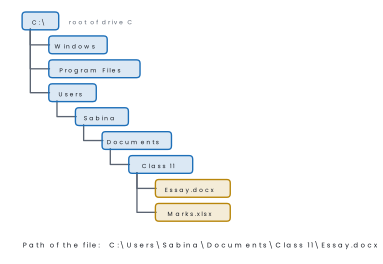
A file is a named collection of related data stored on a secondary storage device. A folder (directory) is a container that holds files and other folders, giving the storage a hierarchical tree structure.
File Explorer (Windows + E) is the Windows tool for browsing that tree.
Its parts are the navigation pane on the left (Quick access, This PC, OneDrive, Network), the ribbon or command bar at the top, the address bar showing the current path, the search box, and the content pane listing the items.
Common file-management operations
| Task | How to do it |
|---|---|
| Create a folder | right-click empty space → New → Folder, type the name, press Enter |
| Rename | select, press F2, type the new name |
| Copy | select, Ctrl + C, open the destination, Ctrl + V |
| Move | select, Ctrl + X, open the destination, Ctrl + V (or drag within the same drive) |
| Delete to Recycle Bin | select, press Delete |
| Delete permanently | select, press Shift + Delete |
| Restore a deleted file | open Recycle Bin, right-click the item → Restore |
| Select several items | Ctrl + click for scattered items, Shift + click for a run, Ctrl + A for all |
| Search | type in the search box; use *.docx to find all Word files |
| See hidden files | View → Show → Hidden items |
| Check size / properties | right-click → Properties |
A file is identified by its name and its extension, separated by a dot. The extension tells Windows which program should open the file.
| Extension | Type of file | Usual program |
|---|---|---|
.docx |
word processor document | MS Word |
.xlsx |
spreadsheet workbook | MS Excel |
.pptx |
presentation | MS PowerPoint |
.pdf |
portable document | Adobe Reader, browser |
.txt |
plain text | Notepad |
.jpg .png |
image | Photos |
.mp3 .mp4 |
audio, video | media player |
.exe |
executable program | Windows itself |
.zip .rar |
compressed archive | File Explorer, WinRAR |
Problem. Write the steps to create a folder Class11 on drive D containing
sub-folders Computer, Physics and Maths, then copy a file notes.docx
from the Desktop into Computer, and finally write the full path of the copied
file.
Solution.
- Press
Windows + Eto open File Explorer and click This PC → Local Disk (D:). - Right-click in an empty part of the content pane → New → Folder → type
Class11→ Enter. - Double-click
Class11to open it, and repeat step 2 three times to createComputer,PhysicsandMaths. - Minimise File Explorer, click
notes.docxon the Desktop and pressCtrl + C. - Return to File Explorer, open
D:\Class11\Computerand pressCtrl + V. - The full path of the copied file is
D:\Class11\Computer\notes.docx.
Delete moves an item to the Recycle Bin, from which it can be restored.
Shift + Delete removes it immediately. Files deleted from a USB flash drive
or a network drive also bypass the Recycle Bin.
3.7 Customising the Start screen and desktop; installing and removing devices
Customising the desktop
Right-click the desktop → Personalise to reach the settings for:
- Background — a picture, a solid colour or a slideshow.
- Colours — light or dark mode, accent colour, transparency.
- Themes — a saved bundle of wallpaper, colours, sounds and mouse pointers.
- Lock screen and screen saver (with "on resume, display logon screen" for security).
- Taskbar — alignment (centre or left), which icons appear, auto-hide, combine buttons.
- Display settings (right-click the desktop) — resolution, orientation, scaling, multiple monitors, night light.
Desktop icons are added through Personalise → Themes → Desktop icon settings (This PC, Recycle Bin, Network) or by right-clicking a program → Send to → Desktop (create shortcut).
Customising the Start menu
Open Settings → Personalisation → Start to choose whether recently added apps, most used apps and recommended files are shown.
To pin a program, right-click it in the Start menu or in the app list and choose Pin to Start (or Pin to taskbar); to remove it choose Unpin from Start. Tiles or icons can be dragged into a new position and grouped into folders.
Installing and removing devices
Most hardware today is Plug and Play: plug the device into a USB port and Windows identifies it, finds a matching driver and configures it automatically. If it does not:
- Connect the device and switch it on.
- Open Settings → Bluetooth & devices → Add device (for a Bluetooth or wireless device), or Settings → Bluetooth & devices → Printers & scanners → Add device for a printer.
- If no driver is found, install the driver supplied by the manufacturer on a disc or downloaded from the manufacturer's website.
- Verify in Device Manager (right-click Start → Device Manager) that the device is listed without a yellow warning triangle.
To remove a device: right-click Start → Device Manager, right-click the device → Uninstall device, tick delete the driver software if you want it gone completely, then unplug the hardware.
A USB flash drive should always be removed through Safely Remove Hardware in the notification area so that any buffered data is written out first.
To uninstall a program, go to Settings → Apps → Installed apps, click the three dots beside the program and choose Uninstall (the old route was Control Panel → Programs and Features).
A device driver is a small system program that translates the operating system's general commands into the specific signals a particular hardware device understands. Without the correct driver a device either does not work at all or works with reduced features.
3.8 Managing passwords and privacy; Control Panel, system tools and accessories
User accounts, passwords and privacy
Windows supports several account types: Administrator (can install software and change system settings), Standard user (can run programs and change only personal settings), and Guest / Child accounts with further restrictions.
Accounts are managed from Settings → Accounts.
To change a password: Settings → Accounts → Sign-in options → Password → Change. Other sign-in options include a PIN, Windows Hello face or fingerprint recognition, and a picture password.
Use at least 12 characters, mixing upper case, lower case, digits and symbols. Do not use your name, your date of birth, password or 123456.
Use a different password for every important account, change it if you suspect it has leaked, never write it on a sticky note, and turn on two-factor authentication wherever it is offered.
Privacy levels are set in Settings → Privacy & security, where you decide which apps may use the camera, microphone, location, contacts and notifications, how much diagnostic data is sent to Microsoft, and whether an advertising ID is used.
Related security settings live in Windows Security: virus and threat protection, firewall, account protection, and device encryption (BitLocker).
User Account Control (UAC) asks for confirmation before any program makes a system-wide change.
Control Panel
The Control Panel is the classic central place for configuring Windows. It is
opened by typing control in the search box, and its main categories are:
| Category | Typical settings |
|---|---|
| System and Security | system information, Windows Tools, backup, BitLocker |
| Network and Internet | network status, adapter settings, internet options |
| Hardware and Sound | devices and printers, power options, sound, AutoPlay |
| Programs | uninstall a program, default programs, Windows features |
| User Accounts | change account type, Credential Manager |
| Appearance and Personalisation | fonts, File Explorer options, taskbar |
| Clock and Region | date, time, time zone, formats |
| Ease of Access | Narrator, Magnifier, high contrast |
In Windows 11 most of these are being migrated into the modern Settings app, but the Control Panel is still present and is still examinable.
System tools and accessories
| Tool | What it does |
|---|---|
| Disk Cleanup | deletes temporary files, cached pages and Recycle Bin contents |
| Disk Defragmenter / Optimise Drives | rearranges fragmented files on a hard disk so reads are faster (not used on SSDs, which are "trimmed" instead) |
| Backup and Restore / File History | copies important files so they can be recovered |
| System Restore | returns system files and settings to an earlier restore point |
Task Manager (Ctrl + Shift + Esc) |
shows running processes, CPU, memory, disk and network usage; ends a hung program |
| Disk Management | creates, formats, shrinks and extends partitions |
| Device Manager | lists hardware and manages drivers |
| Windows Security | antivirus, firewall, threat history |
| Character Map | inserts symbols not on the keyboard |
| Notepad / WordPad | simple text editing |
| Paint | simple drawing and image editing |
| Calculator | standard, scientific, programmer (base conversion!) and date modes |
| Snipping Tool | captures part of the screen |
| Command Prompt / PowerShell / Terminal | command line access |
Windows Calculator has a Programmer mode that converts between HEX, DEC, OCT and BIN and performs bitwise AND, OR, XOR and NOT. Use it to check the answers to Unit 2 conversions — but never to replace the hand method, because the examination asks for the working.
3.9 Open source operating systems: UNIX, Linux and Linux distributions
Open source software is software whose source code is published under a licence (such as the GNU GPL) that grants everyone the freedom to run, study, modify and redistribute it. It is usually free of cost, but the essential point is freedom of the code, not the price.
Advantages: no licence fee; the code can be inspected, so security holes are found and fixed quickly; it can be customised for local needs (for example Nepali language support); it is not tied to one vendor; and it often runs well on older hardware.
Disadvantages: commercial support may have to be bought separately; some proprietary hardware lacks drivers; specialised commercial software (certain accounting or engineering packages) may not be available; and the user interface varies between distributions.
UNIX
UNIX was developed at AT&T Bell Laboratories in 1969 by Ken Thompson and Dennis Ritchie, and was rewritten in the C language in 1973 — which is why it could be moved from one machine to another.
UNIX is a multi-user, multitasking, time-sharing operating system with a hierarchical file system, a powerful shell and the philosophy of "small tools that do one job well and can be piped together".
It is proprietary; modern descendants include IBM AIX, Oracle Solaris, HP-UX and (through BSD) macOS.
Linux
Linux is a free, open-source, UNIX-like operating system kernel written by Linus Torvalds in 1991 while he was a student in Helsinki, and released under the GNU GPL.
Combined with the GNU tools of Richard Stallman's GNU Project (begun in 1983) it forms a complete operating system, properly called GNU/Linux.
As of 2025 Linux runs essentially all of the world's top 500 supercomputers, the large majority of web servers and cloud instances, and — through the Android kernel — most of the world's smartphones.
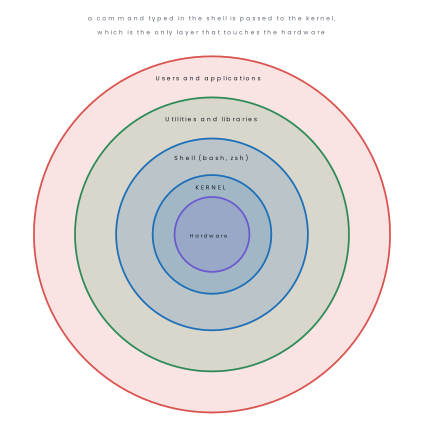
The kernel is the core of Linux: it manages processes, memory, devices and the file system. The shell (bash, zsh, fish) is the command interpreter that reads what you type and asks the kernel to carry it out. Some everyday shell commands:
pwd                  print the working directory
ls -l                list files with details
cd /home/sabina      change directory
mkdir Class11        make a directory
cp notes.txt backup/ copy a file
mv old.txt new.txt   rename or move
rm -i notes.txt      remove, asking first
cat marks.txt        display a file
chmod 755 run.sh     change file permissions
sudo apt update      run a command as the superuser
man ls               read the manual page
Linux distributions
A distribution (distro) is the Linux kernel packaged together with GNU utilities, a desktop environment, a package manager and a collection of applications, ready to install.
| Distribution | Family / package manager | Best known for |
|---|---|---|
| Ubuntu | Debian, apt |
the easiest starting point; huge community |
| Debian | Debian, apt |
rock-solid stability; the base of many others |
| Linux Mint | Debian/Ubuntu, apt |
a familiar Windows-like desktop |
| Fedora | Red Hat, dnf |
newest technology; upstream of RHEL |
| Red Hat Enterprise Linux / CentOS Stream | Red Hat, dnf |
paid commercial support in servers |
| openSUSE | SUSE, zypper |
the YaST configuration tool |
| Arch Linux | Arch, pacman |
build-it-yourself, rolling release |
| Kali Linux | Debian, apt |
penetration testing and security tools |
| Feature | Windows | Linux |
|---|---|---|
| Source code | closed, proprietary | open, GPL |
| Cost | paid licence | normally free |
| File system | NTFS, drive letters C: D: |
ext4, one tree from / |
| Path separator | backslash \ |
forward slash / |
| Case sensitivity | file names not case sensitive | file names are case sensitive |
| Superuser | Administrator | root (reached with sudo) |
| Software source | Store, .exe installers |
package manager repositories |
| Typical use | desktops, offices | servers, supercomputers, embedded, Android |
3.10 Mobile operating systems and their types
A mobile operating system is an operating system designed for handheld devices — smartphones, tablets and wearables.
It must support a touch screen, manage a battery carefully, work over cellular and wireless networks, and use sensors such as GPS, accelerometer and camera.
Differences from a desktop OS: a touch-first interface; aggressive power management; each app is sandboxed and must request permissions; apps are installed from a controlled app store; the system must survive interruptions such as an incoming call; and memory and storage are limited and not user-upgradeable.
| Mobile OS | Owner | Kernel / base | Open source? | Notes |
|---|---|---|---|---|
| Android | Google (Open Handset Alliance) | Linux | yes (AOSP core) | largest share; used by Samsung, Xiaomi, Oppo, Vivo; apps from Google Play |
| iOS / iPadOS | Apple | Darwin (UNIX-like) | no | runs only on Apple hardware; App Store only; strong privacy record |
| HarmonyOS | Huawei | HarmonyOS/Linux | partly | developed after Huawei lost Google services; large in China |
| KaiOS | KaiOS Technologies | Linux | partly | for cheap feature phones with 4G |
| Wear OS / watchOS | Google / Apple | Linux / Darwin | no | smart watches |
| Windows Phone | Microsoft | Windows NT | no | discontinued in 2019 — historical only |
| Symbian, BlackBerry OS | Nokia / BlackBerry | — | no | dominant before 2010; now obsolete |
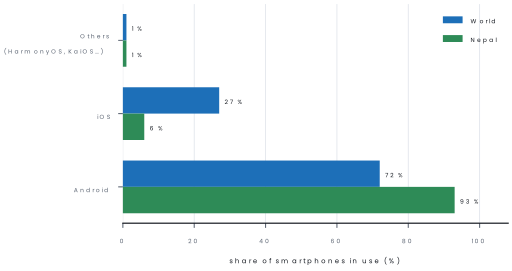
As of 2026 the current major releases are Android 16 and iOS 26.
Two operating systems therefore account for almost the entire market, which is why mobile application developers normally target only Android and iOS — or write one cross-platform app with a framework such as Flutter or React Native.
Problem. A school in Chitwan has 30 old desktop computers (4 GB RAM) for a computer laboratory, a server for its student-record system, and wants an app so that parents can check results on their phones. Recommend an operating system for each, with reasons.
Solution.
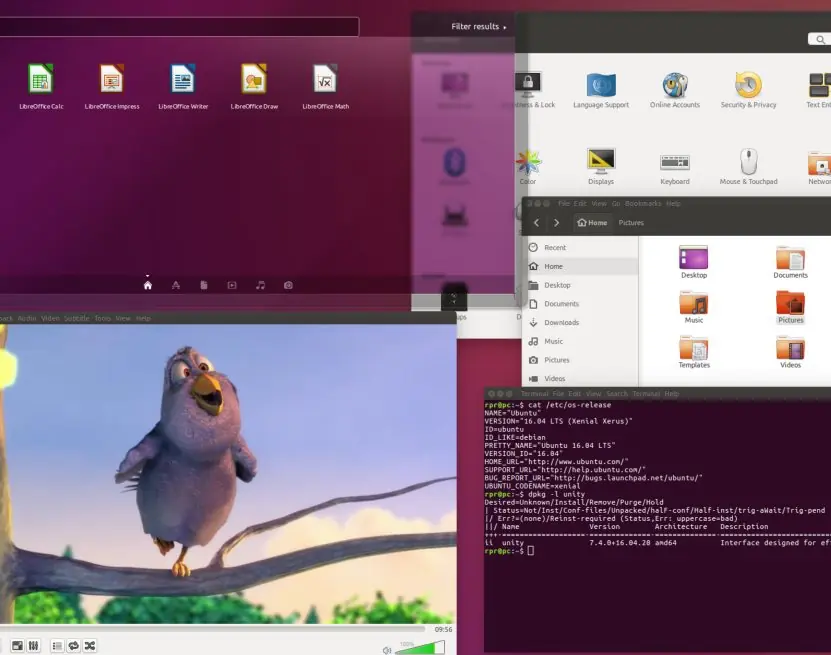
- Laboratory desktops: a lightweight Linux distribution such as Linux Mint or Ubuntu with the Xfce desktop. There is no licence fee for 30 machines, it runs well in 4 GB of RAM, LibreOffice covers the office syllabus, and the students get exposure to open-source software.
- Server: Ubuntu Server or Debian. Linux dominates server use because it is stable, secure, remotely manageable over SSH and free.
- Parents' phones: an Android app first, because as of 2025 Android covers well over 90 % of smartphones in Nepal, followed by an iOS version if the budget allows — or a single web-based result portal, which needs no app store at all.

Chapter summary
- Software is the set of programs that tells hardware what to do. The syllabus categories are system, utility, application, web-based and mobile apps.
- An operating system is the interface between user and hardware and the manager of all resources. Its functions are process, memory, file, device, security and user-interface management.
- Multiprogramming: many jobs, one CPU, switch on I/O wait. Multitasking: many jobs, one CPU, switch on time slice. Multiprocessing: many CPUs in one machine, true parallelism. Distributed: many machines on a network acting as one.
- Windows is a GUI (WIMP) operating system whose desktop, taskbar, Start menu, windows and File Explorer follow one consistent design. Know the parts of a window and the standard file operations and shortcuts.
- A file path names a drive, the chain of folders and the file with its
extension, for example
D:\Class11\Computer\notes.docx. - Control Panel and Settings configure the system; system tools such as Disk Cleanup, Task Manager, Device Manager and System Restore maintain it.
- Open source means the source code is published and may be modified. UNIX (Bell Labs, 1969) is the ancestor; Linux (Torvalds, 1991) is the free UNIX-like kernel, delivered as distributions such as Ubuntu, Debian, Fedora and Mint.
- Mobile operating systems are touch-first, power-aware and sandboxed. Android (Linux based, open) and iOS (Apple, closed) together hold almost the whole market.
Practice questions
Group A — Multiple choice (1 mark each)
- Which of the following is not system software? [1]adevice driverbcompilercMS Exceldoperating system
- Google Docs is an example of [1]autility softwarebweb-based softwarecsystem softwaredfirmware
- The part of the operating system that is always resident in main memory is the [1]ashellbkernelccompilerddriver
- Executing several programs on a single CPU by giving each a fixed time slice is called [1]amultiprogrammingbmultiprocessingcmultitaskingdbatch processing
- Which key combination opens File Explorer in Windows? [1]aWindows + DbWindows + EcCtrl + Shift + EscdAlt + Tab
- Linux was first developed by [1]aDennis RitchiebRichard StallmancLinus TorvaldsdBill Gates
- Which of the following is a Linux distribution? [1]aFedorabSolariscDarwindSymbian
- Android is based on which kernel? [1]aWindows NTbDarwincLinuxdSymbian
- The tool used to remove temporary files and free disk space is [1]aDisk CleanupbDevice ManagercTask ManagerdCharacter Map
Answers to Group A
1. (c) — MS Excel is application software.
2. (b) — it runs on a remote server and is used through a browser.
3. (b) — the kernel.
4. (c) — the fixed time slice is the mark of multitasking.
5. (b) — Windows + E.
6. (c) — Linus Torvalds, 1991.
7. (a) — Fedora; Solaris and Darwin are UNIX-like but not Linux, and Symbian was a mobile OS.
8. (c) — Linux.
9. (a) — Disk Cleanup.
Group B — Short answer (5 marks each)
- Define software. Explain the five categories of software given in the syllabus with two examples of each. [5]
- What is an operating system? Explain any five functions of an operating system. [5]
- Differentiate between multiprogramming and multitasking, and between multiprocessing and distributed processing. [5]
- What is a GUI? List any six features of the Windows operating system and compare a GUI with a CLI. [5]
- Write the steps to create a folder named
Projecton drive D, copy two files into it, rename one of them, and delete the other permanently. [5] - What is open source software? Write any four advantages of it and name four Linux distributions. [5]
Answers to Group B
1. Software is a set of programs, procedures and documentation that tells the hardware what to do; without it the hardware is useless. The syllabus lists five categories.
System software controls the computer and runs the hardware, for example Windows 11 and device drivers. Utility software maintains and protects the computer, for example antivirus, WinRAR and disk cleanup tools.
Application software helps the user do a particular job, for example MS Word for documents, Excel for calculation and Photoshop for images.
Web-based software runs in a browser from a server, so nothing needs to be installed, for example Gmail and Google Docs. Mobile apps are programs written for phones and tablets, for example eSewa and Khalti for payments.
System software is needed first, because application and utility programs run on top of it.
A computer in a school lab therefore uses all five: Windows as the base, an antivirus for safety, Word for lessons, Google Docs online for sharing, and phone apps for communication.
2. An operating system (OS) is system software that works as an interface between the user and the hardware and manages all the resources of the computer. Five functions are as follows.
(i) Process management: it creates, schedules and ends processes and decides which one uses the CPU; Task Manager shows them.
(ii) Memory management: it allocates and frees RAM, protects programs from each other and provides virtual memory when RAM is full.
(iii) File management: it creates, names, stores, protects and deletes files and folders and tracks free disk space, as File Explorer does.
(iv) Device management: it controls the keyboard, printer and disk through device drivers and uses buffers and spooling so that a slow device does not hold up the CPU.
(v) Security and protection: it uses accounts, passwords and permissions so that only authorised people can reach data, and it works with a firewall and antivirus. The OS also gives the user interface (CLI or GUI) and reports errors.
Without an OS, each program would have to control the hardware itself, which would be slow, risky and very difficult. Windows, Linux, macOS and Android are common operating systems.
3. Multiprogramming and multitasking. Multiprogramming keeps several programs in memory, and the CPU switches to another only when the running program waits for input or output; its aim is to use the CPU fully.
Multitasking gives each program a small time slice, so the CPU switches many times a second; its aim is a quick response for the user, who can type a document and play music together.
Multiprocessing and distributed processing. Multiprocessing uses two or more CPUs inside a single computer that share one memory and run tasks in parallel, as in a modern dual-core or quad-core computer.
Distributed processing uses many independent computers, each with its own memory, that are connected by a network and work on parts of one job; examples are cloud services and a bank's branch network.
The main difference is that multiprocessing is inside one machine and tightly coupled, while distributed processing spreads over many machines and is loosely coupled.
| Basis | Multiprogramming | Multitasking |
|---|---|---|
| Switch happens | When a program waits for I/O | After each time slice |
| Aim | CPU utilisation | Response time |
| Example | Early mainframes | Windows, Android |
4. A GUI (graphical user interface) lets the user work with windows, icons, menus and a pointer instead of typing commands.
Six features of Windows are: it is a GUI with a desktop, taskbar and Start menu; it is multitasking, so many programs run together; it supports plug and play, which installs a new device automatically; it has File Explorer for managing files; it supports long file names and the Recycle Bin; and it offers built-in security (user accounts, Windows Security, firewall).
Windows also supports networking and many languages, including Nepali typing.
| Basis | GUI | CLI |
|---|---|---|
| Input | Mouse, touch, menus | Typed commands |
| Ease | Easy for beginners | Needs commands to be remembered |
| Resources | Needs more memory and CPU | Very light |
| Power | Good for everyday work | Strong for administrators and scripting |
| Example | Windows, Ubuntu desktop | MS-DOS, Linux terminal |
6. Open source software is software whose source code is published under a licence that allows anyone to run, study, change and share it. Four advantages: (i) No licence cost, which saves money for schools and offices in Nepal.
(ii) Security, because many people can read the code and so flaws are found and fixed quickly. (iii) Customisation, because the code can be changed to suit local needs, such as Nepali language support.
(iv) No vendor lock-in, because the user is not tied to one company and can move to another distribution. Open source software also has a large community that gives free help and updates.
Four Linux distributions are Ubuntu, Debian, Fedora and Linux Mint; others are openSUSE, Arch and Kali. Examples of other open source programs are LibreOffice, Firefox and VLC.
A school lab that installs Ubuntu and LibreOffice can run dozens of computers without paying licence fees, but it should train its teachers to support it.
5. (i) Windows + E → This PC → Local Disk (D:). (ii) Right-click empty
space → New → Folder → type Project → Enter. (iii) Select the two files,
Ctrl + C, open D:\Project, Ctrl + V.
(iv) Click the first file, press F2, type the new name, Enter. (v) Click the second file and press Shift + Delete, then confirm — this bypasses the Recycle Bin.
6. Open source software publishes its source code under a licence allowing anyone to run, study, modify and redistribute it.
Advantages: no licence cost; security flaws are found and fixed quickly because the code is public; it can be customised (for example for Nepali); no vendor lock-in.
Distributions: Ubuntu, Debian, Fedora, Linux Mint (also openSUSE, Arch, Kali).
Group C — Long answer (8 marks each)
- (a) Define an operating system and explain its role as a resource manager and as an extended machine. [3](b) Explain in detail any five functions of an operating system, and name one Windows tool associated with each. [5]
- (a) With a suitable diagram, explain the parts of a window in a Windows application. [4](b) Explain the steps to install a new printer, and the steps to uninstall an unwanted program from a Windows computer. [4]
- (a) What is open source software? Compare Windows and Linux under any five headings. [5](b) What is a mobile operating system? Explain any three types with their owners and note how a mobile OS differs from a desktop OS. [3]
Answers to Group C
1. (b) Process management — scheduling the CPU among processes (Task Manager). Memory management — allocating RAM and virtual memory (Task Manager → Performance).
File management — creating, organising and protecting files (File Explorer). Device management — drivers, buffering and spooling (Device Manager). Security — accounts, passwords, firewall, antivirus (Windows Security).
Each point should be explained in two or three sentences with an example.
2. (b)
Installing a printer connect the printer by USB or to the Wi-Fi network and switch it on → Settings → Bluetooth & devices → Printers & scanners → Add device → Windows searches and installs the driver → if it is not found, click Add manually and supply the driver from the manufacturer's disc or website → print a test page.
Uninstalling a program Settings → Apps → Installed apps → find the program → click the three dots → Uninstall → confirm, and restart if asked. (Control Panel → Programs and Features does the same job.)
3. (b) A mobile OS is an operating system for handheld devices, designed for a touch screen, limited battery and cellular connectivity.
Android (Google, Linux kernel, open source, apps from Google Play); iOS (Apple, Darwin kernel, closed, runs only on Apple hardware); HarmonyOS (Huawei) or KaiOS (for feature phones).
Differences from a desktop OS: touch-first interface, strict power management, sandboxed apps with permissions, app-store-only installation, and hardware that cannot be upgraded by the user.
Group D — Long answer (10 marks each), with full model answers
- What is an operating system? Explain its functions in detail. [10]
- Explain multiprogramming, multitasking, multiprocessing and distributed processing with a comparison table. [10]
- What is open source software? Explain Linux, its features and distributions, and compare it with Windows. [10]
Model answer D1: operating system and its functions (10 marks)
Introduction. An operating system (OS) is the system software that manages the hardware and software resources of a computer and works as the interface between the user and the machine.
It is the first program loaded when the computer starts, and all other programs run under its control.
(Draw the six-manager figure of section 3.2.) Its role is that of a resource manager (it shares CPU, memory and devices among programs) and an extended machine (it hides the hard details of the hardware).
Functions.
- Process management: creates, schedules and ends processes; allocates the CPU.
- Memory management: allocates RAM, protects programs and provides virtual memory.
- File management: creates, organises, protects and deletes files and folders.
- Device management: controls devices through drivers; buffering and spooling.
- Security and protection: accounts, passwords, permissions, firewall.
- User interface: CLI or GUI for the user to give commands.
- Error detection and monitoring: reports faults and shows CPU and memory use.
- Resource allocation: shares all resources fairly and avoids deadlock.
| Function | Example in Windows |
|---|---|
| Process management | Task Manager |
| Memory management | Virtual memory (paging file) |
| File management | File Explorer |
| Device management | Device Manager and drivers |
| Security | Windows Security, user accounts |
Types of operating system. Batch, single-user, multi-user (time sharing), real-time (ATMs and robots), distributed, and embedded or mobile (Android, iOS).
Conclusion. Without an operating system a computer is only a heap of hardware. It makes the machine easy to use, protects it and shares its resources, and every computer in a school, bank or phone depends on one.
Model answer D2: types of processing (10 marks)
Introduction. A modern operating system uses several techniques to keep the CPU busy and the user satisfied. The four terms of the syllabus describe how programs and processors are organised.
Explanation.
- Multiprogramming: several programs are kept in memory; when one waits for input or output, the CPU runs another. This raises CPU utilisation.
- Multitasking: the CPU gives each program a short time slice and switches rapidly, so the user feels that all run at once, for example typing in Word while music plays.
- Multiprocessing: two or more CPUs in one computer share memory and execute tasks in parallel, giving higher speed and reliability.
- Distributed processing: many independent computers connected by a network share the work of one job, as in cloud services and banking networks.
| Basis | Multiprogramming | Multitasking | Multiprocessing | Distributed |
|---|---|---|---|---|
| CPUs | One | One | Two or more | Many computers |
| Memory | Shared | Shared | Shared | Separate for each |
| Switching | On I/O wait | By time slice | Not needed | Not needed |
| Aim | CPU use | Quick response | Speed, reliability | Resource sharing, scale |
| Example | Early mainframe | Windows | Quad-core PC | Cloud servers |
Advantages and limits. Multiprogramming and multitasking use the CPU well but need more memory. Multiprocessing is fast but costly. Distributed systems scale well, but they depend on the network and are hard to secure.
Conclusion. The four techniques are steps from using one CPU well to using many computers together. A smartphone uses multitasking and multiprocessing, while an online payment system uses distributed processing.
Model answer D3: open source software, Linux and Windows (10 marks)
Introduction. Open source software is software whose source code is available to everyone under a licence that allows it to be used, studied, changed and redistributed. Linux is the best-known open source operating system.
Linux. UNIX was created at Bell Labs in 1969. Linux was started by Linus Torvalds in 1991 as a free kernel.
Its features are: free of cost, open source, multi-user and multitasking, secure and stable, portable to many kinds of hardware, and available from the command line and from graphical desktops.
A distribution packs the Linux kernel with software and an installer; common ones are Ubuntu, Debian, Fedora, Linux Mint, openSUSE and Arch. Android also uses the Linux kernel.
Advantages of open source. No licence cost, quick security fixes, freedom to customise (for example Nepali language support), no vendor lock-in, and strong community help.
| Basis | Windows | Linux |
|---|---|---|
| Cost | Paid licence | Free |
| Source code | Closed | Open |
| Security | Often attacked by viruses because it is popular | Fewer viruses; fast fixes |
| User interface | Mainly GUI | GUI and a strong CLI |
| Hardware and software support | Wide, especially games | Good, but fewer commercial programs |
| Customisation | Limited | Very high |
| Support | Company support | Community support |
Conclusion. Windows is easy and widely supported, and Linux is free, secure and flexible. Schools in Nepal with limited budgets can reduce cost by using Linux and open source software, while still teaching Windows because it is common in offices.
Practise more: Computer Science question bank