Unit 1 · 20 teaching hours · 51 min read
Computer System
What the syllabus asks for 14
- Definition, characteristics and application of computer
- Evolution of computer technology (generations)
- Measurement unit of processing speed and storage unit
- Super, Mainframe, Mini and Microcomputers
- Mobile Computing and its Application
- Concept of computer architecture and organization
- Components of computer system: input, output, processing, memory unit and storage
- Microprocessor: basic concepts, clock speed, word length, components and functions
- Bus System: data bus, address bus and control bus
- Primary memory: RAM, ROM, Cache, Buffer; types of RAM and ROM
- Secondary Memory: Magnetic Disk, Flash Memory, Optical Disk, External Storage Device
- Input Devices: Keyboard, Mouse, Scanner, Light Pen, OMR, OCR, BCR, MICR, Touch Screen, Microphone, Digital Camera
- Output Devices: Monitor (LCD, LED), Printer (Dot Matrix, Inkjet, Laser), Speaker
- Hardware Interfaces: Parallel Port, Serial Port, USB Ports, HDMI, Expansion Slots
A computer is not one machine but a system — a set of parts, each doing one job, wired together so that data flows from input, through processing, to output, while instructions and results sit in memory.
This unit takes the system apart: first the history and the classification, then the architecture, then every physical component you will be asked to name, compare and describe.
At 20 teaching hours it is the largest unit in Grade 11 Computer Science and it supplies more exam marks than any other.
Almost every question is one of four shapes: define and list characteristics, compare two things in a table, draw and explain the block diagram, or a small numerical on storage capacity or speed.
Learn the block diagram until you can draw it from memory, and memorise the storage-unit ladder.
1.1 Definition, characteristics and application of computer
A computer is an electronic device that accepts data as input, processes it according to a stored set of instructions (a program), stores the data and results, and produces meaningful information as output.
The word comes from the Latin computare, "to calculate", but a modern computer is a general-purpose data processor, not merely a calculator.
The processing cycle is usually written as the IPO cycle — Input → Process → Output — with Storage added as a fourth stage, giving IPO-S.
Characteristics.
| Characteristic | What it means |
|---|---|
| Speed | Operations are measured in millions or billions per second; internal events take nanoseconds |
| Accuracy | Errors come from wrong data or a wrong program, not from the machine — GIGO: Garbage In, Garbage Out |
| Diligence | It does not tire, get bored or lose concentration; the millionth calculation is as good as the first |
| Versatility | The same hardware runs a spreadsheet, a game and a weather model — only the program changes |
| Storage capacity | Terabytes of data can be held and retrieved in a fraction of a second |
| Automation | Once started, a program runs to completion without human help |
| Reliability | Consistent results over long periods with very low failure rates |
| No IQ / No feeling | It has no intelligence of its own; it obeys instructions literally |
Characteristics explained. Each characteristic below is written the way a 10-mark answer expects it: name, meaning, and a Nepali example.
1. Speed. A modern processor performs billions of simple operations every second, and one operation takes only a few nanoseconds. Work that would keep a clerk busy for a week can finish before you blink.
For example, the examination board can sort and grade the marks of lakhs of students in minutes, where manual tabulation once took many days. Speed is the reason computers are used wherever a huge amount of data must be handled quickly.
2. Accuracy. A computer performs arithmetic in exactly the same way every time, so the machine itself does not make random mistakes.
Wrong output comes from wrong input data or a wrong program, which is summed up by the rule GIGO (Garbage In, Garbage Out).
When a bank adds interest to thousands of accounts, every rupee is calculated to the same number of decimal places. If a teacher types a wrong mark, however, the computer will faithfully print the wrong result.
3. Diligence. A human becomes tired, bored and careless after hours of repetitive work, but a computer does not. It carries out the millionth calculation with the same care as the first one.
An electricity billing system, for instance, can process the meter readings of every household month after month without a break. This makes the computer ideal for dull, repetitive jobs.
4. Versatility. A computer is a general-purpose machine: the same hardware does very different jobs when the program is changed.
In one hour a student may type a letter, watch a lecture, run a spreadsheet and play a game on a single laptop. A bank terminal, a school server and a smartphone differ mainly in the software they run.
This ability to change tasks is what separates a computer from a calculator.
5. Storage capacity. A computer can keep a very large amount of data in a small space and bring it back in a fraction of a second. A single 1 TB disk holds about 250,000 photographs or millions of pages of text.
National identity records, land records and examination records are kept this way instead of in room-sized cupboards. Stored data can also be searched, copied and backed up easily.
6. Automation. Once a program and its data are loaded, the computer carries out the instructions one after another without help from a person.
A payroll program can calculate salary, tax and deductions for every employee and print the payslips while the operator is away. Automation saves labour and removes the waiting time between steps.
The ATM that counts and releases notes after a few key presses is a small, familiar example.
7. Reliability. A well-built computer gives the same result for the same input over a long period and fails very rarely. Banks, airlines and hospitals depend on this, and they add backup power and duplicate systems to keep running.
A Fonepay or ConnectIPS payment, for example, must complete correctly at any hour of the day. High reliability is what lets people trust a computer with money and health records.
8. No intelligence and no feelings. A computer cannot think for itself; it obeys the instructions of the programmer literally, even when they are foolish. It cannot judge, feel tired, or become angry or happy.
Only a program written by a human tells it what to do, so the human remains responsible for the result. This limitation is also why artificial intelligence is such an active field of research.
Applications explained. Eight areas, each with the Nepali example an examiner likes to see.
1. Education. Schools and colleges use computers for e-learning, online classes, digital libraries, result processing and student records.
The National Examinations Board publishes results on its website and by SMS, and university portals handle forms and results for thousands of students.
Teachers prepare lessons with presentations and simulations, and students practise with educational software. Computers make learning possible even when a student cannot reach a classroom.
2. Banking and finance. Banks use computers for core banking, ATMs, cheque clearing with MICR, mobile banking and card payments. ConnectIPS moves money between bank accounts, and Fonepay lets you pay in a shop by scanning a QR code.
Because every branch connects to one central database, you can deposit in Kathmandu and withdraw in Jumla. Computers also keep the records safe and make audits faster.
3. Government and public services. Government offices use computers for the national ID card, passport and driving-licence systems, land records, tax collection and customs.
The Nagarik App brings digital documents and several services onto one mobile screen. This cuts paperwork, queues and the chance of files being lost or hidden. Citizens can apply, pay and track many services from home.
4. Health and medicine. Hospitals keep patient records, appointments and bills on computers, and CT, MRI and ultrasound machines need computer processing to form their images.
Telemedicine lets a health worker in a remote hill village consult a specialist in Kathmandu over a video call. Computers also help to manage vaccination records and medicine stocks. Faster and clearer diagnosis can save lives.
5. Science, engineering and weather forecasting. Scientists use computers to run models that would take years by hand.
The Department of Hydrology and Meteorology (DHM) processes weather and river-flow data to issue forecasts and flood warnings. Engineers use CAD software to design bridges, roads and buildings and to test them on screen before building.
Earthquake research in Nepal also depends on the computer analysis of seismic data.
6. Business and industry. Shops and companies use computers for billing, inventory, accounting and payroll. A supermarket's barcode scanner finds the price and reduces the stock count at the same moment.
Factories use computer-controlled machines and robots for accurate, repeatable work. Even a small business can keep exact records and make better decisions with a spreadsheet.
7. Communication and media. Email, video calls, messaging and social media all run on computers and networks.
Newspapers, FM stations and TV channels in Nepal use computers for writing, editing and broadcasting, and many Nepalis abroad talk to their families every day over video calls. Online news reaches readers the moment it is published.
Communication that once took days by post now takes seconds.
8. Transport, tourism and entertainment. Computers run online bus and air ticketing, air-traffic control and GPS navigation. Trekkers book permits, guides and hotels online, and hotels manage bookings with software.
Films use computer animation, and games are a large form of entertainment. Traffic lights and vehicle registration in the cities are also computer controlled.
1.2 Evolution of computer technology (generations)
Before electronics, calculation was mechanical: the abacus (about 3000 BC), Napier's Bones (1617), Pascal's Pascaline (1642), Leibniz's stepped reckoner (1671), Jacquard's punched-card loom (1801) and Charles Babbage's Difference Engine (1822) and Analytical Engine (1833).
Because the Analytical Engine already had a mill, a store, input and output, Babbage is called the Father of Computer, and Ada Lovelace, who wrote its algorithms, the first programmer.
Herman Hollerith's punched-card tabulator (1890) led to the company that became IBM.
Electronic computers are grouped into five generations, each defined by the switching technology it uses.
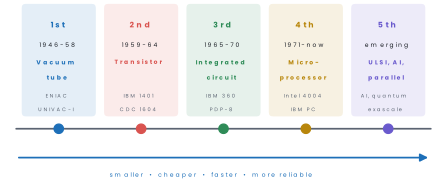
| Generation | Switching device | Memory | Language | Typical speed |
|---|---|---|---|---|
| First | Vacuum tube | Magnetic drum | Machine (binary) | milliseconds |
| Second | Transistor | Magnetic core | Assembly, early FORTRAN/COBOL | microseconds |
| Third | Integrated circuit (SSI/MSI) | Magnetic core, early semiconductor | High-level, OS with multiprogramming | nanoseconds |
| Fourth | Microprocessor (LSI/VLSI) | Semiconductor RAM | 3GL, 4GL, GUI | nanoseconds |
| Fifth | ULSI, parallel and AI processors | Very large semiconductor, optical | Natural language, AI | picoseconds |
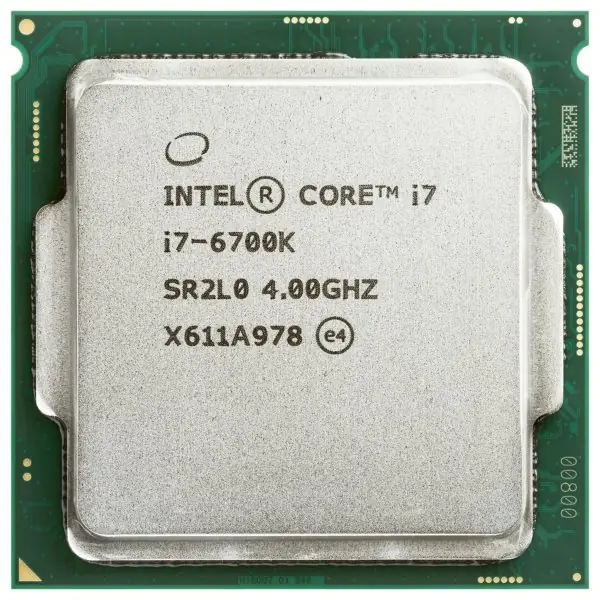
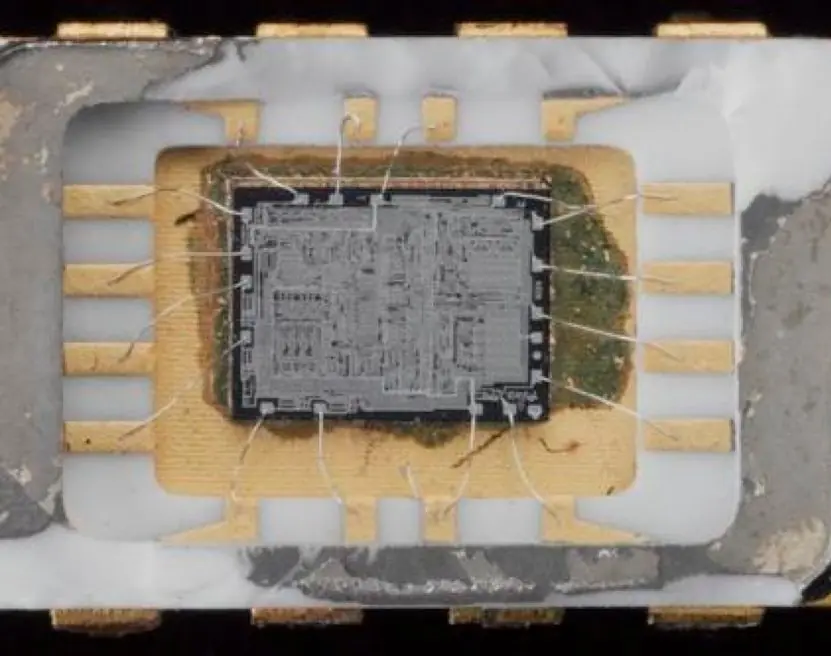
The fourth generation begins with the Intel 4004 (1971) — the first microprocessor, a 4-bit chip of about 2,300 transistors clocked at roughly 740 kHz. The IBM PC of 1981 used the 16-bit Intel 8088.
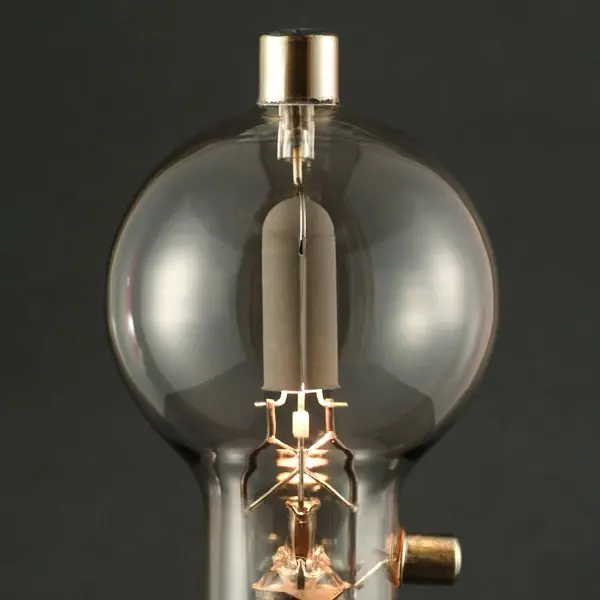
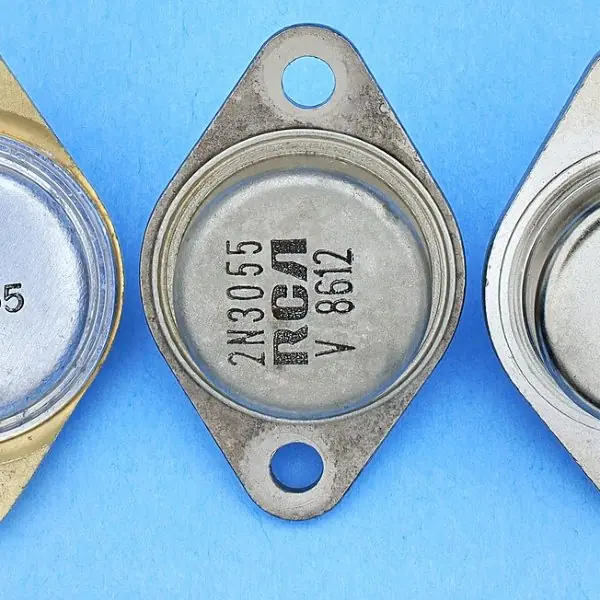
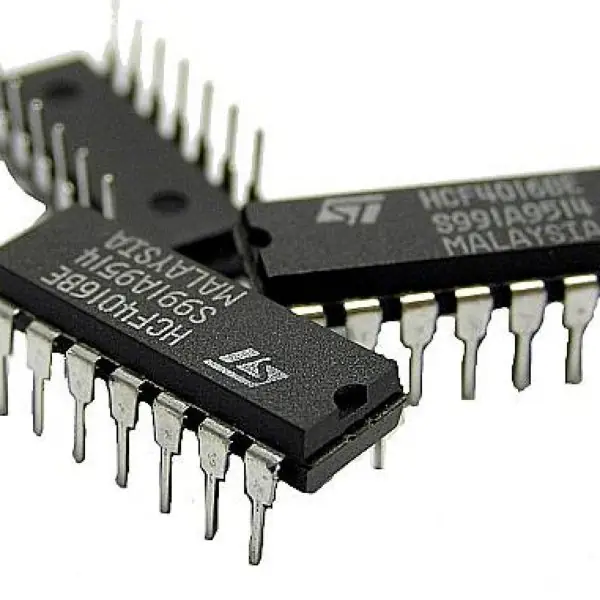
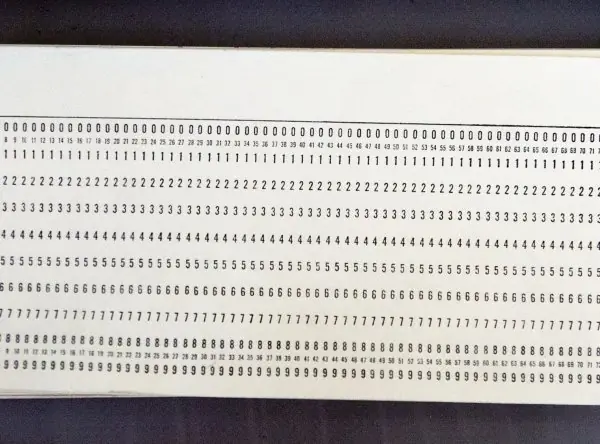
The five generations in detail. A ten-mark question asks for the technology, the machines, the advantages and the drawbacks of every generation, so learn each paragraph below as a unit.
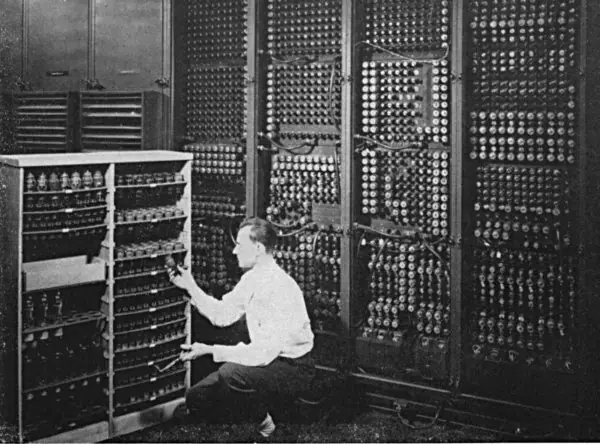
First generation (1946-1958): vacuum tubes. The first electronic computers, ENIAC (1946) and UNIVAC I, used thousands of vacuum tubes as switches. A tube is a glass bulb with a heated filament, and it gets very hot.
ENIAC held about 17,000 tubes, weighed roughly 27 tonnes and filled a large hall. Programs were written in machine language (binary) and entered by plugging wires or by punched cards, and the memory was a magnetic drum.
Advantages the first fully electronic machines, thousands of times faster than mechanical calculators.
Limitations huge size, very high power use and heat, frequent tube failure, high cost, a single program at a time and no operating system.
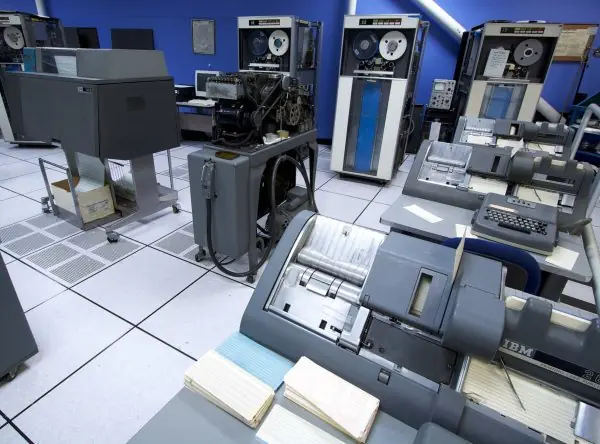
Second generation (1959-1964): transistors. The transistor, invented at Bell Laboratories in 1947, replaced the tube. It is a tiny solid-state switch that is smaller, cooler, cheaper and far more reliable.
Magnetic core memory appeared, and assembly language and the first high-level languages, FORTRAN and COBOL, replaced pure binary. Machines such as the IBM 1401 handled business accounts and census data.
Advantages smaller, faster, more reliable and cheaper than first generation machines.
Limitations still costly, still needed air-conditioning, and programs were written for one particular model.
Third generation (1965-1970): integrated circuits. An integrated circuit (IC), invented by Jack Kilby in 1958, puts many transistors, resistors and capacitors on one small silicon chip.
The IBM System/360 (1964) and the PDP-8 are typical machines.
Small-scale and medium-scale integration (SSI and MSI) brought operating systems with multiprogramming, keyboards and monitors in place of punched cards, and high-level languages such as BASIC and Pascal.
Advantages smaller size, lower power, higher speed and reliability, and lower cost.
Limitations ICs were still hard to make, and computers were not yet cheap enough for homes.
Fourth generation (1971-present): microprocessors. The microprocessor puts the whole CPU on one chip. The Intel 4004 (1971) held about 2,300 transistors; today a processor holds billions (LSI, then VLSI).
The result was the personal computer: the IBM PC (1981), Apple Macintosh, laptops and smartphones. This generation brought the GUI, mouse, networks, the Internet, semiconductor RAM and fourth-generation languages.
Advantages small, cheap, very fast, reliable and available to ordinary people.
Limitations the machine still has no intelligence of its own, and e-waste and cyber-crime became new problems.
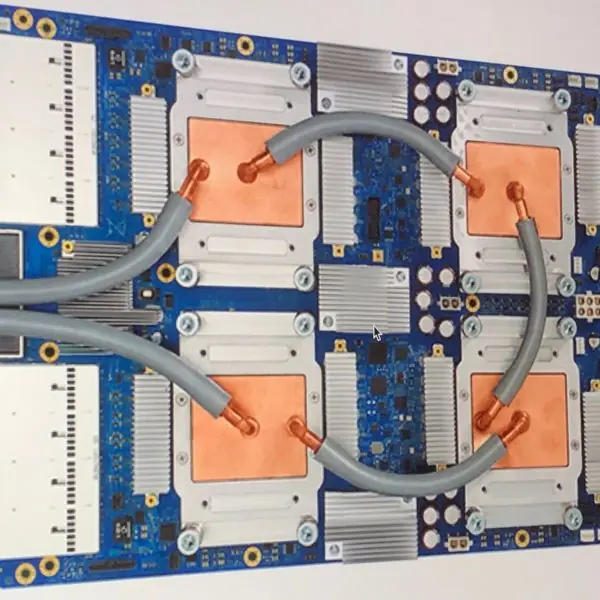
Fifth generation (present and beyond): ULSI, AI and parallel processing. The aim is a computer that can learn, reason and understand speech.
Features include very large chips with many cores, artificial intelligence, machine learning, voice assistants, robotics, parallel and cloud computing, and early quantum computers. Natural-language interfaces are replacing menus.
Advantages it can handle huge data, recognise images and speech, and make predictions.
Limitations the systems are expensive, need huge data and power, and raise questions about privacy, jobs and fairness.
Comparison of the five generations.
| Feature | 1st | 2nd | 3rd | 4th | 5th |
|---|---|---|---|---|---|
| Period | 1946-58 | 1959-64 | 1965-70 | 1971-now | emerging |
| Switching device | Vacuum tube | Transistor | IC (SSI/MSI) | Microprocessor (LSI/VLSI) | ULSI, AI chips |
| Size | A room | A large cabinet | A cabinet | Desktop, laptop, pocket | Pocket to cloud |
| Heat and power | Very high | High | Moderate | Low | Low per operation |
| Reliability | Very low | Moderate | High | Very high | Very high |
| Input and output | Punched cards, plugboards | Cards, printers | Keyboard, monitor | Mouse, GUI, touch | Voice, gesture, sensors |
| Software | Machine language | Assembly, FORTRAN, COBOL | OS, BASIC, Pascal | GUI, 4GL, Internet | AI, natural language |
| Examples | ENIAC, UNIVAC-I | IBM 1401 | IBM 360, PDP-8 | IBM PC, Macintosh | AI systems, quantum |
Eight improvements from generation to generation.
1. Size. A first-generation computer filled a hall, but a smartphone today is far more powerful and fits in a pocket. Smaller switches, from tube to transistor to chip, made this possible.
2. Speed. Switching time fell from milliseconds to nanoseconds and then to picoseconds. Billions of operations per second are now normal.
3. Power and heat. A tube needed a heater, while a chip uses a tiny current. Less heat means no huge cooling system and lower electricity bills.
4. Cost. Mass production of ICs and microprocessors made each generation cheaper per operation. This is why a school lab can now afford dozens of computers.
5. Reliability. A tube burned out like a bulb, but a chip has no filament and can run for years. Fewer failures mean less repair time and more trust.
6. Memory. Memory moved from the magnetic drum to core to semiconductor RAM and SSDs. Capacity rose from a few kilobytes to many gigabytes.
7. Software. Programmers moved from binary to assembly, high-level languages, GUIs and AI tools. Programs became easier to write and to use.
8. Access. Mainframes belonged only to governments and large companies. Personal computers, the Internet and mobile phones put computing within reach of students and villagers.
"Very Tall Indians Make Art" — Vacuum tube, Transistor, Integrated circuit, Microprocessor, AI. The five generations in order.
1.3 Measurement unit of processing speed and storage unit
Speed. Two different things are measured, and students mix them up.
| Quantity | Unit | Meaning |
|---|---|---|
| Clock frequency | hertz (Hz), MHz, GHz | clock pulses per second; 1\ \text{GHz} = 10^{9} cycles s⁻¹ |
| Cycle / access time | ms, μs, ns, ps | time for one cycle or one memory access |
| Instruction rate | MIPS | millions of instructions per second |
| Arithmetic rate | FLOPS, GFLOPS, TFLOPS, PFLOPS, EFLOPS | floating-point operations per second |
Clock period and frequency are reciprocals: T = 1/f. A 3.2 GHz processor has a clock period of 1/(3.2\times10^{9}) = 0.3125 ns.
Storage. The smallest unit is the bit (binary digit, 0 or 1). Four bits make a nibble, eight bits a byte — one byte stores one character in ASCII.
KB → MB → GB → TB → PB → EB → ZB → YB, each step \times 1024 = \times 2^{10}. "Kings Make Good Tea Pots Every Zero Year." (In 2022 the BIPM added two more: RB ronnabyte and QB quettabyte.)
| Unit | Symbol | Binary value | Approximate size |
|---|---|---|---|
| Kilobyte | KB | 2^{10} = 1,024 B | half a page of text |
| Megabyte | MB | 2^{20} B | a 3-minute MP3 song ≈ 3 MB |
| Gigabyte | GB | 2^{30} B | a 2-hour HD film ≈ 4 GB |
| Terabyte | TB | 2^{40} B | a typical 2026 laptop hard disk |
| Petabyte | PB | 2^{50} B | a large national data centre |
| Exabyte | EB | 2^{60} B | global internet traffic in a few hours |
Disk makers use the decimal SI prefix, 1\ \text{GB} = 10^{9} bytes, while the operating system reports binary units, 2^{30} = 1{,}073{,}741{,}824 bytes. A "500 GB" disk therefore shows as about 465 GB.
The IEC names for the binary units are KiB, MiB, GiB (kibibyte, mebibyte, gibibyte). In NEB answers use 1\ \text{KB} = 1024\ \text{B} unless the question says otherwise.
Problem. A 64 GB memory card is used in a camera that produces 6 MB photos and 1080p video at 24 Mbps.(a) How many photos fit?(b) How many minutes of video fit, if the card is empty? Take 1\ \text{GB}=1024\ \text{MB}.
Solution. (a) Capacity = 64 \times 1024 = 65{,}536\ \text{MB}.
(b) Video rate = 24\ \text{Mbps} = 24/8 = 3\ \text{MB s}^{-1}.
1.4 Super, Mainframe, Mini and Microcomputers
Digital computers are classified by size, processing power and cost.
| Type | Processing power | Users at once | Typical use | Example |
|---|---|---|---|---|
| Supercomputer | Fastest; measured in PFLOPS/EFLOPS | few, batch jobs | weather modelling, nuclear simulation, genome research | El Capitan, Frontier, Fugaku |
| Mainframe | Very high throughput, huge I/O | thousands of terminals | bank core systems, census, airline reservation | IBM z-series |
| Minicomputer (midrange) | Medium | tens to hundreds | departmental servers, process control | PDP-11, IBM AS/400 |
| Microcomputer | One microprocessor | usually one | desktop, laptop, tablet, smartphone | PC, MacBook, smartphone |
A supercomputer gets its speed from massive parallelism, not from one very fast processor.
As of the November 2025 TOP500 list, the fastest machine in the world was El Capitan at Lawrence Livermore National Laboratory, USA, rated at 1.809 exaFLOPS (about 1.8\times10^{18} floating-point operations per second) on the LINPACK benchmark, using more than 11 million processor cores.
A mainframe is optimised for throughput and reliability rather than raw arithmetic: it moves enormous volumes of transactions with near-continuous uptime, which is why banks and airlines still use them.
Microcomputers are further divided into desktop, laptop, notebook, netbook, tablet, palmtop/PDA, smartphone and workstation (a high-end single-user machine for CAD or video editing).
1.5 Mobile Computing and its Application
Mobile computing is the use of portable computing devices that can transmit and receive data over a wireless network while the user is moving, so that computing is not tied to a fixed location.
It rests on three legs: mobile hardware (smartphone, tablet, laptop, wearable), mobile software (mobile OS and apps) and mobile communication (Wi-Fi, Bluetooth, 4G LTE, 5G, NFC, GPS, satellite).
Applications. Mobile banking and digital wallets (eSewa, Khalti, ConnectIPS and fonepay QR payments in Nepal); m-commerce; m-learning; telemedicine and tele-consultation in remote districts; GPS navigation and ride hailing (Pathao, InDrive); field data collection for the census and for disaster response; agriculture advisories by SMS; and mobile ticketing.
Advantages — mobility, immediate access, location awareness, lower infrastructure cost. Limitations — limited battery, small screen, weaker processing and storage, dependence on network coverage, and greater security and privacy risk.
1.6 Concept of computer architecture and organization
These two terms are examined together almost every year because they are easy to confuse.
Computer architecture is the functional behaviour of a computer as seen by a programmer — instruction set, data types, word length, addressing modes, registers and I/O mechanisms. It answers what the machine does.
Computer organization is the operational implementation — the control signals, the interfaces, the memory technology and how the units are physically interconnected. It answers how it is built.
| Architecture | Organization |
|---|---|
| Logical / functional view | Physical / implementation view |
| Visible to the programmer | Transparent to the programmer |
| Decided first, changes rarely | Decided later, changes with each model |
| Instruction set, word size, addressing modes | Control signals, bus widths, memory chips used |
| e.g. "the x86-64 instruction set" | e.g. "how L2 cache is wired in this particular CPU" |
Two classical architectures appear in the syllabus:
- Von Neumann (stored-program) architecture — one memory holds both instructions and data, and one bus carries both. Simple and cheap, but the single path between CPU and memory limits speed; this is the von Neumann bottleneck. Almost all general-purpose computers use it.
- Harvard architecture — separate memories and separate buses for instructions and data, so both can be fetched at once. Used in microcontrollers and in DSP chips, and inside modern CPUs at the cache level (separate instruction and data L1 caches — a "modified Harvard" design).
1.7 Components of computer system: input, output, processing, memory and storage
A computer system = hardware + software + data + people (liveware) + procedures. The hardware is organised into five functional units.
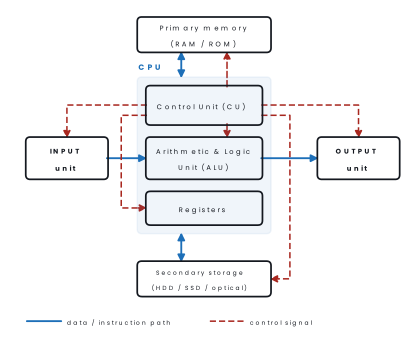
- Input unit — converts data from a human-readable form into binary and feeds it to the CPU.
- Central Processing Unit (CPU) — the "brain". It contains: - the Control Unit (CU), which fetches instructions, decodes them and generates the control signals that direct every other unit (it does not do any arithmetic itself); - the Arithmetic and Logic Unit (ALU), which performs arithmetic (+, −, ×, ÷) and logic (AND, OR, NOT, comparison) operations; - registers, small very fast stores inside the CPU that hold the data being worked on right now.
- Memory unit (primary memory) — holds the program and data currently in use; directly addressable by the CPU.
- Storage (secondary memory) — keeps data permanently; not directly accessible by the CPU, data must be copied to RAM first.
- Output unit — converts binary results back into human-readable form.
The CU and ALU together with registers form the CPU; the CPU and primary memory together are sometimes called the main unit or system unit.
1.8 Microprocessor: basic concepts, clock speed, word length, components and functions
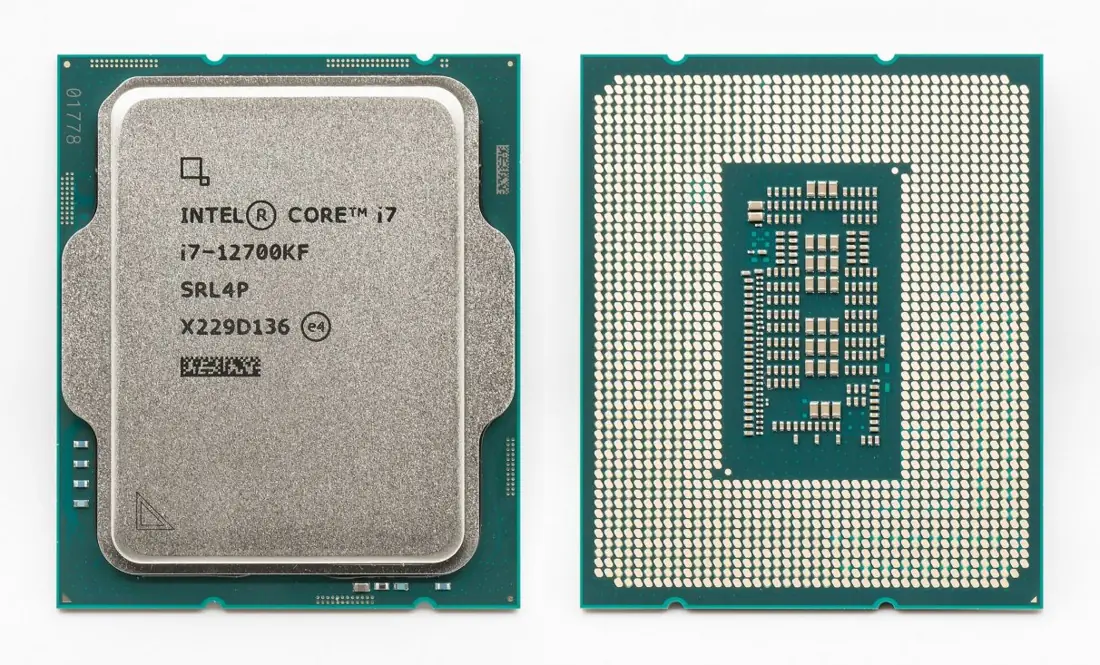
A microprocessor is a single integrated-circuit chip that contains the complete central processing unit — control unit, arithmetic and logic unit and registers — of a computer. It is fabricated using VLSI/ULSI technology.
Components and their functions.
| Component | Function |
|---|---|
| ALU | arithmetic and logical operations |
| Control unit | decodes instructions, generates timing and control signals |
| Register array | temporary high-speed storage (accumulator, PC, MAR, MDR/MBR, IR, general registers) |
| Clock / timing circuit | synchronises every operation |
| Cache (L1, L2, L3) | keeps recently used instructions and data close to the cores |
| Bus interface unit | connects the chip to the external address, data and control buses |
Key registers. Program Counter (PC) holds the address of the next instruction; Memory Address Register (MAR) holds the address being accessed; Memory Data Register (MDR) holds the word in transit; Instruction Register (IR) holds the instruction being decoded; the Accumulator (A) holds ALU results.
Clock speed is the number of clock pulses per second, in MHz or GHz. Each instruction takes a whole number of clock cycles, so — for one given design — a higher clock means more instructions per second.
Typical desktop processors in 2026 run at a base clock of 3–4 GHz with boost clocks above 5 GHz.
Word length is the number of bits the CPU can fetch, store and process as a single unit — 8, 16, 32 or 64 bits on real machines. A longer word means more precision, larger directly-addressable memory and greater speed.
A 32-bit processor can address 2^{32} = 4\ \text{GB} of memory; a 64-bit processor can in principle address 2^{64} bytes, which is 16 exabytes.
Problem. A microprocessor has a clock speed of 2.5 GHz. An instruction needs 5 clock cycles. Find(a) the clock period,(b) the time to execute one instruction, and(c) the number of instructions executed per second in MIPS.
Solution. (a) T = \dfrac{1}{f} = \dfrac{1}{2.5\times10^{9}} = 4\times10^{-10}\ \text{s} = 0.4\ \text{ns}
(b) t_{instr} = 5 \times 0.4\ \text{ns} = 2\ \text{ns}
(c) Instructions per second = \dfrac{1}{2\times10^{-9}} = 5\times10^{8}, i.e. \dfrac{5\times10^{8}}{10^{6}} = 500\ \text{MIPS}.
A 2 GHz processor can beat a 3 GHz one if it has more cores, a wider word, a bigger cache or a better instruction set. Never say "the higher the GHz, the faster the computer" without adding "for processors of the same design".
1.9 Bus System: data bus, address bus and control bus
A bus is a group of parallel conducting lines that carries bits between the components of a computer. The number of lines is the width of the bus.
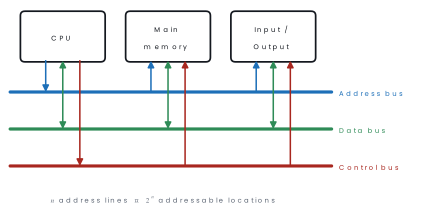
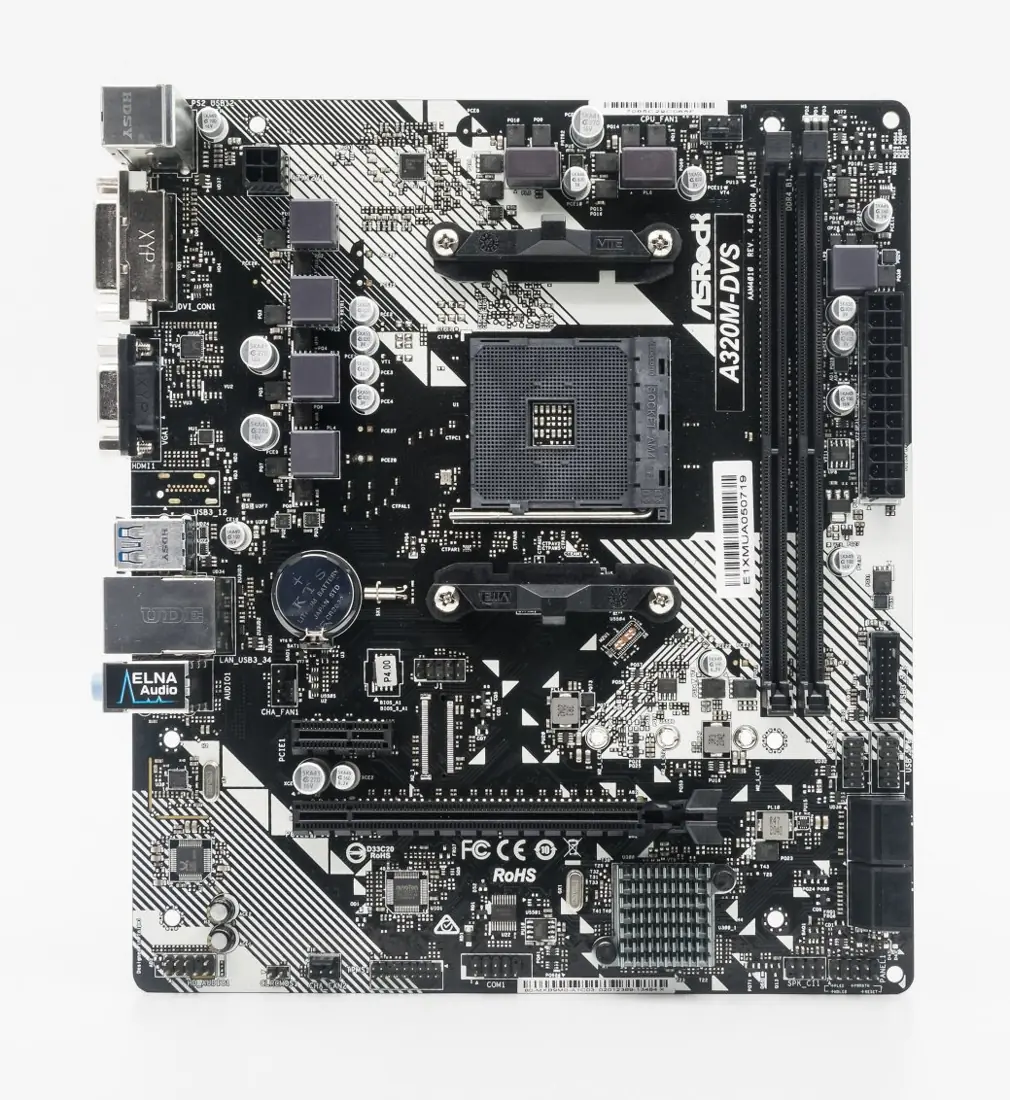
| Bus | Direction | Carries | Width decides |
|---|---|---|---|
| Address bus | unidirectional (CPU → memory/IO) | the address of the location to be read or written | how much memory can be addressed: 2^{n} locations |
| Data bus | bidirectional | the actual data or instruction word | how many bits move per transfer (usually = word length) |
| Control bus | bidirectional (individual lines) | READ, WRITE, CLOCK, RESET, INTERRUPT, memory/IO select, bus request/grant | timing and coordination |
Problem. A processor has a 24-bit address bus and a 16-bit data bus. Find(a) the maximum memory it can address, and(b) the total memory in bytes if each addressable location stores one word.
Solution. (a) Number of locations = 2^{24} = 16{,}777{,}216 = 16\ \text{M} locations.
(b) Each word is 16 bits = 2 bytes, so
1.10 Primary memory: RAM, ROM, Cache, Buffer
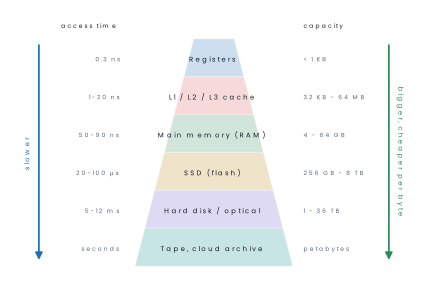
Primary (main) memory is semiconductor memory that the CPU can address directly. It is fast, expensive per byte, and small compared with storage.
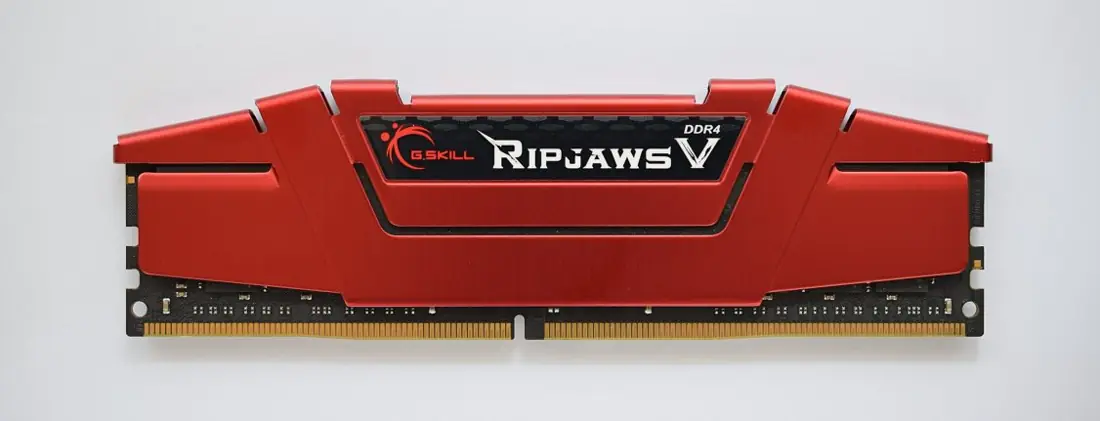
RAM (Random Access Memory) is read/write, volatile (contents lost when power goes off) and used as working memory. "Random access" means any location takes the same time to reach, unlike tape.
| SRAM | DRAM | |
|---|---|---|
| Storage cell | flip-flop (4–6 transistors) | one transistor + one capacitor |
| Refresh needed | no | yes, thousands of times per second |
| Speed | very fast | slower |
| Cost and density | expensive, low density | cheap, high density |
| Power | higher (static) | lower per bit |
| Used as | cache memory | main memory |
DRAM has evolved SDRAM → DDR → DDR2 → DDR3 → DDR4 → DDR5, which is the standard for new PCs in 2026 with module speeds commonly from 4800 to about 8000 MT/s.
ROM (Read Only Memory) is non-volatile and holds firmware — the BIOS/UEFI that starts the machine (the bootstrap program), and the control programs of embedded devices.
| ROM type | Written by | Erasable? |
|---|---|---|
| MROM (Masked ROM) | the manufacturer, during fabrication | no |
| PROM (Programmable ROM) | the user, once, with a PROM burner | no |
| EPROM (Erasable PROM) | the user | yes — ultraviolet light through a quartz window, whole chip |
| EEPROM (Electrically Erasable PROM) | the user | yes — electrically, byte by byte |
| Flash ROM | the user | yes — electrically, in blocks; fast; used for BIOS and pen drives |
Cache memory is a small, very fast SRAM between the CPU and main memory that holds recently and frequently used instructions and data. When the CPU finds what it wants in cache that is a hit, otherwise a miss.
Levels: L1 (on each core, smallest, fastest), L2 (per core, larger), L3 (shared by all cores). Cache works because of locality of reference.
Buffer is a temporary holding area in RAM (or inside a device) that compensates for the difference in speed between two units — for example a print buffer lets the CPU dump a document and carry on while the slow printer prints, and a video buffer stores the next few seconds of a stream.
Cache speeds up repeated access to the same data and is managed by hardware; a buffer matches speeds between a fast and a slow device and is usually managed by software. Both are temporary, but they solve different problems.
1.11 Secondary Memory: Magnetic Disk, Flash Memory, Optical Disk, External Storage
Secondary memory is non-volatile, large, cheap per byte and not directly addressable by the CPU.
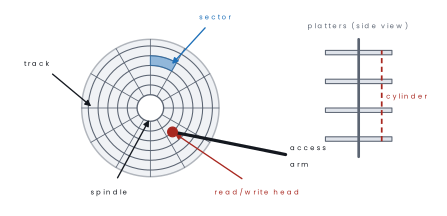
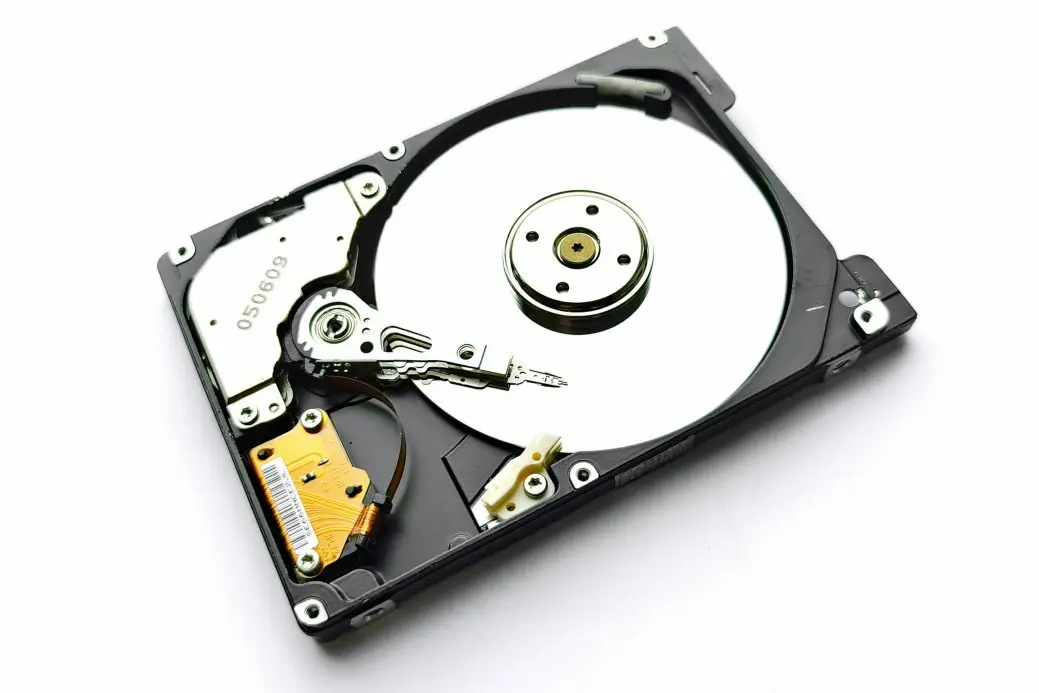
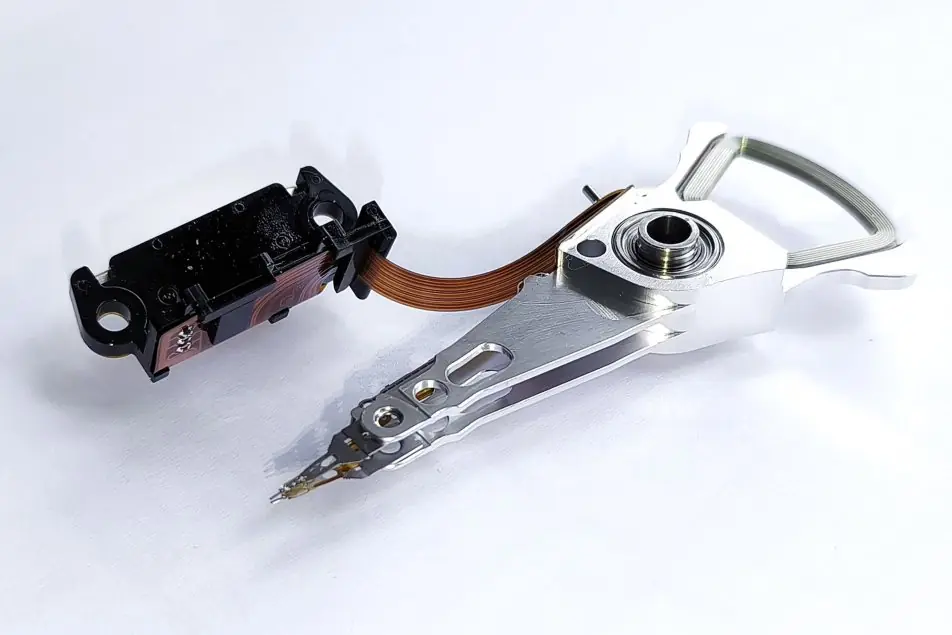
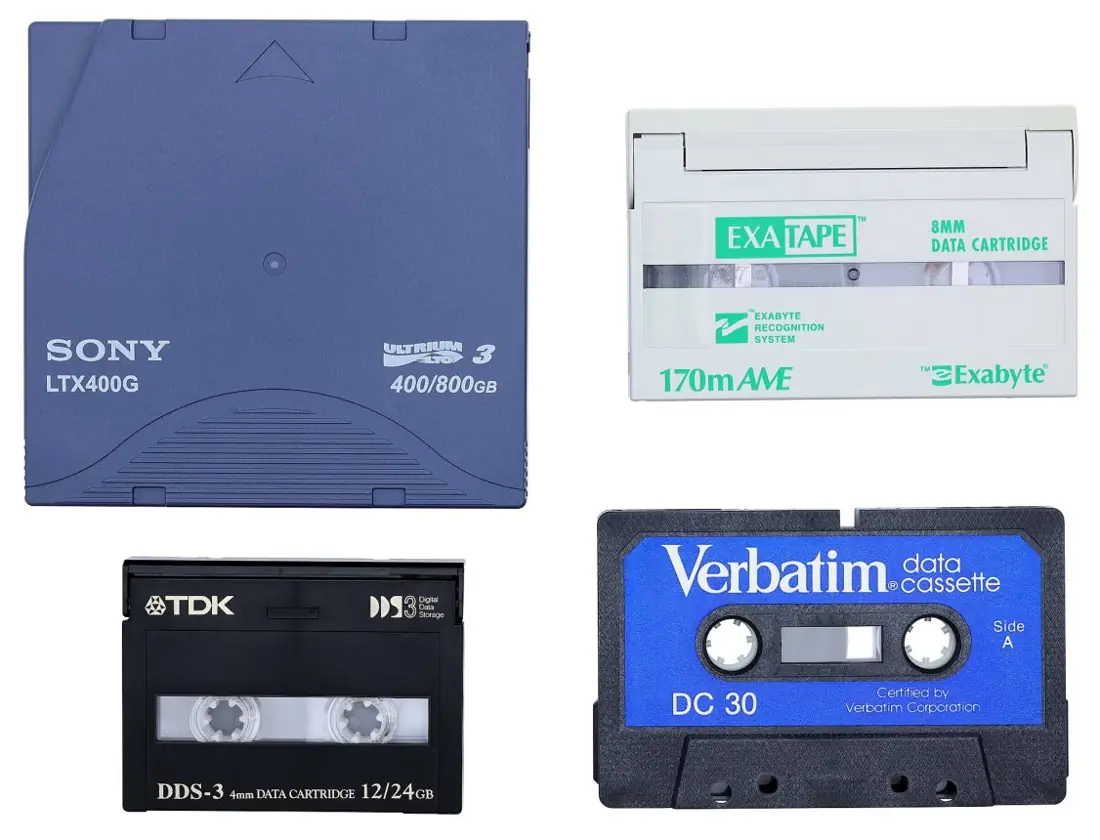
Magnetic disk. A hard disk drive (HDD) stores bits as magnetised spots on rotating aluminium or glass platters coated with magnetic material.
Each surface is divided into concentric tracks, each track into sectors (traditionally 512 bytes, now usually 4096 bytes in Advanced Format). Tracks at the same radius on all surfaces make a cylinder.
Access time = seek time + rotational latency + transfer time. Drives spin at 5400, 7200, 10000 or 15000 rpm.
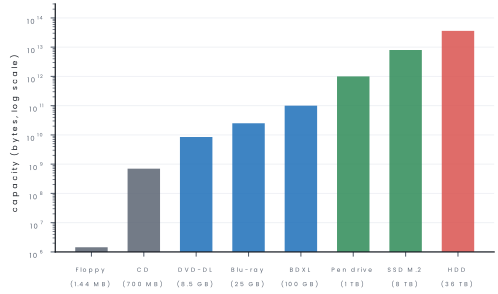
In 2026 desktop HDDs of 1–8 TB are ordinary and data-centre drives using HAMR technology reach 30–36 TB, with 40 TB+ models shipping to hyperscale customers. Magnetic tape is still used for cheap archival backup.
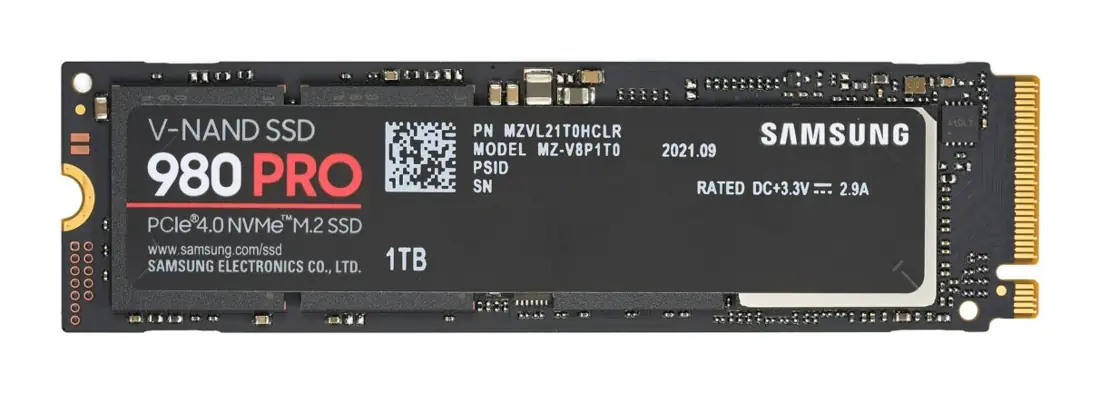
Flash memory is EEPROM-based solid-state storage with no moving parts: pen drives, memory cards (SD, microSD) and SSDs.
It is fast, silent, shock-proof and low-power, but has a limited number of write cycles and costs more per gigabyte than an HDD. Consumer SSDs run to 8 TB (M.2 NVMe); enterprise flash drives of about 245 TB exist as of 2026.
Optical disk. Data is written as microscopic pits and lands along one long spiral track, read by reflecting a laser beam off the surface.
| Disk | Laser | Capacity | Notes |
|---|---|---|---|
| CD-ROM / CD-R / CD-RW | infrared, 780 nm | 700 MB | audio and small data |
| DVD | red, 650 nm | 4.7 GB single layer, 8.5 GB dual layer | film, software |
| Blu-ray (BD) | blue-violet, 405 nm | 25 GB single layer, 50 GB dual layer | HD video |
| BDXL | blue-violet | 100 GB / 128 GB | archival |
External storage devices connect through a port rather than sitting inside the case: external HDD and SSD (USB or Thunderbolt), pen drive, memory card, network attached storage (NAS) and cloud storage (Google Drive, OneDrive).
1.12 Input Devices
An input device is a peripheral that accepts data and instructions from the outside world and converts them into the binary form the computer can process.
| Device | How it works | Typical use |
|---|---|---|
| Keyboard | each key closes a switch; the keyboard controller sends a scan code | text entry; QWERTY layout, 104 keys |
| Mouse | optical sensor or ball tracks movement; pointing device | GUI pointing, drag and drop |
| Scanner | a light source and CCD/CIS sensor digitise a page into an image (measured in dpi) | copying documents and photographs |
| Light pen | a photodetector in a pen senses the screen and reports position | drawing directly on the screen, CAD |
| OMR (Optical Mark Reader) | detects the presence of pencil marks in fixed positions by reflected light | multiple-choice answer sheets, Loksewa and entrance exams |
| OCR (Optical Character Recognition) | software recognises the shapes of printed or written characters and converts them to editable text | digitising books and forms |
| BCR (Bar Code Reader) | a laser scans the bar pattern; reflected light gives a digit string (e.g. EAN-13) | supermarket billing, library, inventory |
| MICR (Magnetic Ink Character Recognition) | reads characters printed in magnetic ink in the E-13B font | bank cheque clearing, used by Nepali banks |
| Touch screen | resistive or capacitive layer detects the position of a finger | ATMs, smartphones, kiosks, POS |
| Microphone | a transducer turns sound pressure into an electrical signal, digitised by the sound card | voice input, recording, online class |
| Digital camera / webcam | a lens focuses light onto a CCD/CMOS sensor; resolution in megapixels | photographs, video conferencing |
Other input devices worth naming: joystick, trackball, graphics tablet, biometric (fingerprint, iris) scanner, QR code reader, and sensors of all kinds.
OMR reads marks (is the bubble filled?), OCR reads shapes of characters, MICR reads magnetic ink characters, BCR reads bars. Exam questions almost always ask you to distinguish OMR from OCR — the key word is mark versus character.
1.13 Output Devices
Output is either soft copy (temporary — screen, sound) or hard copy (permanent — paper).
Monitor. The Visual Display Unit. Quality is described by resolution (pixels, e.g. HD 1366×768, Full HD 1920×1080, 4K UHD 3840×2160), refresh rate (Hz), dot pitch and colour depth.
| LCD | LED | OLED | |
|---|---|---|---|
| Backlight | cold cathode fluorescent lamp (CCFL) | light-emitting diodes | none — each pixel emits its own light |
| Thickness | thicker | thin | thinnest |
| Power | moderate | lower | lowest for dark images |
| Contrast / black level | moderate | better | best (true black) |
| Cost | lower | moderate | highest |
Strictly, an "LED monitor" is an LCD panel with an LED backlight.
Printers. Divided into impact (the head strikes the paper through a ribbon) and non-impact.
| Dot matrix | Inkjet | Laser | |
|---|---|---|---|
| Type | impact | non-impact | non-impact |
| Mechanism | 9 or 24 pins strike an inked ribbon | tiny nozzles spray liquid ink droplets | laser draws a charged image on a drum; toner is fused by heat |
| Quality | low (visible dots) | good, photo-quality | excellent, sharp text |
| Speed unit | characters per second (cps) | pages per minute (slow) | pages per minute (fast) |
| Noise | noisy | quiet | quiet |
| Running cost | very low | high (cartridges) | low per page |
| Best for | multi-part carbon bills, bank passbooks | photos, home use | offices, high volume |
Also: plotters (large engineering drawings), 3D printers, projectors (LCD/DLP).
Speaker. Converts the digital audio signal — after the sound card's digital-to-analogue converter — into sound waves. Output is described by power (watts) and frequency response; headphones and earphones are personal versions.
1.14 Hardware Interfaces: ports, slots and standards
A port is a socket on the outside of the system unit through which a peripheral is connected to the computer's bus. An interface is the complete set of electrical, mechanical and logical rules for that connection.
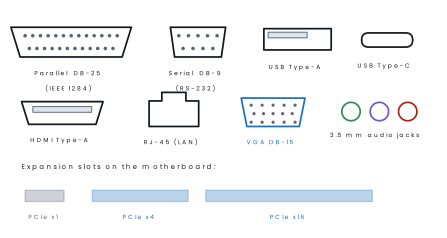
| Interface | Transmission | Connector | Speed | Status |
|---|---|---|---|---|
| Parallel port | 8 bits side by side on 8 wires | DB-25 female | up to about 2.5 MB s⁻¹ (ECP) | obsolete; was used for printers |
| Serial port | 1 bit at a time on one wire | DB-9 (RS-232) | up to 115.2 kbps | obsolete; was used for modems, mice |
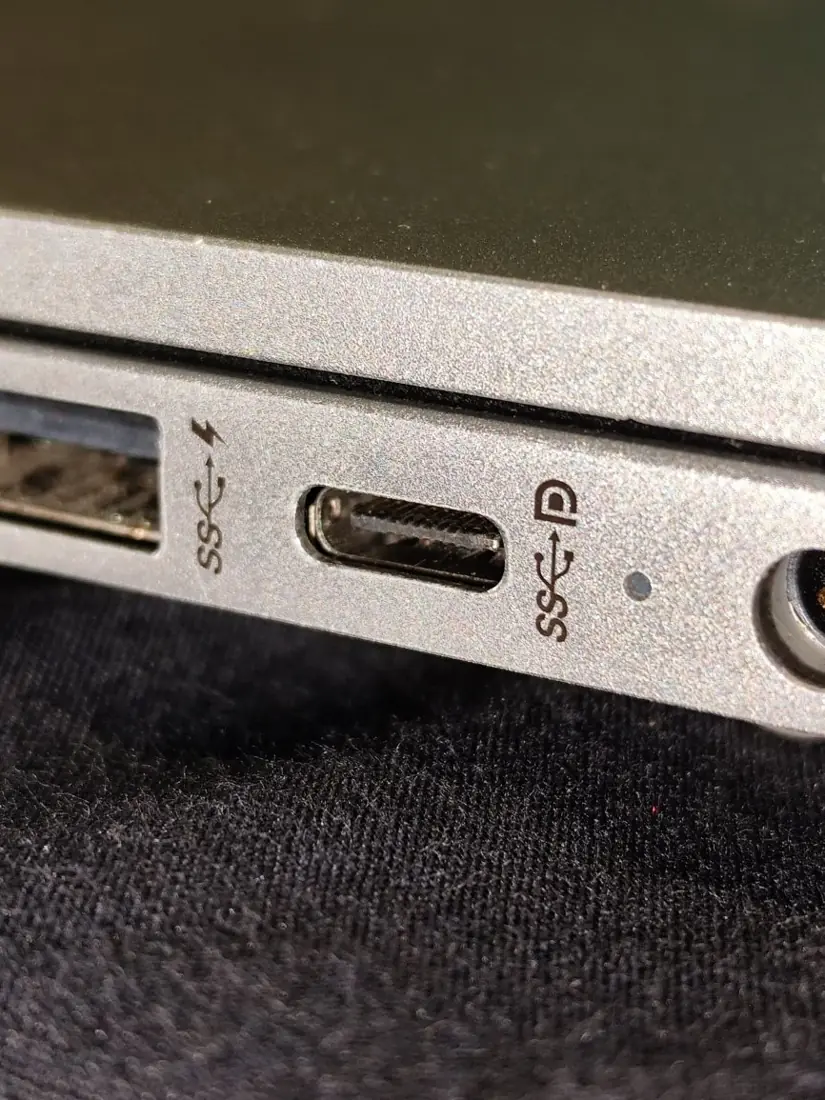
| USB | serial, differential pair, hot-swappable, supplies power | Type-A, Type-B, micro, Type-C | 1.1: 12 Mbps · 2.0: 480 Mbps · 3.2 Gen1: 5 Gbps · Gen2: 10 Gbps · Gen2×2: 20 Gbps · USB4: 40 Gbps · USB4 v2: 80 Gbps | current standard |
| HDMI | digital video and audio on one cable | 19-pin Type-A | 1.4: 10.2 Gbps · 2.0: 18 Gbps · 2.1: 48 Gbps · 2.2: 96 Gbps | current standard |
| Expansion slot | parallel/serial lanes into the system bus | ISA, PCI, AGP, PCI Express | PCIe 4.0 ×16 ≈ 32 GB s⁻¹; PCIe 5.0 ×16 ≈ 63 GB s⁻¹ | PCIe only |
Despite the name, a parallel port is slower than a modern serial port: pushing eight bits simultaneously down eight long wires causes skew and crosstalk, so parallel links cannot be clocked fast.
Modern high-speed links (USB, SATA, PCIe, HDMI) are all serial for exactly this reason.
USB Power Delivery now carries up to 240 W, enough to charge a laptop over the same cable that carries the data.
HDMI version 2.2, released in June 2025, raised the maximum bandwidth to 96 Gbps and requires the new Ultra96 certified cable; it supports up to 12K at 120 Hz.
Expansion slots are connectors on the motherboard into which add-on cards (graphics, sound, network, capture) are plugged.
The historical order is ISA → PCI → AGP (graphics only) → PCI Express, which uses point-to-point serial lanes (×1, ×4, ×8, ×16) instead of a shared parallel bus.

Chapter summary
- A computer accepts input, processes it under a stored program, stores data and produces output: the IPO-S cycle. Its characteristics are speed, accuracy, diligence, versatility, storage, automation and reliability — with no IQ.
- Five generations: vacuum tube → transistor → IC → microprocessor → AI/ULSI. Babbage is the Father of Computer; the Intel 4004 (1971) began generation four.
- Speed units: Hz/MHz/GHz, MIPS, FLOPS; time units ms, μs, ns, ps with T = 1/f. Storage: 8 bits = 1 byte, and 1\ \text{KB} = 2^{10} bytes, each further step \times 2^{10}.
- Classification by power: supercomputer > mainframe > mini > microcomputer.
- Architecture = what the machine does (programmer's view); organization = how it is built (implementation).
- Block diagram: input → CPU (CU + ALU + registers) ↔ primary memory ↔ secondary storage → output, with control signals from the CU to every unit.
- An n-bit address bus addresses 2^{n} locations; the address bus is unidirectional, the data bus bidirectional, the control bus carries commands.
- RAM is volatile (SRAM = cache, DRAM = main memory); ROM is non-volatile (MROM, PROM, EPROM, EEPROM, Flash). Cache speeds repeat access; a buffer matches unequal speeds.
- Secondary storage: magnetic disk (tracks, sectors, cylinders), flash/SSD, optical (CD 700 MB, DVD 4.7 GB, BD 25 GB), external and cloud.
- Serial interfaces (USB, HDMI, PCIe) have replaced the old parallel and RS-232 ports because long parallel links cannot be clocked fast.
Practice questions
Group A — Multiple choice (1 mark each)
- Which of the following is not a characteristic of a computer? [1]aDiligencebVersatilitycIntelligencedAccuracy
- The microprocessor that started the fourth generation of computers is [1]aIntel 8085bIntel 4004cIntel 8088dMotorola 6800
- If the address bus of a CPU is 20 bits wide, the maximum number of memory locations it can address is [1]a20b2^{20}c20^{2}d2^{10}
- Which memory is volatile? [1]aROMbEPROMcRAMdFlash memory
- A device that reads characters printed in magnetic ink on a bank cheque is [1]aOMRbOCRcMICRdBCR
- The capacity of a standard single-layer DVD is about [1]a700 MBb4.7 GBc25 GBd8.5 GB
- Which port carries digital video and audio together on one cable? [1]aVGAbRS-232cHDMIdIEEE 1284
Answers to Group A
1. (c) — a computer has no IQ of its own; it only follows instructions.
2. (b) — the Intel 4004 (1971) was the first microprocessor.
3. (b) — an n-line address bus selects 2^{n} distinct addresses.
4. (c) — RAM loses its contents when power is removed.
5. (c) — MICR reads the E-13B magnetic ink characters on cheques.
6. (b) — DVD-5 single layer holds 4.7 GB; 8.5 GB is dual layer.
7. (c) — VGA is analogue video only; HDMI carries both digital video and audio.
Group B — Short answer (5 marks each)
- Define a computer. Explain any four characteristics of a computer with one example of each. [5]
- Differentiate between computer architecture and computer organization with two examples of each. [5]
- What is a bus? Describe the three types of bus in a computer system, stating the direction of each. [5]
- Differentiate between RAM and ROM. Name and describe any three types of ROM. [5]
- A computer has a 32-bit address bus and a 64-bit data bus. Its clock runs at 4 GHz and one memory transfer takes 5 clock cycles. Find(a) the maximum addressable memory in GB if each location holds one byte,(b) the clock period, and(c) the peak transfer rate in GB s⁻¹. [5]
- Distinguish between OMR, OCR and MICR, giving one application of each. [5]
Answers to Group B
1. A computer is an electronic device that accepts data as input, processes it according to a stored program, stores the data and results, and produces useful information as output. Four of its characteristics follow.
Speed it performs billions of operations per second, so a result file of lakhs of students can be graded in minutes.
Accuracy it repeats arithmetic without random error, and a wrong output means wrong input (GIGO); a bank adds interest to every account to the same precision.
Diligence it never tires or loses concentration, so a billing system can process every meter reading month after month.
Versatility the same hardware does word processing, accounting or games when the program is changed. Other characteristics are storage capacity, automation and reliability.
A computer has no intelligence or feelings of its own, so it can only do what the program tells it.
Together these properties explain why computers have replaced manual work in banks, offices, schools and hospitals, and they also show the limits of the machine: it is fast and accurate, but it is not able to think.
2. Computer architecture describes the attributes of a computer that a programmer can see and that decide what it can do, while computer organization describes how those attributes are physically built and connected.
Architecture answers what the machine does; organization answers how it does it.
| Basis | Architecture | Organization |
|---|---|---|
| Concerned with | Logical, programmer-visible design | Physical implementation |
| Examples | Instruction set, number of registers, data types, addressing modes | Control signals, interfaces, memory technology, bus design |
| Question | What operations are available? | How is the operation carried out in hardware? |
| Changes | Rarely, because software depends on it | Often, with each new chip model |
Example 1: whether a processor has a multiply instruction is an architectural decision; whether it is done by a dedicated multiplier circuit or by repeated addition is an organizational one.
Example 2 a 64-bit instruction set is architecture, but the number of cache levels used to implement it is organization.
Two processors from different makers can share one architecture (the same instruction set) while having very different organizations, which is why the same software runs on both.
Thus architecture is the design plan, and organization is the construction that follows it.
4. RAM (Random Access Memory) is the main working memory: it is read-write and volatile, so the contents are lost when the power is switched off. ROM (Read-Only Memory) is normally only read and is non-volatile, so it keeps its contents without power.
| Basis | RAM | ROM |
|---|---|---|
| Operation | Read and write | Mainly read |
| Volatility | Volatile | Non-volatile |
| Use | Running programs and data | Start-up (BIOS) program, firmware |
| Speed and cost | Fast, costlier per bit | Slower to write |
| Types | SRAM, DRAM | PROM, EPROM, EEPROM |
Three types of ROM: (i) PROM (Programmable ROM) is blank when made and can be programmed once by the user with a special device; after that it cannot be changed.
(ii) EPROM (Erasable PROM) can be erased by exposing its quartz window to strong ultraviolet light and then reprogrammed, but the whole chip is erased at once.
(iii) EEPROM (Electrically Erasable PROM) can be erased and rewritten electrically, byte by byte, without removing the chip; flash memory in pen drives and SSDs is a development of it.
A computer keeps its BIOS or start-up firmware in ROM-type memory so that it always knows how to boot, while RAM holds everything that changes while you work.
3. A bus is a set of parallel wires carrying bits between the units of a computer. The address bus is unidirectional (CPU → memory/I/O) and carries the address of the location being accessed; n lines give 2^{n} locations.
The data bus is bidirectional and carries the actual data or instruction; its width normally equals the word length.
The control bus carries individual timing and command signals (READ, WRITE, CLOCK, RESET, INTERRUPT) in both directions.
5.(a) Locations = 2^{32} = 4{,}294{,}967{,}296; at one byte each that is 2^{32}/2^{30} = 4\ \text{GB}.(b) T = 1/(4\times10^{9}) = 0.25\ \text{ns}.(c) One transfer takes 5 \times 0.25 = 1.25\ \text{ns} and moves 64 bits = 8 bytes, so the rate is 8/(1.25\times10^{-9}) = 6.4\times10^{9}\ \text{B s}^{-1} = 6.4\ \text{GB s}^{-1}.
6. OMR senses whether a mark has been made in a fixed position by measuring reflected light — used for MCQ answer sheets.
OCR recognises the shape of printed or handwritten characters and converts them to editable text — used to digitise books and forms. MICR reads characters printed in magnetic ink in the E-13B font — used for clearing bank cheques.
Group C — Long answer (8 marks each)
- Draw the block diagram of a computer system and explain the function of each unit. Clearly distinguish the data path from the control path, and state the function of the control unit, the ALU and the registers. [8]
- (a) What is a microprocessor? Explain clock speed and word length, and state how each affects performance. [4](b) A processor has a clock speed of 3.2 GHz, a 16-bit data bus and a 28-bit address bus. Calculate the clock period, the memory it can address in MB, and the number of instructions executed per second if each instruction takes 8 clock cycles. [4]
- Explain the memory hierarchy of a computer. Compare cache, primary memory and secondary memory on speed, cost, capacity and volatility, and explain with an example why cache memory improves performance. [8]
Answer outline to Group C
1. Draw input unit → CPU → output unit with primary memory above the CPU and secondary storage below. Inside the CPU show CU, ALU and registers.
Solid arrows = data and instructions; dashed arrows = control signals radiating from the CU to input, memory, ALU and output.
Then describe: input converts data to binary; the CU fetches, decodes and issues control signals but performs no arithmetic; the ALU performs arithmetic and logic; registers hold operands and results; primary memory holds the running program; secondary storage keeps data permanently; output converts binary back to human-readable form.
2. (b) T = 1/(3.2\times10^{9}) = 0.3125\ \text{ns}. Addressable locations = 2^{28} = 268{,}435{,}456; at 16 bits = 2 bytes each, total = 2^{28}\times 2 = 2^{29}\ \text{B} = 512\ \text{MB}.
One instruction takes 8 \times 0.3125 = 2.5\ \text{ns}, so the rate is 1/(2.5\times10^{-9}) = 4\times10^{8} instructions per second = 400 MIPS.
3. Sketch the pyramid: registers, L1/L2/L3 cache, RAM, SSD, HDD, tape/cloud. Going down, capacity and cost per byte improve but access time worsens by roughly a factor of ten per level.
Cache is small, fast, volatile SRAM; primary memory is larger, slower, volatile DRAM; secondary memory is largest, slowest and non-volatile.
Cache works because of locality of reference — a loop executed a million times is fetched into cache once and then read at cache speed, so a 90 % hit rate can cut the average access time of a 1 ns cache and a 60 ns RAM to about 0.9(1) + 0.1(60) = 6.9\ \text{ns}.
Group D — Long answer (10 marks each), with full model answers
- Describe the generations of computers. Compare them in a table. [10]
- Explain computer architecture with a neat block diagram of a computer system. [10]
- What is a computer? Explain its characteristics and any five applications, with examples from Nepal. [10]
Model answer D1: generations of computers (10 marks)
Introduction. A generation of computers is a stage in the history of computing that is defined by the main electronic technology used for switching.
Five generations are recognised, and each is smaller, faster, cheaper and more reliable than the one before. (Draw the timeline figure of section 1.2.)
Explanation. The first generation (1946-1958) used vacuum tubes; ENIAC and UNIVAC-I were huge, hot and unreliable, programmed in machine language with a magnetic drum for memory.
The second generation (1959-1964) used transistors, magnetic core memory, assembly language and early FORTRAN and COBOL; the IBM 1401 is an example, and a machine of this type processed Nepal's 2028 BS census.
The third generation (1965-1970) used integrated circuits, introduced operating systems and multiprogramming, and keyboards and monitors; the IBM 360 and PDP-8 are examples.
The fourth generation (1971-present) is based on the microprocessor, starting with the Intel 4004; it gave us the personal computer, GUI, networks and the Internet.
The fifth generation (present and future) uses ULSI chips, parallel processing, artificial intelligence and quantum technology to make machines that can learn and understand speech.
| Generation | Device | Memory | Language | Example |
|---|---|---|---|---|
| First (1946-58) | Vacuum tube | Magnetic drum | Machine | ENIAC, UNIVAC-I |
| Second (1959-64) | Transistor | Magnetic core | Assembly, FORTRAN, COBOL | IBM 1401 |
| Third (1965-70) | IC (SSI/MSI) | Core, early RAM | BASIC, Pascal, OS | IBM 360, PDP-8 |
| Fourth (1971-now) | Microprocessor | Semiconductor RAM | 3GL, 4GL, GUI | IBM PC |
| Fifth (emerging) | ULSI, AI | Very large RAM, optical | Natural language | AI systems |
Merits and demerits. Each step brought lower size, power use and cost with higher speed and reliability. The early generations suffered from heat and failure, and the latest raise issues of privacy, e-waste and jobs.
Conclusion. The history of computers is the history of a shrinking switch: from a glass tube to a transistor to a chip with billions of transistors. This progress made computers affordable for ordinary students in Nepal.
Model answer D2: computer architecture and block diagram (10 marks)
Introduction. Computer architecture is the design of a computer as seen by the programmer: its instruction set, registers, memory and the way the units are connected.
The basic plan used almost universally is the stored-program (von Neumann) model, in which instructions and data share one memory.
(Draw the block diagram of section 1.7: input unit, CPU with CU, ALU and registers, primary memory, secondary storage, output unit; solid arrows for data and dashed arrows for control.)
Explanation of the units.
- Input unit accepts data and instructions from the user (keyboard, mouse, scanner) and converts them to binary.
- Control unit (CU) fetches each instruction, decodes it and sends control signals to the other units; it does no calculation.
- Arithmetic and logic unit (ALU) performs addition, subtraction, comparison and logical operations.
- Registers are very fast storage cells inside the CPU that hold the current instruction, operands and results.
- Primary memory (RAM and ROM) holds the programs and data that are being used now; RAM is volatile.
- Secondary storage (hard disk, SSD, pen drive) keeps programs and data permanently, but is slower.
- Output unit converts binary results to a form people can use (monitor, printer, speaker).
- Buses (address, data, control) are the wires that carry information between these units.
Working. The program is loaded into memory. The CU fetches an instruction, decodes it, the ALU executes it using registers, and the result goes to memory or to the output unit. This fetch-decode-execute cycle repeats millions of times a second.
| Path | Carries | Direction |
|---|---|---|
| Data path (solid) | Data and instructions | Between input, memory, CPU, output |
| Control path (dashed) | Timing and command signals | From the CU to every unit |
Conclusion. Because instructions and data live in one memory, a computer can be reprogrammed simply by loading a different program. This idea is why one machine can serve as a billing terminal in the morning and a game console at night.
Model answer D3: computer, characteristics and applications (10 marks)
Introduction. A computer is an electronic device that accepts data, processes it under the control of a stored program, stores the result and produces information as output. It works in the cycle Input, Process, Output, with Storage.
Characteristics.
- Speed: billions of operations per second; an examination board grades lakhs of students in minutes.
- Accuracy: no random errors; wrong output comes from wrong input (GIGO).
- Diligence: no tiredness, so a billing system runs month after month.
- Versatility: one machine runs many programs.
- Storage capacity: terabytes in a small box, retrieved instantly.
- Automation: runs a program to completion without help.
- Reliability: consistent results over long periods.
- No intelligence: it follows instructions literally.
Applications (five examples from Nepal).
- Banking: ATMs, mobile banking, ConnectIPS transfers and Fonepay QR payment.
- Education: e-learning, online result publication and student records.
- Government: national ID, passport, driving licence and the Nagarik App.
- Weather and science: the Department of Hydrology and Meteorology uses computer models for forecasts and flood warnings.
- Health: hospital records, CT and MRI scanning, and telemedicine for remote districts.
| Area | Computer does | Benefit |
|---|---|---|
| Banking | Processes transactions | Fast, 24-hour service |
| Education | Stores and publishes results | Less paperwork |
| Government | Keeps citizen records | Fewer queues |
| Weather | Runs forecast models | Earlier warnings |
| Health | Stores records, forms images | Faster diagnosis |
Conclusion. Computers are fast, accurate, tireless and versatile, but they have no intelligence of their own. Used properly, they improve almost every service that a Nepali citizen depends on, from banking to weather warnings.
Practise more: Computer Science question bank